How to Post to Instagram from Facebook in 2026
10 min readcross-postinginstagram from facebookmeta business suitesocial media scheduling
You publish a polished update on Facebook, select the Instagram option, and expect the job to be finished. Instead, the Instagram toggle is unavailable, the post never appears, or the caption arrives with an awkward crop and a link that makes little sense in an Instagram feed. Posting to Instagram from Facebook is less about pressing Share and more about managing Meta's account structure, permissions, and format rules.
The reliable approach is simple: connect the right assets, choose the right publishing route, prepare content that fits both platforms, and preview each destination before publishing. Native Meta tools work well for quick updates, but they're less forgiving when you're managing a business Page, scheduled campaigns, carousels, Reels, or platform-specific captions.
Table of Contents
- Linking Accounts in Meta Accounts Center
- Executing the Cross-Post on Mobile and Desktop
- Navigating Format Rules and Content Restrictions
- Tailoring Captions for Platform-Specific Reach
- Troubleshooting Permissions and Publishing Errors
- Scaling Workflows Beyond Native Meta Tools
Linking Accounts in Meta Accounts Center
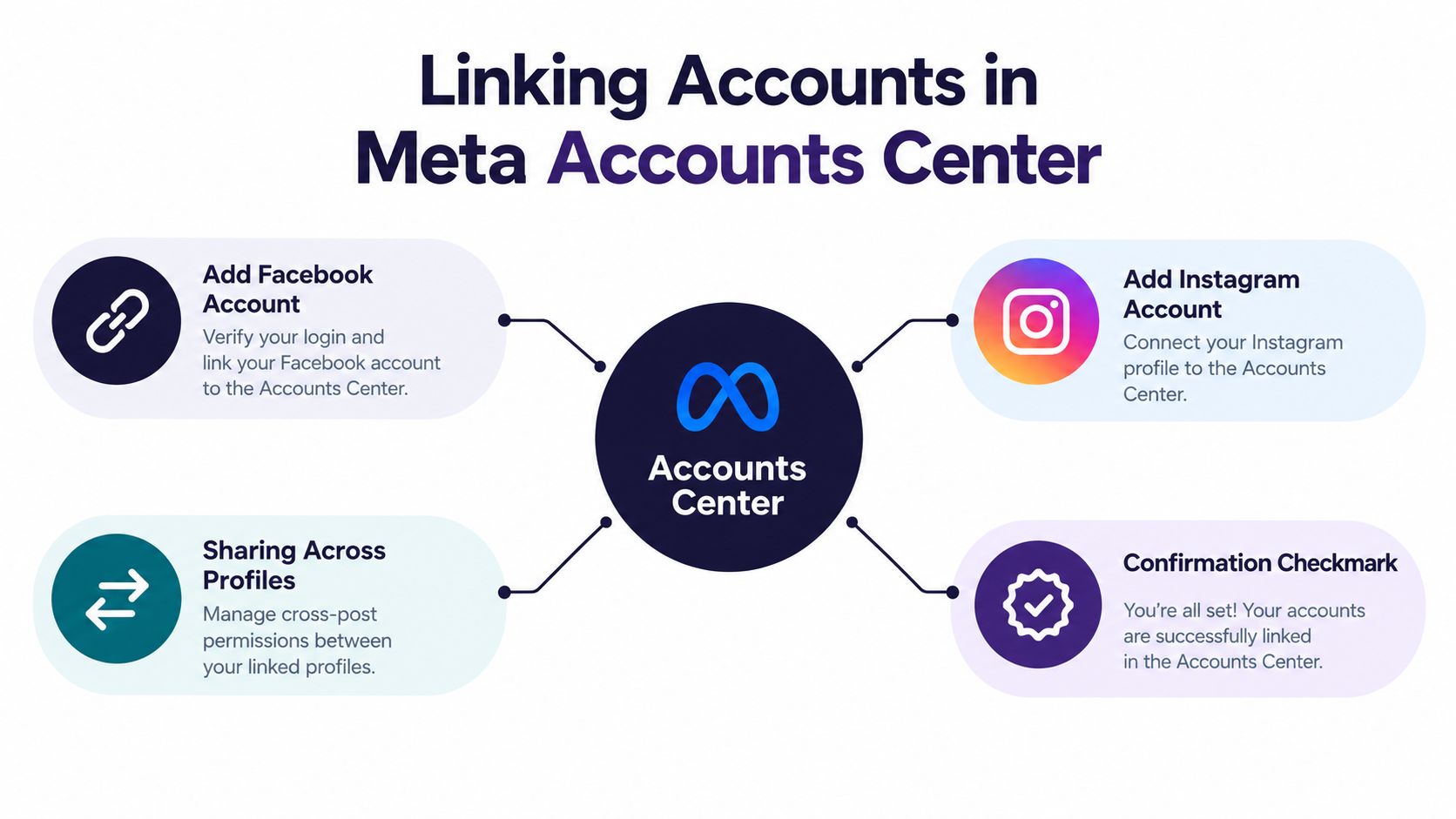
Meta's current cross-posting system starts with Accounts Center, not with the publishing button. Your Facebook profile or Page and Instagram account need to be connected within Meta's account structure before Facebook can send content to Instagram. Having both apps installed, or using the same email address for each account, isn't enough.
For a personal or creator workflow, place the Facebook profile and Instagram account in the same Accounts Center. For a business workflow, connect the professional Instagram account to the relevant Facebook Page. Meta explains that this connection enables cross-posting, shared insights, and access to Instagram business tools through the connected Page. You can also review a practical walkthrough in Trendy's Facebook-Instagram guide, especially if Meta's menus look different in your account.
Use the correct account relationship
A professional Instagram account linked to a Facebook Page generally shares through that Page, not through another Page or a personal Facebook profile. This distinction causes many silent failures. The destination depends on the account type, connected asset, and permissions.
Use this sequence:
- Open Accounts Center from Facebook or Instagram settings.
- Add the Facebook account and Instagram account you intend to use.
- For a professional Instagram account, confirm that it's connected to the correct Facebook Page.
- Check that the person publishing has access to both assets.
- If you're using Meta Business Suite, confirm that the Page and Instagram profile belong to the same business portfolio.
Practical rule: If the Instagram account is connected to the wrong Page, changing the sharing toggle won't fix the workflow. Correct the asset relationship first.
This account architecture is the foundation of what cross-posting means. Once the relationship is correct, you can enable one-time sharing or recurring automatic sharing. If the option still doesn't appear, don't assume the app is broken. Review Page access, business-portfolio membership, and the exact destination selected for publishing.
Executing the Cross-Post on Mobile and Desktop
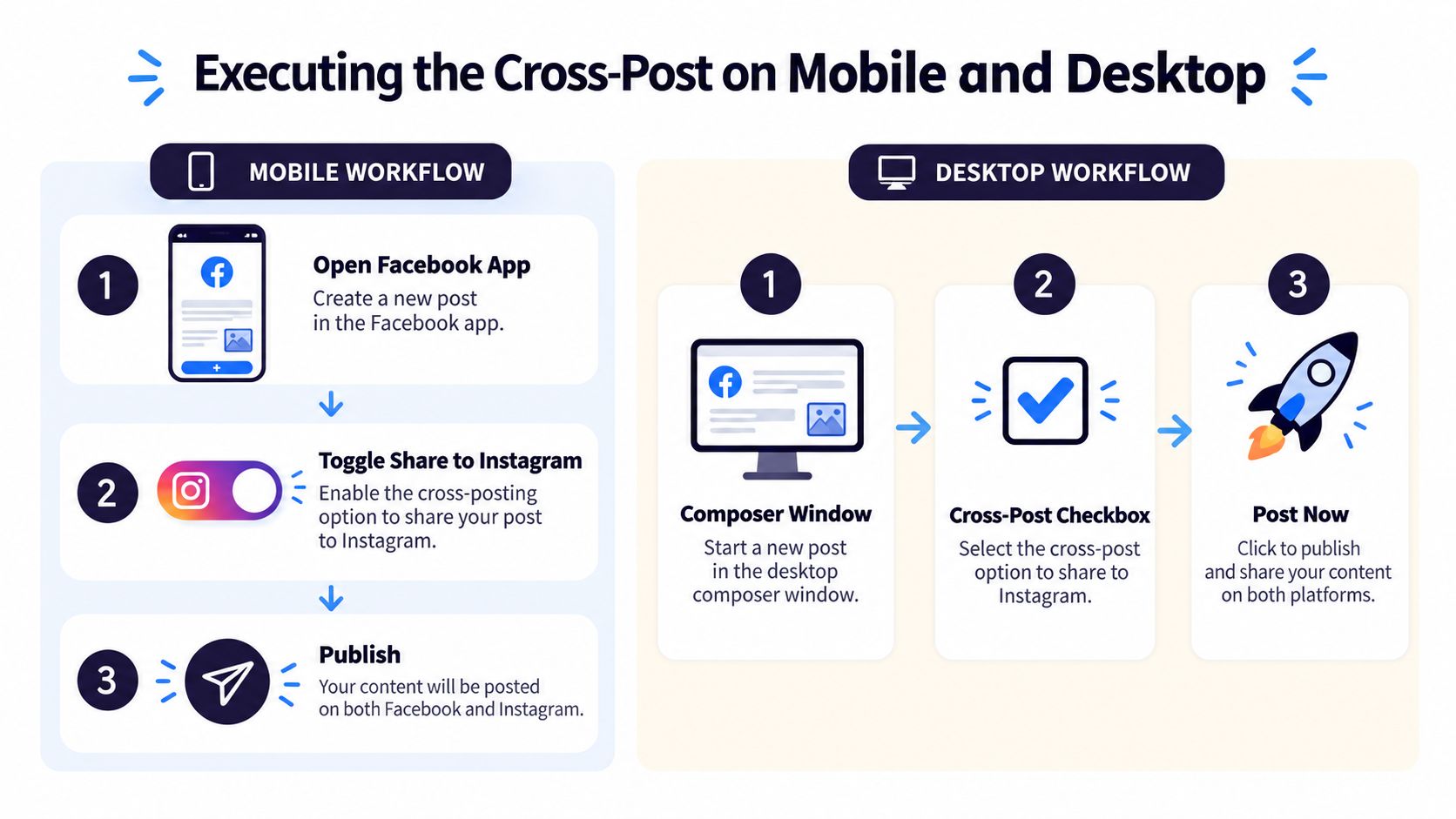
The fastest route is the Facebook mobile composer. It's useful when you're publishing a straightforward update from a personal profile or creator account and want the same post to reach Instagram without opening another publishing dashboard.
In the Facebook app, start a new post by tapping “What's on your mind?”. Look beneath your name for the Instagram control, select it, and enable one-time sharing before publishing. For recurring distribution, open the same Instagram control, enter Accounts Center, and enable automatic sharing for “Your Facebook posts.” Facebook applies the Instagram account's privacy settings to the resulting post.
Choose the desktop route for Page publishing
For a business Page or repeatable campaign, Meta Business Suite gives you more control. From Home or Content, choose Create post, select the Facebook Page and Instagram profile under Post to, upload the media, and write or customize the copy. Inspect both previews, then choose Publish or Schedule.
You can select both destinations by default when the accounts are connected, but deselect either platform before publishing if the asset is intended for only one feed. Meta Business Suite also provides Active times, which uses follower activity from the preceding 7 days as a timing signal, as documented in Meta's publishing guidance. That's useful for scheduling, but it isn't a universal engagement benchmark.
For a separate walkthrough of the desktop route, see how to post to Instagram from a PC. The operating principle is the same on mobile and desktop: confirm the destination before you publish, rather than assuming Meta will infer it correctly.
Navigating Format Rules and Content Restrictions
Cross-posting doesn't mean that every Facebook format can travel to Instagram. Meta uses a format-specific publishing matrix, so the destination changes depending on whether you're working with a Feed post, Story, Reel, or Group post.
A Facebook post can be shared to Facebook Stories, Instagram Feed, Facebook Groups, or Threads. An Instagram post can be shared to Facebook Feed, Instagram Stories, Facebook Groups, or Threads. Instagram Stories can move to Facebook Stories, while Instagram Reels can move to Instagram Stories, Facebook Reels, or Facebook Groups. Facebook Reels can move to Facebook Stories, Instagram Reels, or Facebook Groups. Some destinations, including certain Threads routes and Facebook-post or Facebook-Reel sharing to Facebook Stories, are available only through desktop Business Suite.
| Facebook Content Type | Instagram Destination | Key Restrictions |
|---|---|---|
| Facebook Feed post | Instagram Feed | Text-only posts, reshares, live videos, and unsupported creative features may not transfer |
| Facebook Story | Instagram Stories | The destination depends on the story workflow and available account permissions |
| Facebook Reel | Instagram Reels | Format and destination availability vary by Meta's publishing matrix |
| Facebook post with photos | Instagram Feed | More than 10 photos, mixed dimensions, or unsuitable proportions can block publishing |
| Facebook post with videos | Instagram Feed | Multiple videos may be incompatible with direct sharing |
Instagram carousels support 10 photos, according to Meta's documented Business Suite format guidance. Direct Facebook-to-Instagram sharing can also fail when images are excessively tall or wide, use mixed dimensions, or require unsupported creative features. Eligible images may still be cropped, so check the preview before publishing.
A useful preparation step is to create consistent visual assets before opening the composer. If you need product visuals for a campaign, a tool for generating product mockups online can help you prepare cleaner, platform-ready creative rather than forcing one oversized Facebook image into every destination. You'll also find related planning considerations in this guide to the Instagram post limit.
Tailoring Captions for Platform-Specific Reach
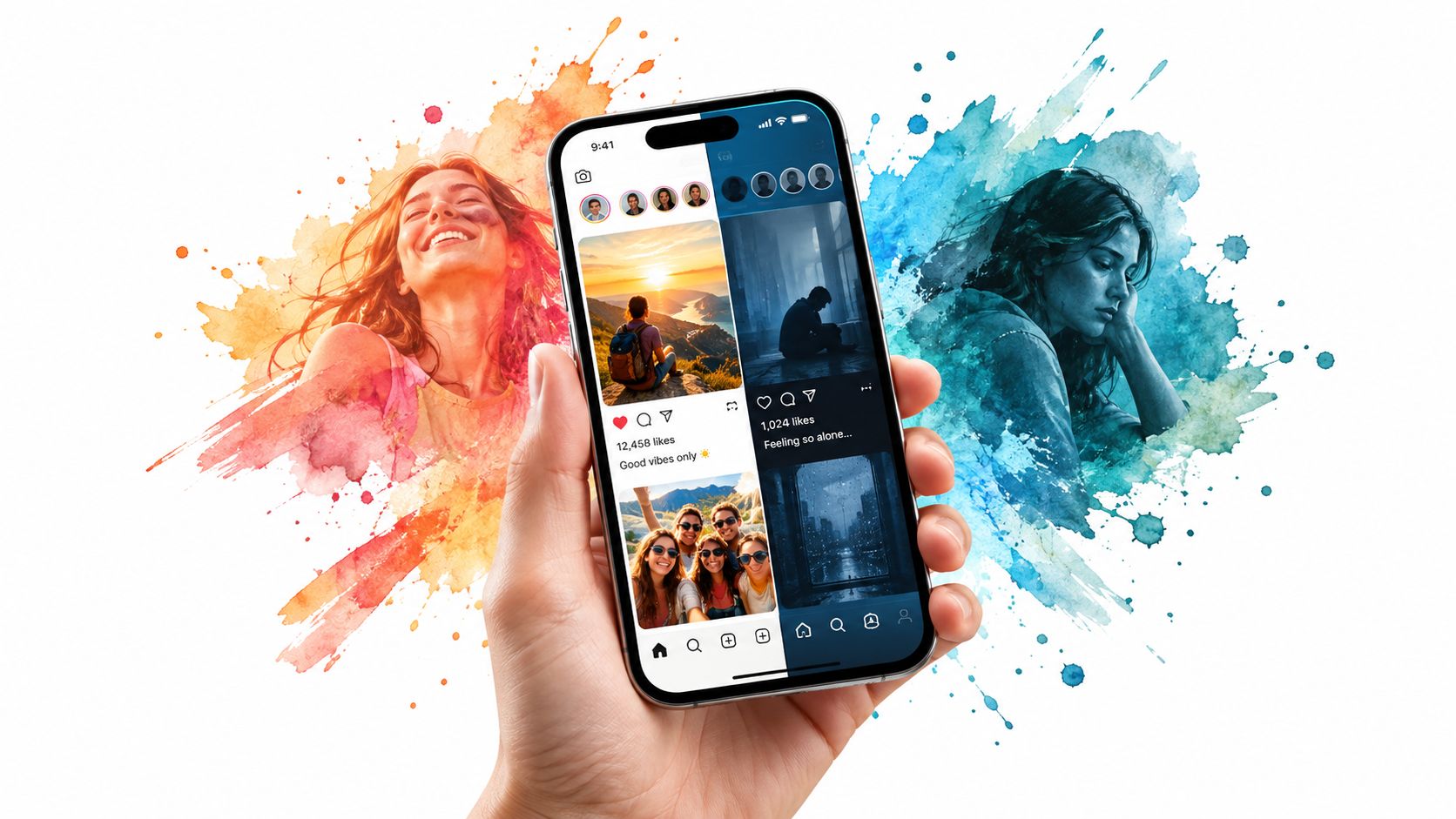
A post can publish successfully and still be a poor Instagram post. Facebook accommodates longer text and link-oriented updates, while Instagram relies more heavily on the image or video, the opening caption lines, tags, music, and the way people move from the post to your profile. A Facebook caption copied without edits can feel incomplete on Instagram, especially when the main call to action depends on a clickable feed link.
Preserve the idea, not the exact post
The most dependable method is tailor, don't copy. Keep the central idea and core creative, then adjust the execution for each feed.
On Facebook, the post might lead with context and finish with a link. On Instagram, lead with the strongest visual point, shorten the opening, move the destination to your profile or a suitable call to action, and remove Facebook-specific phrasing. Check whether tags, music, line breaks, and formatting transferred cleanly instead of assuming they did.
Benchmark reporting cited by Sprout Social's cross-posting analysis reported average reach rates of about 3.50% for Instagram and 1.65% for Facebook, based on posts published from May 2024 to May 2025. The same analysis noted a 12% year-over-year decline for Instagram. Those figures don't prove that cross-posting causes weaker reach, but they do challenge the idea that one identical post is automatically optimized for both platforms.
A successful cross-post is not a duplicated file. It's one campaign idea expressed in the language of each feed.
Use a per-platform preview to catch truncated openings, awkward line breaks, and crops that hide the subject. If hashtags are part of your Instagram workflow, review how to add hashtags to Instagram rather than pasting a Facebook caption with an unrelated tag structure. The extra editing takes less time than repairing a post that looks accidental after publication.
Troubleshooting Permissions and Publishing Errors
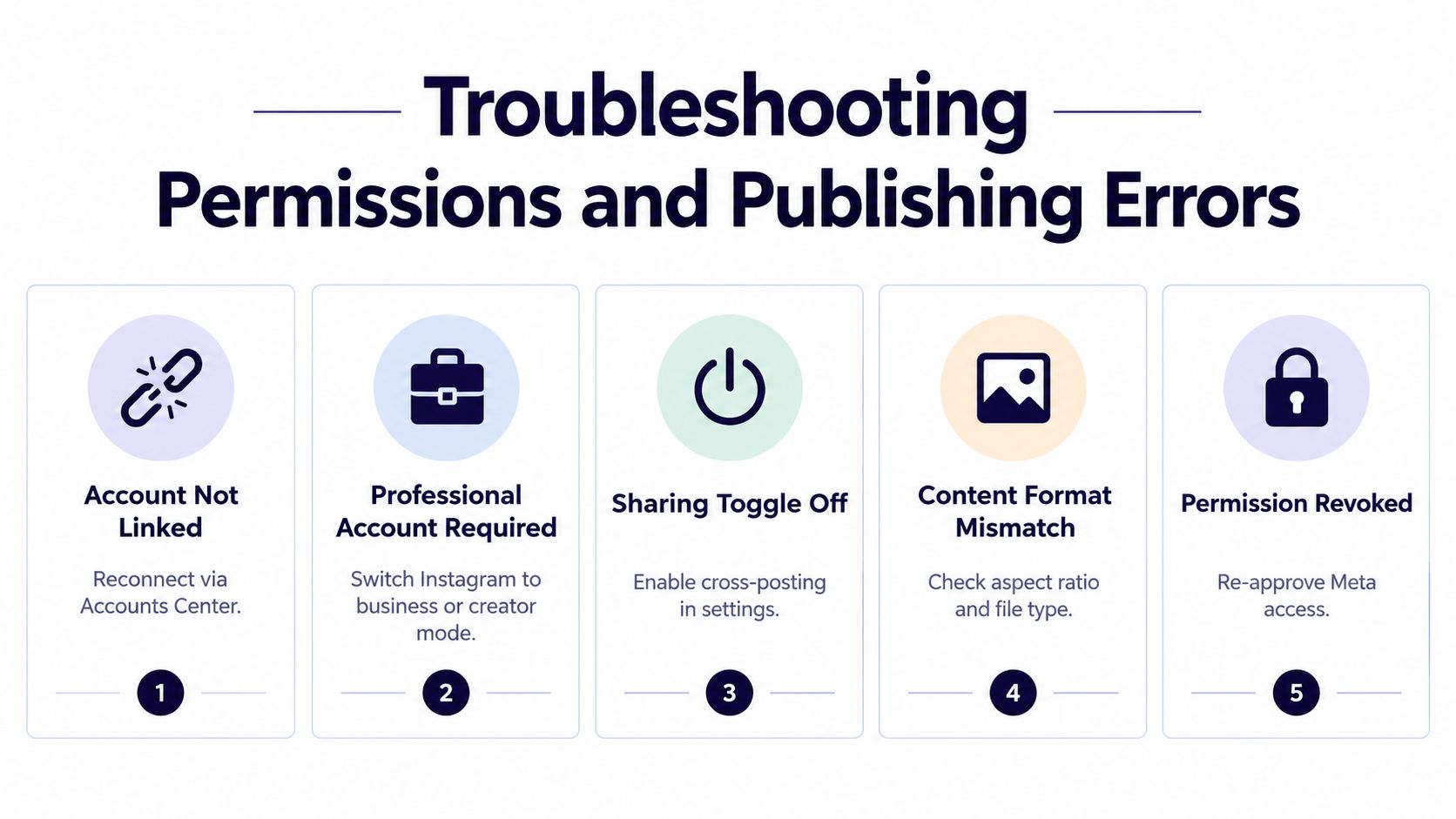
When Facebook-to-Instagram publishing fails, diagnose the account relationship before rewriting the post. Meta's publishing controls can be unavailable because the asset is disconnected, the destination is wrong, or the publisher lacks the required business access.
Run this short diagnostic
- Check the Instagram control: If the control is marked Off, Meta considers sharing unavailable or the content incompatible. Remove unsupported media or simplify the post, then check the control again.
- Reconnect the assets: Open Accounts Center and confirm that the intended Facebook profile or Page is connected to the intended Instagram account.
- Verify the professional connection: A professional Instagram account should be linked to the specific Facebook Page that will receive or send the content.
- Review portfolio access: In Business Suite, confirm that the Page and Instagram profile are in the same business portfolio and that the publisher has the relevant content permission or full control.
- Inspect the creative: Check the crop, dimensions, photo count, video arrangement, and unsupported features before trying again.
Meta's direct sharing guidance lists several blockers, including multiple videos, more than 10 photos, mixed photo dimensions, excessively tall or wide images, text-only content, live videos, reshares, and unsupported creative features. The Facebook help instructions for sharing to Instagram also make clear that eligible images can still be cropped.
If permissions were recently changed, reconnect the accounts and re-approve access rather than repeatedly pressing Publish. For business teams, ask the person who manages the Page or portfolio to verify asset assignments. Correct credentials don't compensate for missing business-asset access.
Scaling Workflows Beyond Native Meta Tools
Native Meta sharing is appropriate for an occasional announcement, quick mobile update, or simple photo post. It becomes harder to manage when a campaign needs separate captions, multiple destinations, scheduled publishing, visual checks, and a consistent content calendar.
The operational difference is significant. With native tools, someone must remember which formats can travel, inspect each preview, rewrite captions where needed, and resolve asset permissions when a post fails. A dedicated scheduler can place the core idea, media, caption variants, and publishing destinations in one workflow. For broader planning principles, automation strategies for social media provide useful context, but automation still needs human review when platforms apply different format rules.
Use a simple decision rule
Choose native Meta tools when:
- You're publishing a simple update immediately.
- The Facebook and Instagram assets are already connected.
- The creative is compatible with both destinations.
- You're comfortable checking each preview manually.
Choose a centralized scheduler when:
- You're managing recurring campaigns or several brand accounts.
- Instagram and Facebook need different captions for the same idea.
- You need a visual calendar and pre-publish checks.
- You want one place to organize assets, campaign pillars, and publishing times.
- Repeated permission and formatting errors are consuming production time.
iHatePosting provides a unified composer for connecting Facebook and Instagram accounts, tailoring captions by platform, previewing posts, and scheduling selected destinations from one dashboard. That doesn't remove the need to respect Meta's permissions or format requirements, but it gives teams a clearer review point before content reaches either feed.
The practical recommendation is to use Meta's native controls for speed and a dedicated workflow for repeatability. Don't treat cross-posting as a blind duplication button. Treat it as a publishing process with an account check, format check, caption check, and destination preview.
If you want to stop rebuilding the same Facebook and Instagram post by hand, visit iHatePosting to connect both accounts, tailor captions per platform, preview the creative, and schedule the destinations from one workflow. Use it for repeatable campaigns where native Meta sharing creates more cleanup than it saves.