How to See Scheduled Posts on Instagram
11 min readscheduled postsInstagram schedulerMeta Business Suitecontent calendar
You open Instagram, head to the menu, and the scheduled post you were sure you queued is nowhere to be found. That usually doesn't mean it disappeared. It means you're checking the wrong surface.
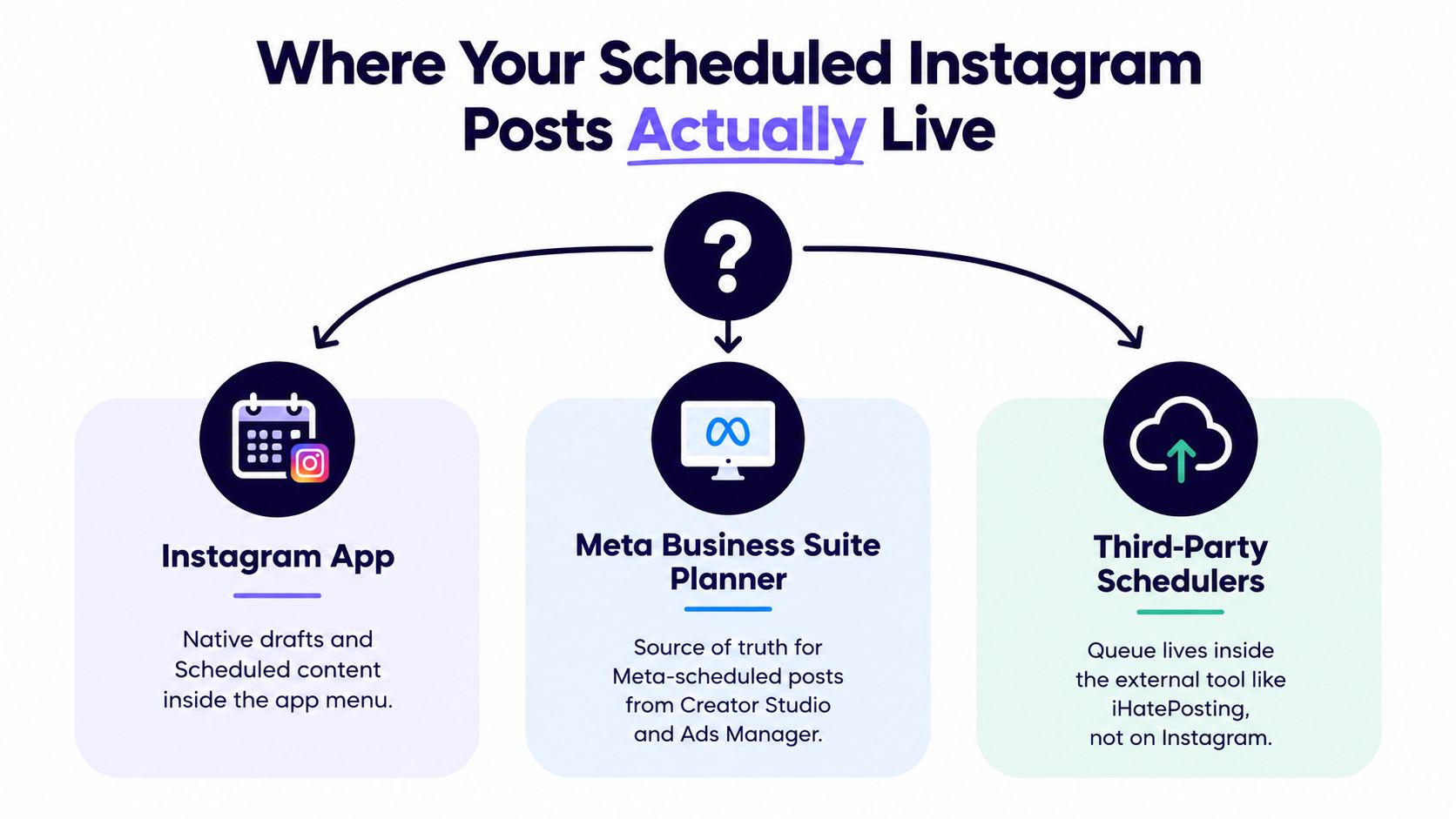
This is the part most guides skip. Scheduled Instagram posts don't all land in one universal queue. They live where you created them. If you scheduled inside Instagram, check Instagram. If you scheduled in Meta Business Suite, check Planner. If you used a social scheduler, the post is usually sitting in that tool's calendar until publish time.
That distinction is the fastest way to answer how to see scheduled posts on Instagram without tapping through three different apps and assuming something broke.
Table of Contents
- Where Your Scheduled Instagram Posts Actually Live
- Finding Scheduled Posts in the Instagram App
- Using Meta Business Suite Planner on Desktop and Mobile
- Which Path Matches Your Account and Workflow
- Viewing Scheduled Posts in Third-Party Schedulers
- Troubleshooting Missing or Stuck Scheduled Posts
- A Reusable Checklist for Every Scheduled Post
Where Your Scheduled Instagram Posts Actually Live
The reason scheduled posts feel "lost" is simple. Instagram doesn't use one master inbox for every scheduled item. The post lives in one place, and that place depends on the tool you used to schedule it.
If you scheduled natively in the Instagram app, your first stop is the app itself. Meta documents an in-app path for viewing and managing queued posts and Reels through For professionals → Account type and tools → Scheduled content, where you can reschedule, edit, delete, or publish immediately via Instagram's help documentation.
The three places to check
Instagram app
Native scheduled posts usually appear. If you tapped Instagram's own scheduling option while creating a post or Reel, start here.Meta Business Suite Planner
Meta says Planner shows both published and scheduled Facebook and Instagram content in Business Suite, which matters if you scheduled through Meta's desktop or business tools via Meta Business Suite Planner guidance.A third-party scheduler
Tools such as Buffer, Later, and other calendar-based schedulers keep the queue inside their own dashboard. Instagram won't reliably act as the source of truth for those pending items.
Practical rule: Open the same tool you used when you hit Schedule. That's usually where the post still lives.
A lot of confusion also comes from people mixing up drafts and scheduled content. If you're also sorting out unpublished work, this guide on Instagram draft posts helps separate saved drafts from queued posts.
For creators who learn best by watching workflow examples, I also like collections of practical walkthroughs such as ImagineVid AI how-to guides, especially when you're trying to compare app-based and desktop-based publishing paths.
Finding Scheduled Posts in the Instagram App
If the post was scheduled natively, Instagram is the quickest place to confirm it. This path is the one I use first when someone says, "I know I set it up on my phone."
Open Instagram and go to your profile. Tap the three-line menu in the top-right corner. Then follow For professionals → Account type and tools → Scheduled content.
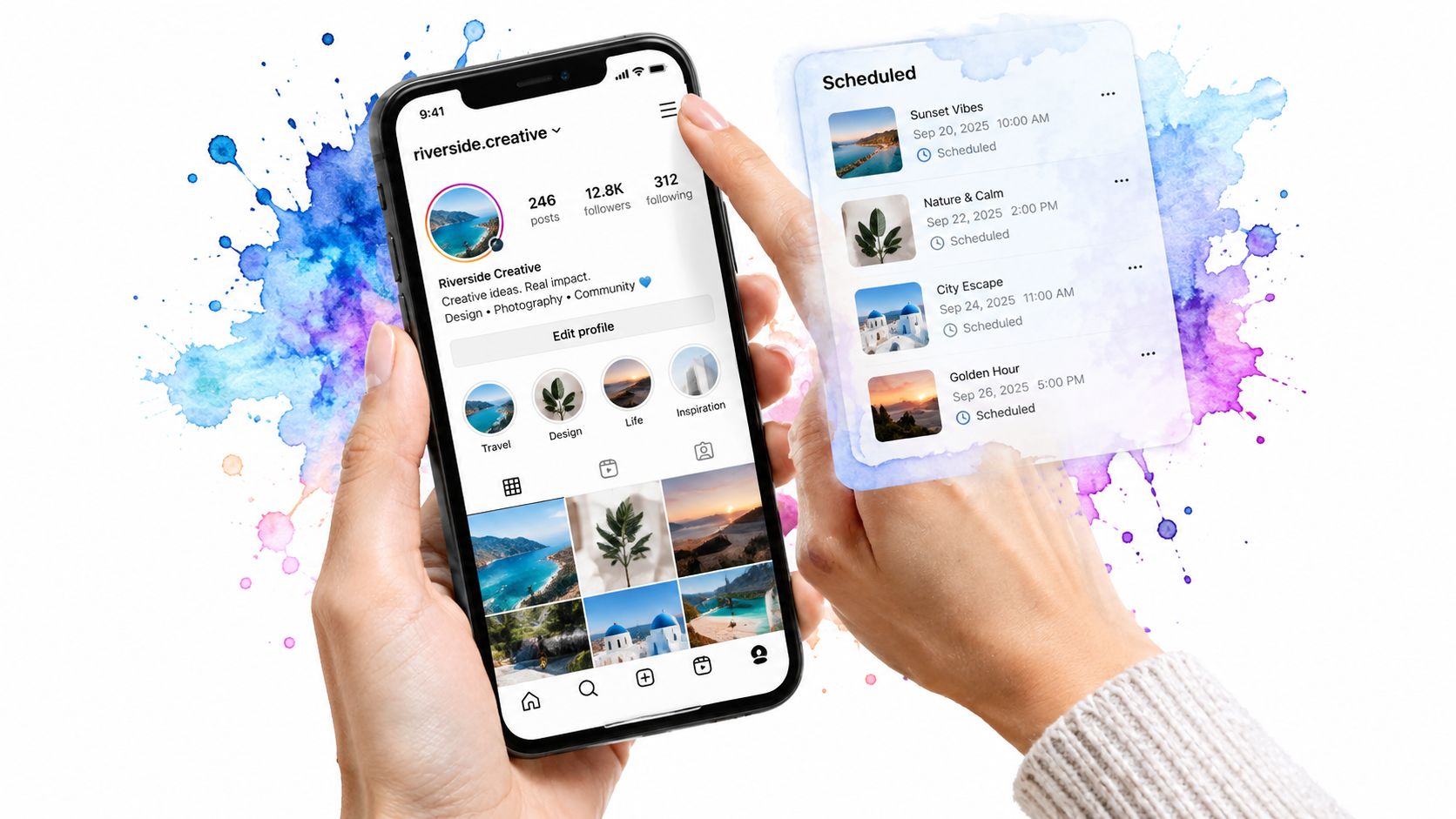
Meta also documents another route while you're in the publishing flow. Its help center says you can go to your profile, open Menu, select Scheduled content under Your insights and tools, and it also notes you can access the list while creating a new post or Reel by tapping Create, choosing Post or Reel, then tapping Scheduled according to Meta's scheduling help reference.
What you can do from the Scheduled content screen
Once you're inside, tap any scheduled item to manage it. Depending on the post, you can usually:
- Reschedule it if the timing needs to move
- Edit details before it goes live
- Delete the queued post if it shouldn't publish
- Share now if you want to publish immediately
That management view is useful because it lets you fix timing mistakes without rebuilding the entire post from scratch.
If Instagram's Scheduled content menu is empty, don't keep refreshing the app for ten minutes. In most cases, the post was scheduled somewhere else.
A second way in from the Create flow
Some people never use the profile menu and only touch scheduling while making the post. In that case, go back into the app's create flow and check the scheduled list there. It mirrors the same queue, so it's a good sanity check when you think the menu path changed.
If you want a quick visual walkthrough, this clip shows the menu path clearly:
The main thing that doesn't work is guessing. If Instagram shows no scheduled content, that usually isn't a glitch. It usually means the item was created in Business Suite or inside a third-party scheduler.
Using Meta Business Suite Planner on Desktop and Mobile
If the post was scheduled through Meta's publishing tools, Planner is the right queue. That's the place to check when someone used desktop publishing, Creator Studio's successor workflow, or a shared team setup tied to a Facebook Page.
On desktop, sign in at Business Suite and open Planner from the left navigation. If you also need to handle posting from a computer more broadly, this guide on posting to Instagram from a PC is a useful companion because the desktop workflow often overlaps with where teams review queued content.

What to look for in Planner
Planner is easier to scan than the Instagram app when you're handling a campaign instead of a single post. The calendar view helps you spot:
- Days with pending content by date placement
- Mixed Facebook and Instagram schedules in one workspace
- Posts that need edits before they publish
If the calendar feels crowded, switch to a list-style view if available in your workspace. That makes it easier to sort pending items by date and status.
Mobile workflow in Meta Business Suite
On mobile, open the Meta Business Suite app and use the calendar area to review the schedule. Tap into a scheduled post to edit, move, duplicate, or cancel it.
Meta Business Suite is usually the cleaner option when multiple people touch the same content calendar.
What works well here is visibility. What doesn't work well is assuming posts scheduled in Business Suite will always be easiest to find back inside Instagram's app menu. For many teams, they won't be. Planner stays the more dependable source when the workflow started in Meta.
Which Path Matches Your Account and Workflow
How to see scheduled posts on Instagram is something you usually don't need more theory for. You need a fast match. Use this table and go straight to the right queue.
Match Your Account and Tool to the Right Queue
| Account Type | Scheduling Method | Where to Find Scheduled Posts |
|---|---|---|
| Personal account | Third-party scheduler | In the scheduler's dashboard or calendar |
| Creator account | Instagram app scheduling | In Instagram under Scheduled content |
| Business account | Instagram app scheduling | In Instagram under Scheduled content |
| Business account | Meta Business Suite | In Meta Business Suite Planner |
| Creator or Business account | Third-party scheduler | In the external scheduler |
| Agency or team-managed account | Shared Meta workflow | In Meta Business Suite Planner |
| Agency or team-managed account | Shared scheduler workflow | In the scheduler's calendar or list view |
The fastest decision cue is still the same one I use with clients. Where did you physically press Schedule? That answer beats account-type guesswork almost every time.
If you're comparing tools because your current workflow keeps scattering content across too many places, this roundup of the best social media scheduler options is useful for deciding whether to stay native, stay in Meta, or move to a dedicated planning tool.
Viewing Scheduled Posts in Third-Party Schedulers
When you schedule through an outside platform, the queue usually lives there first. That's the point many users miss. They schedule in one tool, then go looking in Instagram for proof the post exists.
Open the scheduler you used and look for its Calendar, Queue, or Scheduled view. In most tools, scheduled posts appear either as date-based blocks on a calendar or as a sortable list with status labels.
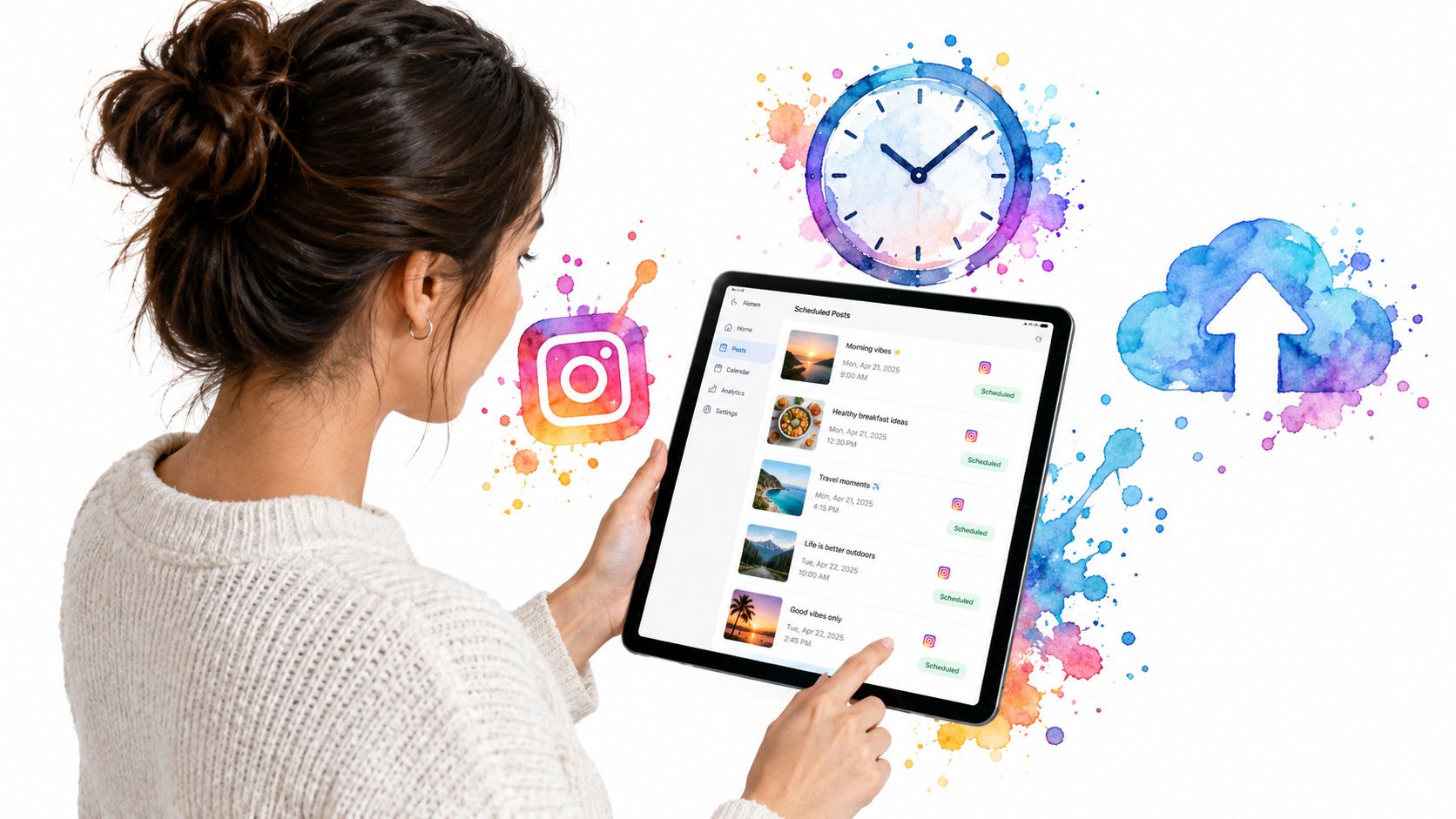
What a normal scheduler view should show
A solid scheduler interface usually lets you confirm:
- The exact publish date and time
- The media attached to the post
- The caption version that will publish
- Whether the item is still scheduled, failed, or already sent
For Instagram-specific workflows, a platform guide on Instagram social media scheduling can help if you're trying to understand how these tool-based queues differ from native app scheduling.
Some teams also use caption generators before locking posts into the queue. If you're polishing copy before rescheduling an item, you can browse AI Instagram caption tools and then paste the final caption back into your scheduler.
When the post is in the tool but not on Instagram
This is a common support moment. The post exists in the external scheduler, but nothing appears in Instagram's native scheduled menu.
That's usually normal. Instagram's app won't serve as the reliable queue for content scheduled in outside tools.
Check the original scheduler first. If the post is visible there with a scheduled status, that tool is your source of truth until publish time.
What doesn't work is editing in one place and checking another. If a team schedules in a dedicated dashboard, they should also review and troubleshoot from that same dashboard.
Troubleshooting Missing or Stuck Scheduled Posts
Most "missing post" problems fall into a few repeat patterns. The fix gets faster once you stop treating every case like a mystery.
The queue is empty
A client says the Instagram menu shows nothing, but they're certain the post was scheduled. In practice, this usually means they scheduled it somewhere else and forgot which path they used.
Fastest fix:
- Check Meta Business Suite if the post was created from a desktop or Page-based workflow
- Check the external scheduler if a tool handled the scheduling
- Return to Instagram only if the post was created natively in the app
The mistake here is assuming every scheduled post should appear inside Instagram's own menu.
The post vanished right before publish time
This one usually creates the most panic. The post was visible earlier, then it drops out of the queue near publish time and never appears on the profile.
That often points to a failed publish in the original tool. Reopen the post where it was scheduled, check its status, and reschedule it if needed.
A vanishing queue item often means the platform tried to publish it and failed. It doesn't always mean the content was deleted.
The post went out at the wrong time
When timing is off, I first check time zone settings across the device and the scheduler. A mismatch there can create the impression that Instagram ignored the selected time when the issue was setup inconsistency.
Fastest fix:
- Pick one canonical time zone for the account or scheduler.
- Review the scheduled time in that same system before saving.
- Avoid editing the same post from multiple surfaces unless the team has a clear process.
This is one of those problems that looks technical but is usually procedural. Teams bounce between app scheduling, Meta Planner, and external tools, then forget which time setting is controlling the publish.
A Reusable Checklist for Every Scheduled Post
Most scheduling mistakes happen before the publish date, not on it. A simple review routine catches them early and saves a lot of last-minute scrambling.
Before you schedule
- Confirm the workflow. Decide whether this post belongs in Instagram, Meta Business Suite, or one scheduler.
- Check account access. Make sure the right person is signed into the right Instagram-connected setup.
- Use one canonical system. Don't start in one tool and expect another one to be your main review screen later.
If you want a broader walkthrough for building a consistent queue, this guide on how to schedule Instagram posts and Reels is a practical reference.
After you schedule
Reopen the post in the same place you used to schedule it. Confirm the thumbnail, caption, publish date, and publish time while the context is still fresh.
Then do one more check from the queue view itself. That's where you'll spot the mistakes people miss in the composer, especially wrong dates, stale creative, and accidental duplicates.
On publishing day
Use a short audit routine:
- Look for pending status in the original queue
- Check whether edits are still needed before the post goes live
- Review failed or stuck items early in the day instead of after the campaign window has passed
For teams, I recommend one scheduled review block each week. One person checks the calendar, clears out stale drafts, confirms pending content, and catches anything that needs a caption or timing change. If your team manages multiple brands, a single shared dashboard can make that cleaner. Tools like Buffer, Later, and iHatePosting all support that kind of calendar-based review, but the important part isn't the brand name. It's choosing one place to trust and returning to it every time.
If you're tired of hunting through Instagram, Meta, and disconnected tools just to confirm what is scheduled, iHatePosting gives you a calendar-based place to review queued Instagram posts, edit them, and keep publishing organized across accounts. It's useful when your main problem isn't creating the post. It's knowing exactly where it lives and what will happen next.