Post to Instagram Automatically: A Complete Setup Guide
14 min readinstagram automationauto post instagraminstagram schedulersocial media tools
The posting window you'd planned around has passed, and your finished caption is still sitting in Notes. The image is ready, but you haven't checked the crop, added the hashtags, or opened Instagram. You want to post to Instagram automatically so publishing doesn't depend on remembering another task at day's end.
That's a reasonable goal. The catch is that scheduling a post and guaranteeing its publication aren't the same thing. A useful setup separates content that can publish unattended from content that needs a person, then gives you a clear recovery path when something fails.
Table of Contents
- Why Automatic Posting Matters for Busy Creators
- How Meta's Content Publishing API Actually Works
- Connecting Your Account and Scheduling Your First Post
- What Actually Auto-Publishes by Format
- Why Automatic Does Not Mean Set and Forget
- Troubleshooting the Most Common Auto-Post Failures
- Putting It Together and Going Live
Why Automatic Posting Matters for Busy Creators
Manual publishing ties a prepared piece of content to someone's availability. A creator can finish the creative work well ahead of time and still miss the intended release because they're filming, answering customers, or away from their phone. Automation removes that final dependency for supported posts.
The practical benefit isn't a guaranteed increase in reach. It's more predictable execution: approved content goes into a publishing workflow instead of remaining in a collection of drafts.
Who benefits from a publishing workflow
Different teams need automation for different reasons:
- Solo creators can separate writing and editing from the moment a post goes live.
- Small businesses can prepare routine content without assigning someone to interrupt customer-facing work to publish it.
- Agencies can coordinate client approvals and account destinations before launch day.
- Community managers can align announcements with product availability while keeping a person responsible for replies and exceptions.
The strongest candidates already have repeatable content: product explainers, approved campaign assets, educational posts, or recurring announcements. If every post depends on breaking news or an in-app interaction, notification-based publishing may fit better than unattended delivery.
Plan the content before automating the timing
A scheduler won't resolve an unclear approval process. Decide who owns the caption, who checks the creative, and who can stop a queued post before connecting the account.
An Instagram content calendar helps turn scattered ideas into dated commitments. Keep each entry attached to its final asset, intended audience, campaign, and approval status, rather than treating the calendar as a list of topics.
For teams coordinating Instagram with broader campaigns, MakeAutomation's resource on social media automation for SaaS teams is useful context for evaluating the surrounding workflow, not just the Instagram publishing button.
Operational test: Automate a post only when someone else could publish it correctly from the information attached to the draft.
You don't need to automate everything to benefit. A dependable queue for routine content can free you to handle timely posts manually. The right investment is a working connection, explicit format rules, and a recovery process, not a fuller calendar.
How Meta's Content Publishing API Actually Works
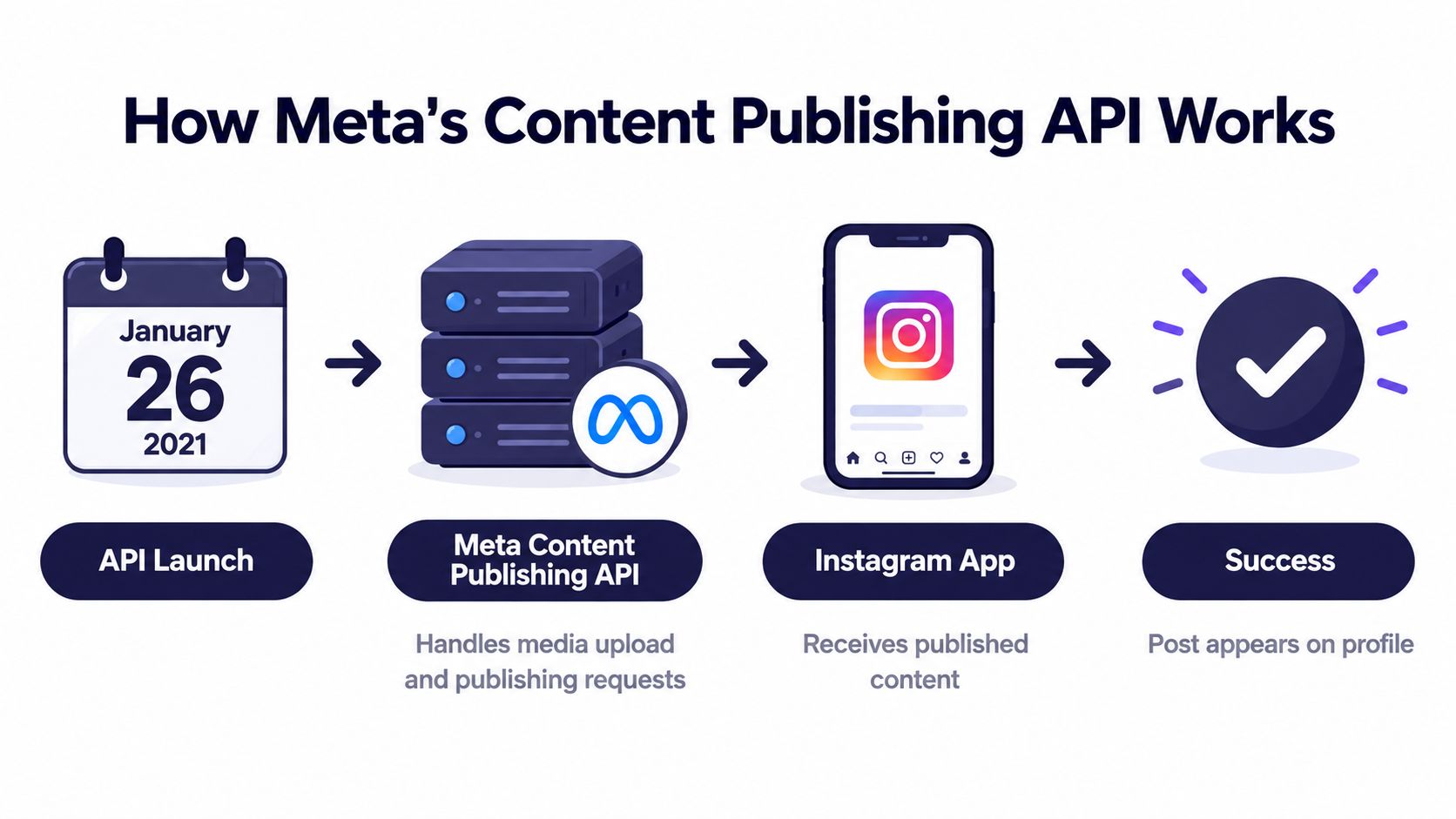
You schedule a post for later, but “automatic” only describes the handoff. Meta's API sets the boundaries: the connected account and permissions determine access, while the media format and integration determine what the scheduler can submit. Meta introduced the Instagram Content Publishing API on January 26, 2021, enabling eligible Business accounts to publish feed posts through third-party applications, subject to app review and policy compliance, as described in Meta's Content Publishing API announcement.
An official scheduler sends authorized requests through Meta's infrastructure. It does not imitate someone tapping buttons in Instagram. The workflow has separate stages, and a successful upload is not proof that the post is live.
Upload is not publication
The scheduler first prepares the media and its accompanying information, then makes it available for Instagram to process. After processing, it requests publication and waits for confirmation. Each stage answers a different operational question:
- Account access: Can the application act on the selected account?
- Media preparation: Can Instagram access the asset and its details?
- Processing: Has Instagram finished preparing the media?
- Publication confirmation: Did the post go live, rather than merely upload?
A post may pass the earlier checks and fail before publication. If the scheduler reports only “uploaded,” check the final status before treating the post as visible to followers.
Use the API boundary to assess a scheduler
Ask whether the tool shows queued, processing, published, and failed states separately. When a post fails, can you see the reason, or does the interface reduce every problem to a generic error? That difference affects how quickly an operator can identify whether to retry, replace an asset, or restore account access.
Use a format-by-format check before scheduling: confirm that the connected account is eligible, the integration supports the intended media, and the scheduler can confirm publication for that format. If any answer is unclear, hold that post for a manual workflow until you verify support. The API's existence does not mean every Instagram format can publish unattended.
Meta's original announcement established feed publishing for eligible Business accounts. It does not describe every account type or format supported by current integrations. For a Creator account, check compatibility with the scheduler's specific connection method rather than assuming the original announcement covers it.
The scheduler prepares and submits the request; Meta controls acceptance and publication. If authorization or account settings change, pause the queue and check the connection. A successful test confirms only that the workflow worked at that time, not that permissions remain unchanged.
Connecting Your Account and Scheduling Your First Post
A plain feed image makes a useful first test. It lets you check the account connection and publishing workflow without adding shopping features, partnership settings, or effects that may change how a post is delivered.
Connect the account before you prepare a queue. Check in Instagram whether it is a Professional account, then confirm that the scheduler supports its Business or Creator configuration. Follow the scheduler's authorization flow and select the profile you intend to publish to. This matters when one login manages both client and company accounts.
Review the permissions requested and grant access needed for the publishing workflow. Once authorization finishes, check that the correct handle appears in the connected-account list and in the composer. Clear any connection warning before scheduling; otherwise, a draft can look ready while the account still needs attention.
If Facebook is part of your workflow, separate account connection from cross-posting. The guide to posting to Instagram from Facebook explains that route, which may behave differently from scheduling through an Instagram integration.
Prepare a draft that can publish
Add the caption, destination, asset, and time in the scheduler's composer. Use the character counter, then check line breaks, mentions, and the call to action. Attach the final creative rather than a placeholder, and review format validation and the mobile preview for cropping or text that may be obscured. A preview checks presentation, not whether Meta will accept the post.
Reusable hashtag sets and caption snippets save repetitive editing, but they still need review. Remove irrelevant tags and update calls to action when an offer or destination changes.
For a visual walkthrough, use the demonstration below.
Choose a publishing time and verify its displayed time zone. Run the pre-publish checks, save the draft, then reopen it from the calendar. Confirm that the asset, caption, destination, and time persisted.
Before leaving the queue, check its delivery mode. An automatic publishing entry is intended to publish through the scheduler. A scheduled notification still requires someone to complete the post in Instagram, so assign that follow-up rather than treating it as unattended.
What Actually Auto-Publishes by Format
The format name alone doesn't tell you whether a post can publish unattended. A plain Story and a Story needing an interactive sticker may require different workflows, even when both appear under the same tab in a scheduler.
Buffer's documentation explicitly lists “single image, multiple (carousel) images, single video posts, reels, or stories” among supported automatic-publishing content, while listing “music on posts or stories, links on stories, text on stories, product tags, or topics” as notification conditions in its Instagram publishing guidance. That distinction is more useful than a blanket claim that Stories always require manual publishing.
Automatic Publishing by Instagram Format
| Format | Auto-publishes? | Notes |
|---|---|---|
| Feed image | Yes, when eligible | Confirm account access and asset validation. |
| Carousel | Conditional | Check support for the media combination and validate every item. |
| Reel | Conditional | Verify uploaded-file support and any audio or finishing requirements. |
| Story | Conditional | Check account and scheduler support; added native features may change the delivery mode. |
| Product-tagged post | Verify explicitly | Don't assume ordinary feed support includes shopping tags. |
| Branded-content or partnership post | Verify explicitly | Confirm the required disclosure and partnership controls before scheduling. |
| Partnership ad | Separate workflow check | Organic scheduling support doesn't establish advertising support. |
| Post needing native effects or interactive elements | Often needs a human finish | Use notification publishing when the required feature isn't exposed by the integration. |
Use a decision tree before approving the draft
First, ask whether the creative is complete outside Instagram. An exported Reel with approved audio is a different operational task from a Reel that still needs someone to choose an in-app effect.
Next, check whether the composer supports every required feature, not just the base format. If the post loses a necessary tag, disclosure, sticker, or audio treatment, it isn't ready for automatic publication.
Finally, inspect the selected delivery mode. If it's notification-based, assign an owner and make sure that person has the asset and instructions.
For file-based video preparation, AdCrafty's Instagram Reels planning and editing tips offer a companion resource. For Stories, use this Instagram Stories scheduling guide to plan the handoff where manual finishing is necessary.
A post that needs a person isn't an automation failure. A post that needs a person but has no assigned owner is a workflow failure.
For partnership content, never remove a required disclosure just to preserve automatic delivery. Choose the compliant publishing route, even when that means opening Instagram yourself.
Why Automatic Does Not Mean Set and Forget
A scheduled time does not guarantee a published post. The Meta Content Publishing API creates a media container, checks its processing status, then requires a separate publish request. The container is temporary: unpublished media containers expire after 24 hours. The documented workflow also requires a publicly reachable media URL, and JPEG is the supported image format for images. Keep campaign plans and assets in drafts, then create containers close to publication using the container workflow documentation.
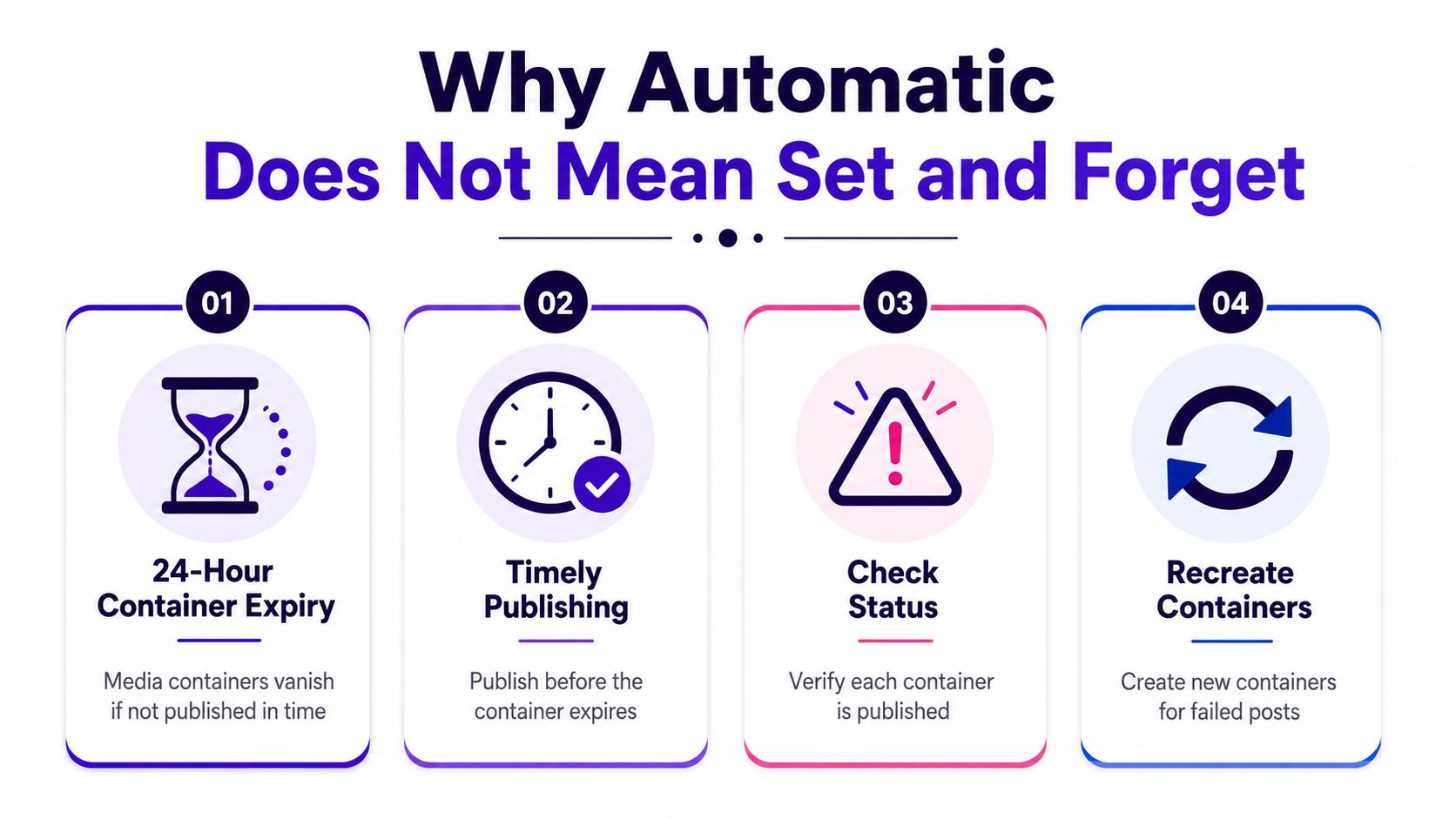
For operations teams, the key distinction is between a calendar entry and a confirmed publication. Build checks around the container lifecycle, and decide in advance what happens when processing stalls or a response is unclear.
A scheduler or custom integration should support recovery, not just submission:
- Duplicate prevention. Assign each scheduled job a stable internal identity and save its container identifiers. Before retrying an uncertain request, check whether the existing attempt completed.
- Selective retries. Use exponential backoff for temporary errors. Repeating a request with unchanged input will not fix a permanent validation or permission problem.
- Permanent-error alerts. Send permission, validation, and processing failures to an owner who can investigate and correct them.
- Capacity monitoring. Leave room for status checks and recovery work. Counting only scheduled posts can hide the work needed to get them published.
An idempotency key can help your own scheduling system track a job, but it does not guarantee that every downstream API operation is safe to repeat. If the response is ambiguous, reconcile the existing attempt before creating another container or sending a second publish request.
Automation also needs an editorial stop point. Dash Social's benchmark report discusses brands publishing two to three times weekly that outperform through stronger content quality. Treat that as evidence against maximizing volume by default, not as a cadence rule for every account or format. See the Instagram benchmark report.
Before a queued post goes live, check whether it adds value, repeats recent creative, or conflicts with an active campaign. Keep human approval for sensitive announcements and time-critical claims. Leave room for corrections, customer questions, and timely content rather than applying one cadence to feed posts, Reels, and Stories.
Pause rule: If nobody would approve this post manually today, don't let yesterday's scheduling decision publish it today.
Assign someone authority to suspend the queue when circumstances change. Reliable automation includes a clear way to stop publication, not just a way to start it.
Troubleshooting the Most Common Auto-Post Failures
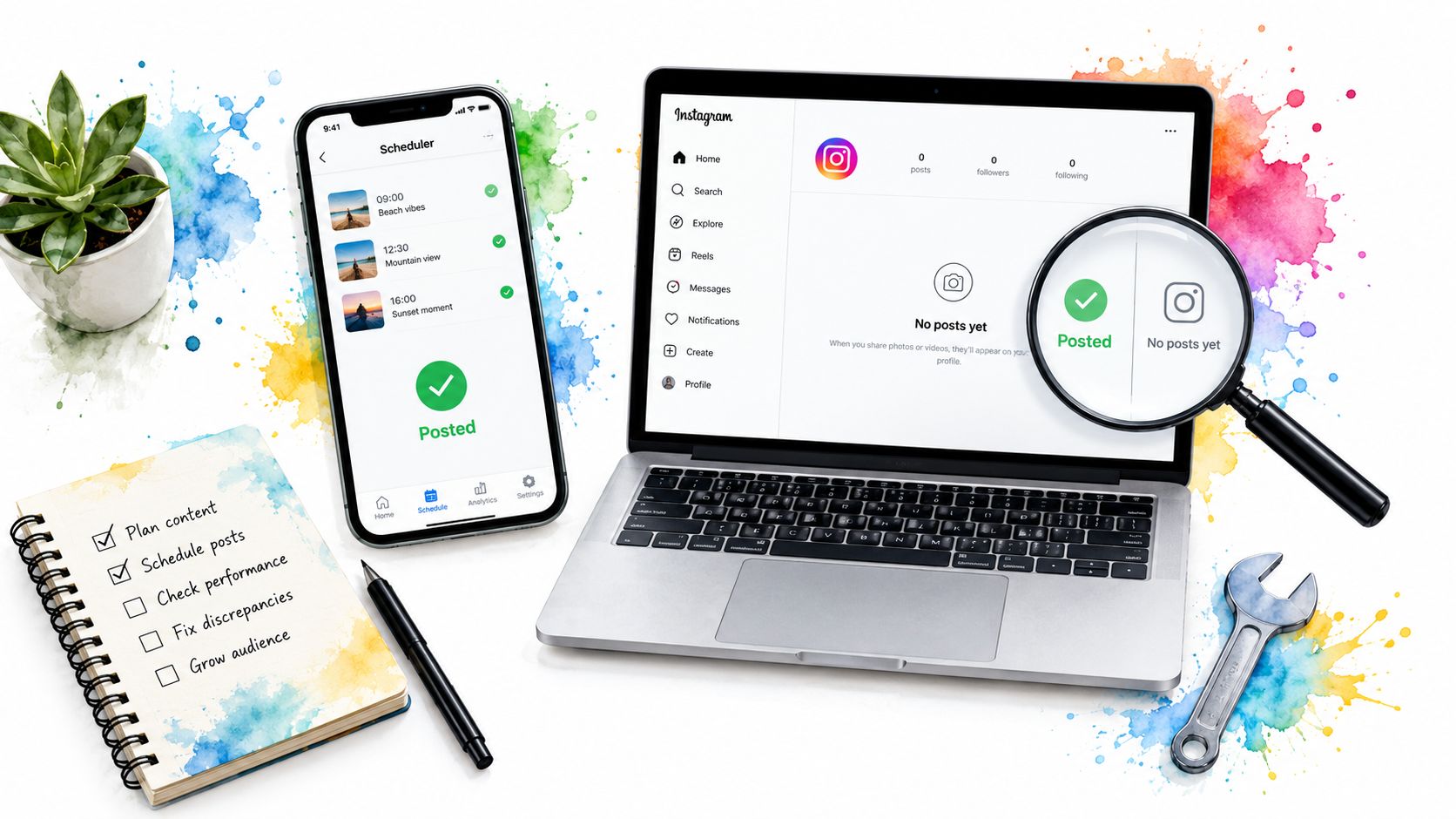
When a scheduled post doesn't appear, start with the recorded publishing stage and error message. Don't change the caption, reconnect the account, and re-upload the video simultaneously. That makes it harder to identify the cause and can create a duplicate.
Keep the original draft intact while investigating.
Match the symptom to the next action
| Symptom | What to investigate | Immediate response |
|---|---|---|
| Scheduler shows success, but the post is absent | Wrong destination, unclear success status, or an unresolved publication attempt | Open the intended profile and ask for the final publication confirmation before retrying. |
| Instagram can't fetch the asset | Media access may have changed or require authentication | Restore accessible hosting and validate retrieval outside your logged-in session. |
| Authorization error | Revoked access, changed account configuration, or missing publishing permission | Reauthorize the intended account and verify access before resuming. |
| Rate-limit response | The integration has reached an applicable quota | Let the scheduler defer requests and inspect its queue policy. |
| Media processing failure | The submitted asset doesn't pass the required validation | Use the returned error to correct and re-export the asset. |
| Caption or feature validation error | The submitted text or options aren't accepted | Correct the flagged field, then rerun validation. |
| Expired staging attempt | The previous preparation can no longer be published | Reconcile publication status, then prepare a replacement attempt if needed. |
Don't assume that a missing post is usually a caption problem or that every timeout is a rate limit. Use the returned error, not the symptom alone.
Escalate the problem to the right owner
An operator can usually correct the asset, caption, destination, or account authorization. An application approval problem belongs with the scheduler provider or developer; reconnecting repeatedly won't substitute for the application's required approval.
For video, check the specific complaint before exporting again. Inspect dimensions, file properties, encoding, or audio only when the validation result points there. Avoid repeatedly changing unrelated settings.
If the response indicates a publishing quota, consult the Instagram posting limits guide before increasing retry frequency. Aggressive retries are not a remedy for insufficient capacity.
Before a manual fallback, check Instagram again for a late-arriving post. If nothing published, cancel or suspend the unresolved automatic job before publishing manually.
Record the resolution beside the draft: what failed, what changed, and who completed publication. That gives the next operator a useful history instead of another unexplained failed entry.
Putting It Together and Going Live
A sensible go-live plan combines account eligibility, a tested publishing connection, and a calendar that distinguishes unattended posts from manual handoffs. Choose a scheduler with a visual calendar and pre-publish checks, then build a modest initial queue using the format decision criteria above.
Keep the initial campaign straightforward. Don't use an important launch to discover whether a particular native feature survives the scheduling route.
Run a final acceptance check
- Test a low-stakes post. Use approved content you can comfortably troubleshoot.
- Verify the alert destination. Confirm that publication and failure messages reach the person responsible.
- Inspect the live result. Open Instagram and compare the post with the approved draft.
- Check recovery settings. Know which failures trigger automatic retries and which require intervention.
- Assign manual handoffs. Give notification-based posts an owner who'll be available.
- Confirm visibility. Use the guide to seeing scheduled Instagram posts to understand where to check your upcoming content.
After the test, review the experience rather than just the outcome. Could you find the status quickly? Was the alert clear? Would another teammate know what to do if publication failed?
My practical advice is to use automation to buy back creative time, not to create an obligation to publish more. Keep judgment with the people who understand the audience, and let the scheduling workflow handle approved timing and delivery.
iHatePosting offers a visual calendar, Instagram scheduling, pre-publish checks, publish alerts, and automatic retries to help manage the workflow from draft to delivery. Visit iHatePosting, connect an eligible account, and test a simple post before committing your next campaign to automatic publishing.