Almost every guide to scheduling Instagram posts for free opens with the same instruction: batch a month of content into the calendar, hit schedule, and take your evenings back. That advice is half right, and the half it gets wrong is the half that breaks a launch.
Free scheduling isn't one feature. It's three publishing mechanisms wearing the same name. Native scheduling inside Instagram, a third-party tool posting through Meta's API, and a notification that pings your phone at the appointed minute behave nothing alike. One publishes while you sleep, one publishes most of the time, and one never publishes anything without your thumb.
Which mechanism you're using decides how you plan a week, which formats you can queue, and whether a two-person team can run a client account without someone watching the clock at 6 p.m. on a Friday. Here's how each free route behaves, where the limits bite, and the routine that keeps a free setup running.
Free Ways to Schedule Instagram Posts Compared
Four routes cost nothing, and the differences that matter show up after you close the composer, not in the feature list.
| Method | Publishes on its own? | Key limits | Best fit |
|---|---|---|---|
| Native Instagram scheduling | Yes, for supported posts and Reels | Up to 30 days ahead, 25 scheduled items per day | One account, feed posts and Reels |
| Free tier of a third-party scheduler | Yes, for most formats | Caps on posts, formats or accounts vary by plan | Several networks or clients from one calendar |
| Notification-based publishing | No, you confirm each post | You tap publish at the scheduled time | Personal accounts |
| Spreadsheet and manual posting | No | Every post needs your attention at the right time | Low volume and no budget |
Native scheduling is the row to test first. It lives inside Instagram's own composer and covers photos, carousels and Reels, which means no second account, no permissions screen and no plan comparison. What it can't give you is a shared view: one account at a time, no client review step, no sight of what goes out on LinkedIn the same morning.
Free tiers of third-party schedulers exist to cover exactly that gap. They put several networks or client accounts on one calendar and let a reviewer comment before anything publishes. The trade is a cap. Caps move, so open the pricing page and read the current allowance for posts, profiles and formats instead of trusting a review written last year. A roundup of budget-friendly scheduling picks for small teams shortens the comparison work.
Notification-based publishing is what a personal account usually gets. The tool alerts you when the slot arrives and you finish the job by hand. It's free, and it's a reminder service rather than automation. Spreadsheet and manual posting is the fourth route, honest about its price: zero money, full attention at the right minute.
Read the table on a single column. Publishes on its own? is the only field that tells you whether a campaign can run while you're on a plane or asleep. Everything else is convenience.
Rule of thumb: one Business or Creator account with mostly feed posts is fully covered by native scheduling. Several channels, several clients, or a review step is the point where testing a free third-party tier stops being optional.
If you're still weighing platforms, this guide on how to find a free posting tool covers the account and format checks that matter more than a feature matrix.
How to Schedule an Instagram Post in the App
The native route is worth learning properly because it costs nothing and surprises you least. Here's the composer flow, with the reason behind each step and the error it usually prevents.
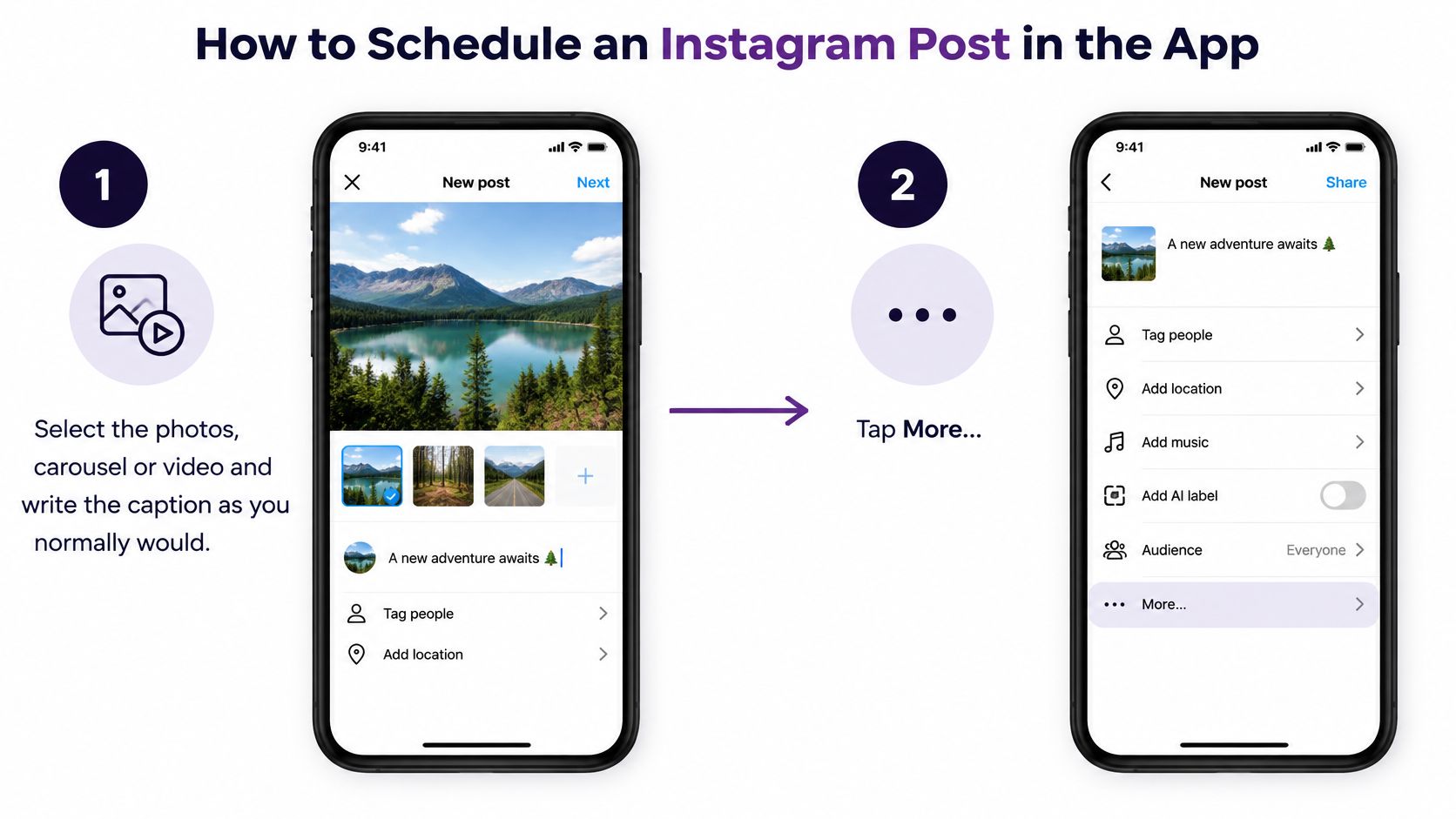
Select the photos, carousel or video and write the caption as you normally would. Everything you'd normally add carries into the scheduled version, including tags and location. The common slip is writing the caption in a notes app and planning to paste it later, which is how you end up editing a queued post on your phone at 11 p.m.
Tap More options in the composer. Depending on your app version this panel may read Advanced settings. The scheduling toggle lives there, not on the final share screen, so people who look for it at the end assume the feature is missing.
Turn on Schedule this post for a photo or carousel, or Schedule this reel for a Reel. This is the step that changes distribution. Leave it set to the plain post option on a vertical video and you've queued a feed video rather than a Reel, which is a different placement and a different audience behaviour.
Pick the date and time, counting in your audience's time zone rather than your phone's. A slot that looks like mid-morning in your hand is the middle of the night for a buyer in another country. Set a reminder to check this whenever you travel or your team spans regions.
Confirm the schedule before closing the composer. Backing out discards the queue entry. After confirming, open your profile menu and the Scheduled content list to confirm the item is sitting there with the right time on it.
The documented ceiling shapes how you plan a month. Instagram's own help page on scheduling posts and Reels in the app sets the limit at up to 25 scheduled posts per day, with publishing dates available as far as 30 days ahead, so roughly a month of planned content fits inside the app without a second platform. Larger campaigns hit the daily ceiling faster than they expect, especially when several formats run on the same day.
If the schedule option never appears, check two things before assuming a bug: whether the account is set up for it, and whether the format is supported. Stories aren't part of native scheduling at all, so those go through Meta Business Suite or a tool.
For planning across more than one network, a calendar that holds several channels extends the same one-post-per-slot thinking beyond Instagram.
Which Accounts and Posts Publish Unattended
The question that matters is narrower than "can I schedule this": will the post go out if I'm not looking? Account type answers half of it. Business and Creator accounts are generally what automatic publishing requires, while personal accounts are often limited to notification publishing, where you get an alert and finish the job yourself.
The other half is content. Instagram's help documentation on scheduling posts and Reels lists the exclusions plainly: product tags, collaborative posts, sponsored posts and fundraisers can't be scheduled through the native tool, and third-party tools can't reliably auto-publish every format or account type either. Interactive Story elements, stickers, certain audio, mentions and links are the other usual suspects that push a post back into your hands.
| Situation | Publishes unattended? | What to do |
|---|---|---|
| Business or Creator account, standard feed post | Yes | Schedule it in the app or a tool and check the slot |
| Personal account | Often no, notification only | Plan to tap publish at the alert time, or switch account type if automatic publishing matters |
| Product tags | No | Add the tags manually at publish time |
| Collaborative posts | No | Publish manually and check the collaborator invite |
| Sponsored posts | No | Publish manually and calendar a reminder |
| Fundraisers | No | Publish manually |
| Story stickers, mentions, links or certain audio | No | Add them by hand before the post goes live |
Run a check before every batch rather than after a post fails. Confirm the account type, confirm each format in the batch is supported, flag anything carrying a tag, a link or licensed audio, and decide in advance whether a person has to confirm that item.
A scheduled label is a request, not a receipt. Treat the queue as a plan and the published grid as the truth, and check both the morning a campaign goes live.
Say a small shop queues ten product posts for a launch week. Eight publish on their own. The two sponsored posts sit in the queue because sponsored content isn't supported, so the team puts a reminder for each on the calendar and assigns a name to it. That single step is the difference between a launch and an apology.
Agencies feel this hardest. A missed notification on a client account doesn't delay one post, it delays the campaign and the reporting that hangs off it. If the volume of manual items is growing, it's worth learning how to automate Instagram posts with iHatePosting so the unsupported formats get flagged before the publish day instead of on it.
Format and Quota Rules That Change Your Plan
Format changes what a scheduled post becomes. Instagram's content publishing documentation classifies a standalone uploaded video as a Reel rather than a traditional feed video, while videos can still sit inside carousels, and a carousel may hold up to 20 mixed images and videos under current documented limits. Queue "one post a day" without thinking about format and you change placement, aspect ratio and audio behaviour without ever touching the caption.
The quota only reaches posts that go out through the API. Meta's publishing API documentation caps the number a professional account can publish within a rolling 24-hour window, with a carousel counting as a single published post, and the live figure is listed on that page. The same documentation caps media container creation at 400 per rolling 24 hours, which is why drafts, containers and successfully published posts don't share one number. Posts published through a phone reminder never touch the API, so the cap doesn't reach them. The trade-off is a person tapping publish on every single one.
| Limit | Value | Source |
|---|---|---|
| Scheduling window | Up to 30 days ahead | Native Instagram scheduling |
| Scheduled items per day | Up to 25 | Native Instagram scheduling |
| Media containers created per rolling 24 hours | Up to 400 | Meta content publishing documentation |
| Carousel size | Up to 20 mixed images and videos | Meta content publishing documentation |
Third-party guidance sometimes quotes figures that don't match Meta's own pages, because the limits differ by publishing interface. Check the current number before you plan a large batch rather than building a launch around a blog post.
Format decision rule: use a Reel when motion is the point, a carousel when the message needs several frames, and a single photo when one clean image carries it. Then check aspect ratio and audio per format, not per campaign.
That's the cost of free scheduling. It raises consistency while narrowing creative control if you never adapt the asset to where it lands, and a consistent queue of mis-formatted posts is worse than an inconsistent feed of good ones. For the full set of caps in one place, keep the iHatePosting guide to Instagram posting caps open while you build the month.
Test Cadence and Timing, Then Run the Weekly Routine
Most free setups fail for a boring reason. Nobody wrote down what was supposed to happen each week, so the calendar filled up in bursts and emptied for a fortnight.
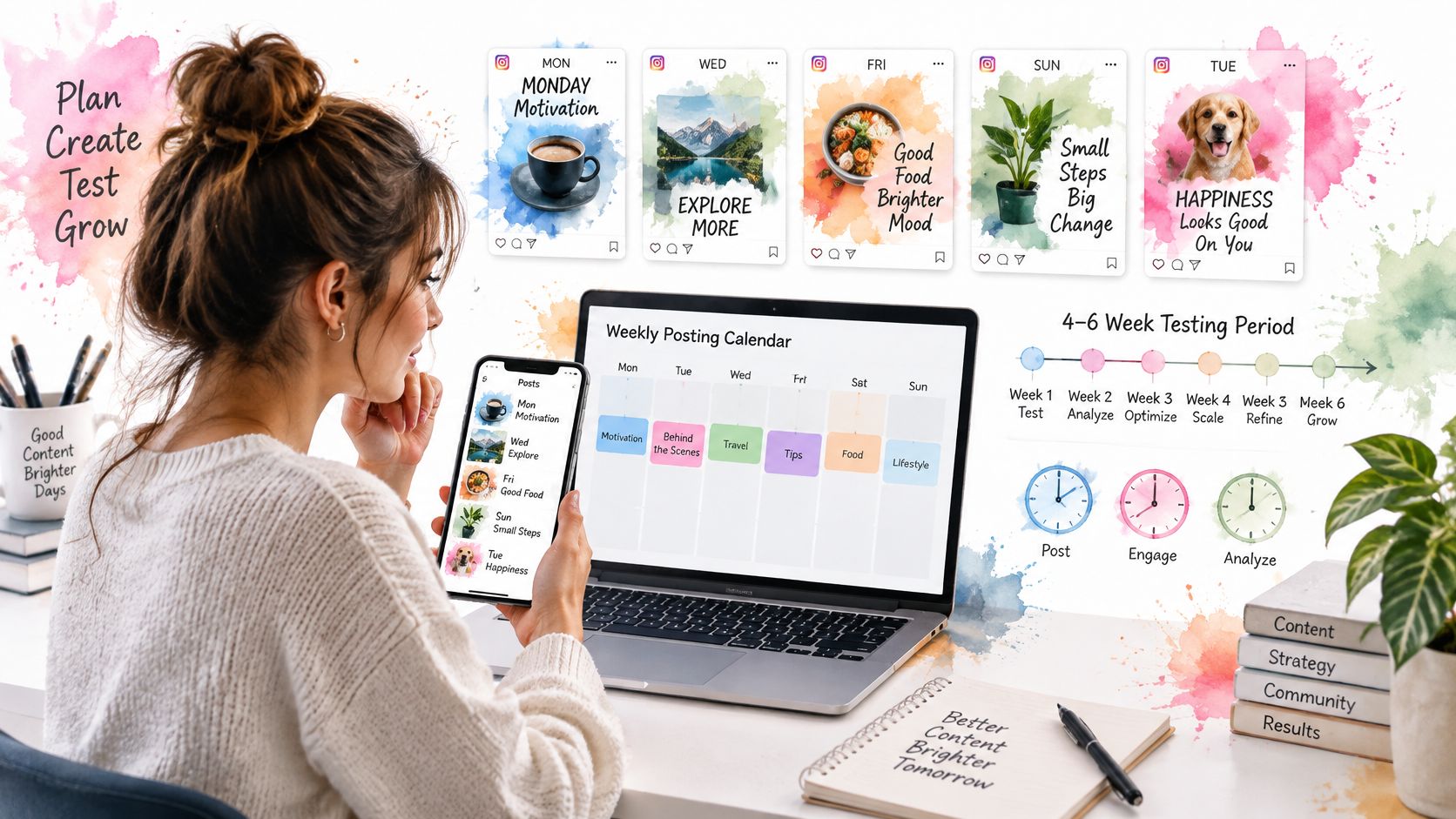
Run a Four to Six Week Cadence Test
Prepare 3 to 5 posts per week, spread across different weekdays and audience-local time windows, then review reach, impressions, saves, comments and engagement rate after a consistent four to six weeks. Random daily posting tells you nothing because too many variables move at once.
The benchmark to hold beside your own numbers comes from an analysis of 2 million Instagram posts across 100,000 accounts, reported by Social Media Today: publishing 3 to 5 times weekly was associated with more than twice the follower-growth rate of lower-frequency accounts and about 12% higher average reach per post, while accounts posting 10 times weekly reached roughly 24% higher reach per post. Those are observational associations, not a guarantee that volume causes growth, so the only fair comparison is against your own baseline.
Hold cadence, creative format and targeting steady, change one at a time, and write the exact publication time and format next to every post so the comparison is possible later. Instagram's ranking also weighs recent interactions and the accounts a user follows, which is why relevance can outperform frequency on any given week.
Test Time Slots Against Your Own Baseline
Schedule the same content category into several time blocks instead of chasing a universal best time. Begin with audience-local working hours, test weekday afternoon and evening windows, then keep the two slots that produce the strongest median reach and saves per impression.
A benchmark analysis of social media posting times covering more than 2 million posts identified 3 p.m. and 6 p.m. on weekdays as generally strong Instagram windows and reported a median engagement rate of 4.3%. Treat that as a starting hypothesis for your first test, not an answer.
- Compare enough posts: at least 8 to 12 per window before you draw a conclusion.
- Normalize the numbers: divide by follower count or impressions so a spike in reach doesn't masquerade as a spike in quality.
- Fix the formula: engagement rate is interactions divided by reach or impressions, calculated the same way every time.
- Wait before judging: distribution shifts as Instagram weighs recent engagement, so a post can look flat on day one and fine by day four.
The Weekly Routine That Holds It Together
Keep one planning sheet with a row per post: asset, target time zone, format, caption version, approval status, scheduled slot, post-publication metrics. Batch captions on Monday. Run the pre-publication check on Wednesday for aspect ratio, audio, tagged accounts, links and alt text. Review metrics on Friday and move the two best-performing slots into next week's plan.
Where a scheduler earns its keep is the drafting stage. AI content generation writes platform-specific captions, hooks, hashtags, images and videos, which removes the blank-page stall that eats a Monday morning. AI agents go further and handle creation, adaptation, scheduling and publishing across several networks, cutting the repetitive copy-paste between channels and the fragmented workflow that comes with it.
Approval stays human. Drafts can be generated and queued automatically, but a person should clear anything carrying a claim, a price or a client's name before it publishes.
Two operational failures are worth naming because they're common. Scheduling without checking the account's local time zone, and reusing one caption and hashtag set across formats. A free calendar catches both if the time zone and caption version are columns in the sheet rather than facts in someone's head.
If weekend slots matter to your audience, find your Saturday Instagram posting time the same way: test it, don't assume it.
Choose Your Free Scheduling Setup This Week
Three questions settle the choice faster than any comparison table.
- Are you publishing to one Business or Creator account, mostly feed posts and Reels? Native scheduling covers you. Skip the tool shopping entirely.
- Do you run several channels, brands or clients? Test a free third-party tier for a fortnight before committing, and read its current caps on posts, formats and connected accounts first.
- Is most of your content tagged, sponsored or collaborative? Assume manual publishing for those items and put a named reminder on the calendar for each one. No free tool changes that.
Then take the first action this week rather than this quarter. Schedule two weeks of posts, either in the native composer or in the tool you picked, and start the cadence test with 3 to 5 posts a week. Two weeks is enough to feel where the workflow snags and where the time goes.
Teams that want one calendar across platforms can use iHatePosting as a social media scheduler, and the 90-day free trial with no credit card covers unlimited connected accounts and unlimited scheduling across all fourteen networks. It won't manufacture views, reach, followers or sales, and no scheduler will. What it does is help you post on schedule and keep the creative work in one organized place.
Keep the planning sheet. It's the record of what worked, and after six weeks it will tell you more about your account than any benchmark published this year.
If you'd rather spend the hour on the work than on the calendar, iHatePosting connects your Instagram Business or Creator account and publishes what you compose, when you tell it to, across fourteen networks on one schedule. The 90-day free trial needs no credit card and includes unlimited connected accounts and unlimited scheduling, so you can run the cadence test above without paying for the experiment. Start at iHatePosting and queue your first two weeks today.