The most popular FB auto share advice starts in the wrong place: connect your accounts, switch on automation, and send everything everywhere. Start with the audience instead. Before you connect a Page or queue a post, classify its source as public, restricted, or approval-required, then decide where it's allowed to go.
That approach prevents a more expensive mistake than a missed publishing slot: sending a private community update to a public brand audience. Effective Facebook automation combines a permitted publishing method, destination-specific content, and a clear approval rule. It doesn't mean removing every human decision.
Four Working Ways to Auto Share on Facebook
Since Facebook removed publish_actions in 2018, with existing apps given until August 1, 2018, third-party apps generally can't publish a personal profile's off-Facebook activity to its News Feed, as Facebook explained in its platform product changes announcement. Facebook replaced custom publishing prompts with a standardized Sharing Dialog, which presents the share for user confirmation rather than granting unrestricted background publishing.
That distinction still matters when choosing an automation tool. A personal profile, a business Page, and a linked Instagram account aren't interchangeable destinations. A product that can schedule Page posts hasn't recovered permission to publish to your personal feed.
The practical routes are Accounts Center cross-profile sharing, native Page scheduling, approved third-party scheduling, and a custom Graph API integration. Choose based on the destinations you manage, not the longest feature list.
Facebook auto-share methods compared
| Method | Publishes to | Scheduling | Cross-platform | Best for |
|---|---|---|---|---|
| Accounts Center cross-posting | Personal profiles and linked Instagram accounts | Auto-share on publish | Facebook and Instagram only | Casual creators mirroring their own posts |
| Meta Business Suite | Facebook Pages and Instagram | Yes, native scheduling | No, Meta platforms only | Single-Page businesses on a zero budget |
| Third-party scheduler, such as iHatePosting | Facebook Pages and connected social accounts | Yes, calendar and recurring slots | Yes, one composer for supported networks | Creators, brands, and agencies posting across networks |
| Graph API custom build | Facebook Pages through pages_manage_posts |
Yes, within the endpoint's scheduling window | As far as your team builds and authorizes it | Developer teams embedding publishing in a product |
Setup effort increases as you take more control. Accounts Center is a settings-level choice. Business Suite requires the correct business assets and access. A scheduler adds account authorization and workflow configuration. A custom integration also requires engineering, permission management, monitoring, and ongoing maintenance.
For multi-network work, our social media automation workspace at iHatePosting publishes to Facebook plus 13 other networks from one composer. AI-powered content generation helps turn an idea into platform-specific captions, hooks, hashtags, images, and videos, reducing blank-page work and manual production; AI agents can handle creation, adaptation, scheduling, and publishing while you retain review controls.
Choose for the work you actually do
Use native tools for a single Page on a zero budget. Business Suite is a sensible starting point when your publishing stays inside Meta's ecosystem. Don't introduce another connection, calendar, and permission dependency unless it solves a real problem.
Use a scheduler for multi-platform consistency. The benefit isn't merely sending the same caption everywhere. It's keeping related posts together while adjusting the opening line, media, and call to action for each destination.
Use the Graph API when publishing belongs inside your product. A content management system that sends approved articles to client Pages needs an authenticated publishing pipeline, not a staff member copying content between dashboards. The trade-off is ownership: your team must maintain the integration and investigate failures.
For a developer workflow that also creates video assets, LunaBloom AI's video generation API documentation is a resource for evaluating the creative-production side. Keep asset generation separate from Facebook publishing authorization: producing a video doesn't grant permission to post it.
Practical rule: Choose the smallest system that covers your destinations and approval needs. More automation isn't useful if nobody can explain what it's allowed to publish.
Audience Rules to Check Before You Automate
The costliest auto-share failure may not be technical. It may be the wrong audience seeing a perfectly delivered post.
Create an audience-aware sharing matrix before connecting any Page. Record the source, its classification, its permitted destinations, and who can approve exceptions. If you can't establish the source audience, don't let the item enter an unattended queue.
Meta's Accounts Center guidance describes automatic cross-profile sharing, but that feature doesn't share business Page posts or Stories to Instagram. Audience choices also aren't permanent defaults for every future post, so don't assume a previous selection protects the next publication.
Audience-aware auto-share matrix
| Source | Auto-share? | Rule |
|---|---|---|
| Facebook Page public post | Yes | Schedule and recycle approved, current content; adapt the caption per network |
| Personal profile post | Caution | Use linked-profile sharing carefully; check the destination audience rather than assuming a permanent carryover |
| Facebook Page post to Instagram | Not via Accounts Center | Use Meta Business Suite or an authorized scheduler |
| Public group post | Caution | It can be visible on and off Facebook; require admin permission and a permitted publishing method |
| Private group post | Never automatically outside the group | Keep it within the community; route any proposed reuse to manual review |
| Tagged post | Approval required | Another person is involved; hold it for human review |
Public means eligible for automation, not automatically suitable for every destination. Check ownership, campaign dates, customer consent, and whether the caption makes sense without its original context.
Restricted means the original boundary must remain intact. A private group announcement doesn't become public marketing material because a manager can copy its text.
Apply the rule before choosing a time
Say an agency receives a client's private-community announcement about a service disruption. The announcement goes to manual approval, not the public auto-queue. If the client wants a public update, prepare a separate version that removes member details and explicitly approves the new audience.
Treat tagged customer photos similarly. Review the permission to reuse the asset, not just whether Facebook displays a Share button.
Timing comes after eligibility. Once a post is cleared for its destination, use iHatePosting's Thursday Facebook timing breakdown as a planning reference rather than letting a convenient slot override audience restrictions.
Automate public branded content. Hold restricted material for a decision. Never interpret access to content as permission to redistribute it.
Audit the matrix quarterly as an operating habit, and whenever a client changes community rules, account ownership, or approval responsibilities.
How to Set Up FB Auto Share on a Facebook Page
A reliable connection begins with the person authorizing it. According to Meta's Page feed reference, Page publishing requires authenticated Page access, the relevant CREATE_CONTENT task, and publishing permissions such as pages_manage_posts; live integrations generally need App Review for the required permissions.
Use the calendar and queue as your control surface, but verify the underlying Page identity first.
Connect and verify the destination
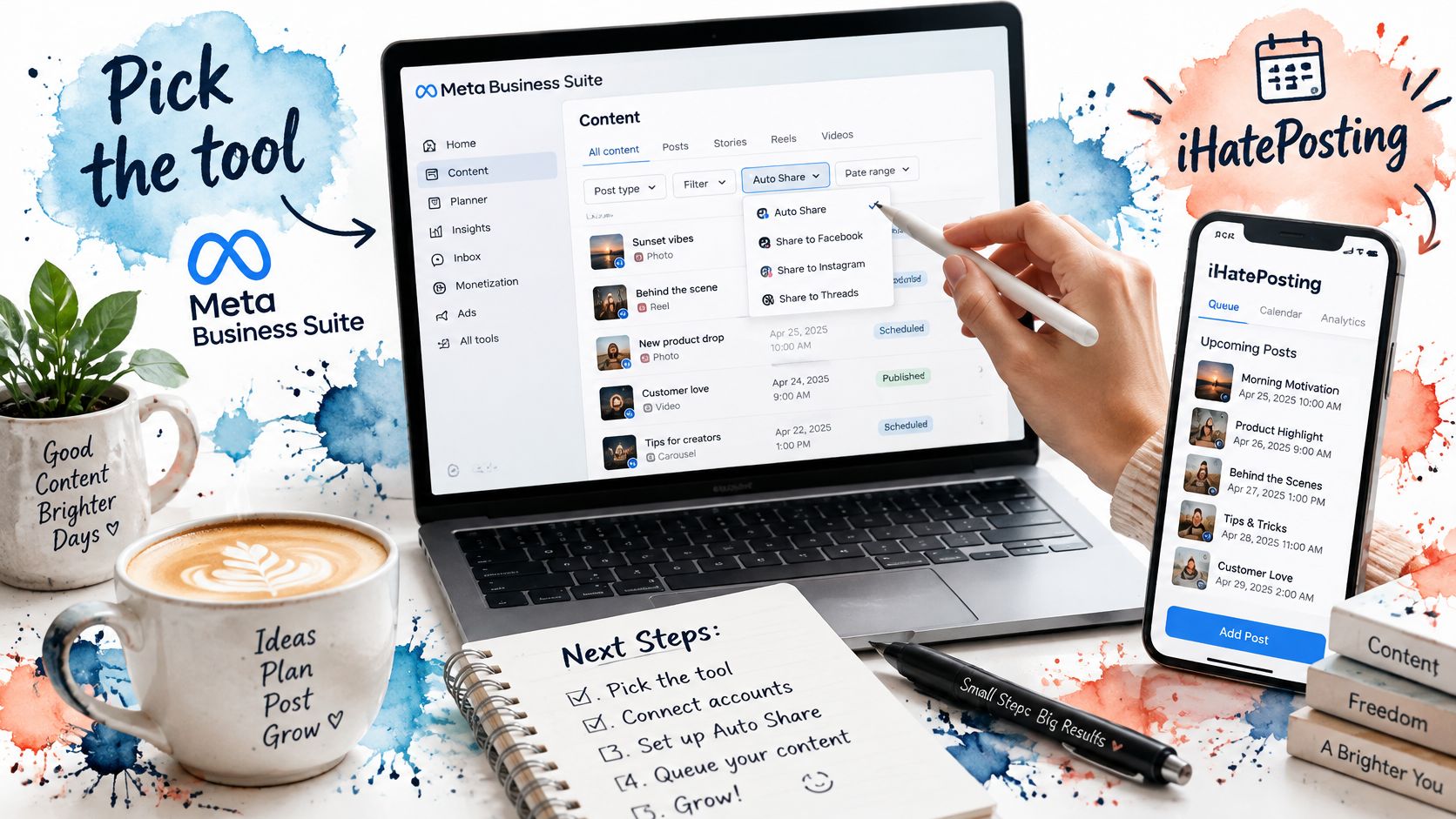
Pick the publishing tool. Start with Meta Business Suite for a native workflow, or choose an authorized scheduler when other networks are involved. Confirm that your audience matrix permits the intended source-to-destination route before starting the connection.
Sign in through Facebook's authorization flow. Use the profile belonging to the person with the Page's
CREATE_CONTENTtask, rather than relying on an informal admin or editor label. If that profile lacks the task, have the Page owner assign appropriate access before continuing.Grant the requested Page permissions. Publishing needs
pages_manage_posts, while integrations may also requestpages_read_engagementandpages_show_listto discover and verify the Page. Review what's requested and which Pages you're granting access to; don't dismiss the prompt and assume publishing will still work.Select the exact Page. Check its name, profile image, and business identity, especially when similarly named regional Pages appear. The personal profile used to authorize the connection isn't the publishing destination.
Send a controlled test. Save a draft, inspect its preview, and publish a simple approved update immediately. Open the Page itself and confirm the text, media, and destination match what you intended.
Verify future slots. Put approved content into the calendar and confirm the destination, timezone, and scheduled status. If an app update explicitly requests renewed authorization, complete that step before relying on the queue.
Prove the connection before loading a campaign
Don't treat a successful login as a successful publishing test. Login establishes identity; the test post proves that the selected Page, permissions, and content format work together.
For a bakery, a manager might connect the Page on Monday, publish a test update, and then schedule the week's approved specials. Check that the offers remain valid on their publication dates and that a named staff member can pause the queue if stock or opening hours change.
Use the video as a visual companion to the connection steps, while checking the labels shown in your current account.
For custom builds, store authorization secrets securely and record the Page identifier alongside each job. Validate the API response before reporting success. Unofficial browser automation and shared login credentials aren't substitutes for a properly authorized Page integration.
Scheduling Workflows That Keep Posts Flowing
After connection, the useful rhythm is plan, adapt, load, review. Batch the decisions that benefit from concentration, but leave room to pause content when circumstances change.
Build a weekly batch
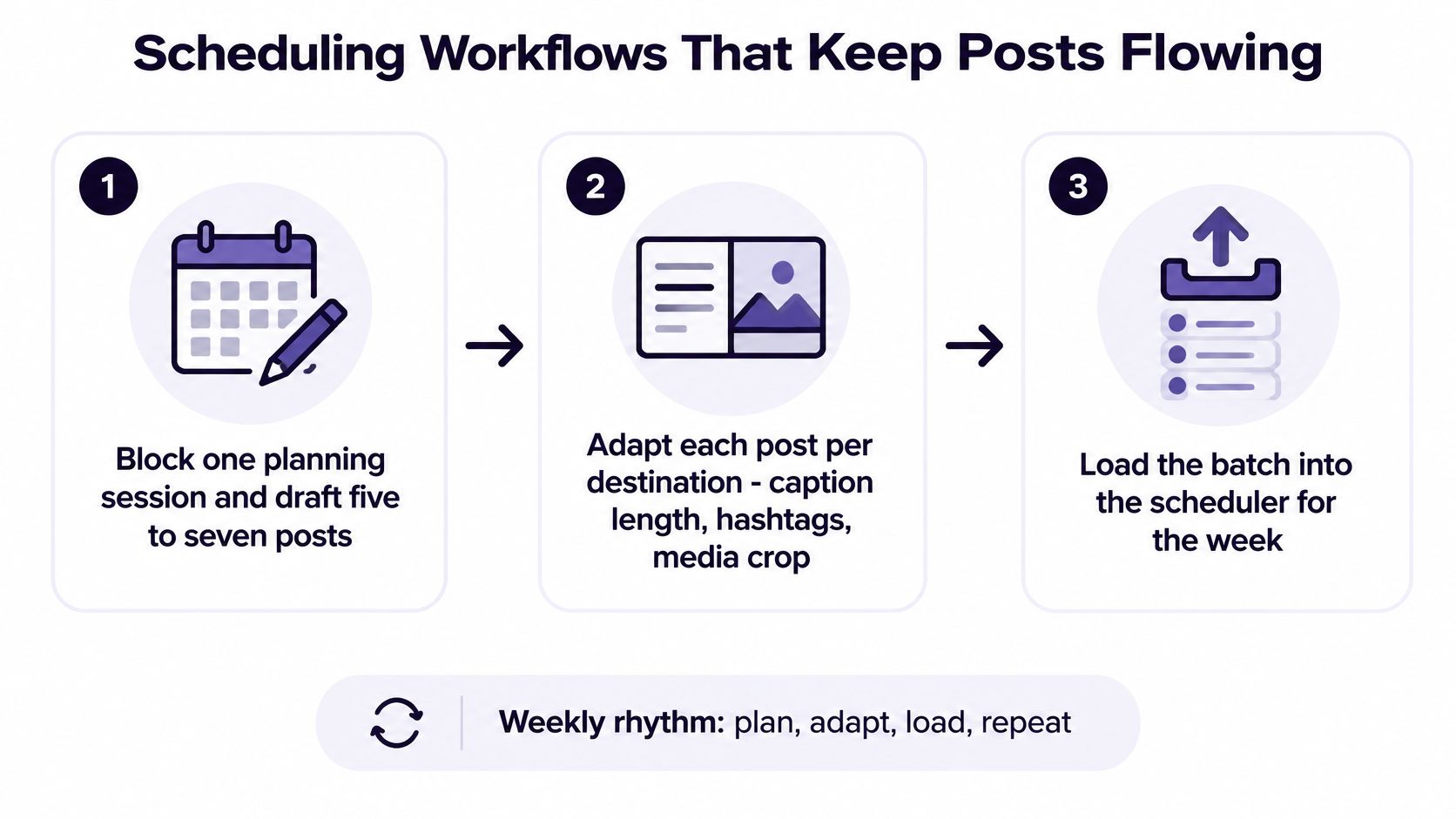
Block a planning session. For a manageable starter batch, draft five to seven posts around actual business needs: an offer, a customer question, a demonstration, or an evergreen explanation. Treat that quantity as a working example, not a posting-frequency target.
Adapt each destination's version. Rewrite caption openings, check hashtag relevance, and adjust media crops. A Facebook reader shouldn't receive instructions that only make sense on another network.
Load the calendar. Assign slots with the intended audience's timezone visible. Keep related campaign assets attached to their posts so reviewers aren't guessing which image belongs to which caption.
Mark suitable evergreen content for rotation. Reuse durable explanations and resources, not expired discounts or announcements. Review the facts and destination link before a recycled post returns.
Assign approval ownership. Give client-sensitive posts a named reviewer and a clear hold state. Build approval workflows for bulk publishing before adding unattended volume.
Use this visual rhythm to organize the batch before assigning publication times.
Separate your editorial calendar from the API queue
Meta's publishing documentation specifies that scheduled Page publication through this endpoint must fall between 10 minutes and 30 days after the API request. The request uses POST /{page_id}/feed, with published=false and scheduled_publish_time for scheduled publication.
That means a long-lead campaign needs rolling submission. You can plan it in an editorial calendar well ahead, but your integration should submit each post when it becomes eligible rather than assuming Facebook has accepted the entire distant campaign.
RSS-to-Facebook publishing can keep a blog distribution workflow moving, provided the automation filters for approved, public articles. Use the article's permanent identifier to avoid reposting an item merely because its feed entry was updated.
Before release: Spend a short review pass on link previews, image crops, offer dates, and calls to action. Scheduled doesn't mean checked.
A solo creator might draft on Sunday, load the approved week by lunch, and use weekday sessions for comments and customer questions. That's the useful trade: less repetitive posting, without abandoning editorial responsibility.
Troubleshooting Auto Shares That Fail or Vanish
The tool says published, but nothing appears on the Page. Start by opening the job record, not by pressing publish again.
You need to distinguish accepted into the queue, submitted to Facebook, and confirmed published. Those are separate states, and a vague success badge can hide the point where the workflow stopped.
Auto-share symptoms, causes and fixes
| Symptom | Likely cause | Fix |
|---|---|---|
| Tool says posted, nothing on the Page | Missing or revoked pages_manage_posts permission |
Re-authorize with someone holding CREATE_CONTENT; inspect the actual publish response |
| Errors after a password change | Invalidated or expired OAuth token | Reconnect the account and refresh authorization |
| Scheduled post never fires | Timezone mismatch | Align the schedule with the Page's intended timezone and confirm daylight saving time |
| Burst of failures during bulk uploads | API rate limiting | Pace the queue, batch nonurgent reads, and preserve retry capacity |
| Same post published twice | Retries without a persistent local job ID | Deduplicate by job ID; investigate ambiguous responses before resubmitting |
| Post is live but reach underperforms | Caption, format, link, or audience mismatch | Compare adapted native posts with auto-shared posts under similar conditions |
A password change doesn't prove why a job failed. Read the OAuth error before reconnecting, and check whether the failed job needs explicit rescheduling after authorization is restored.
Fix the error class, not just the symptom
Meta's published-posts reference describes rate-limited access and retrieval limits of 100 posts per request and approximately 600 ranked published posts per year. Broad feed polling is therefore a poor verification strategy compared with retaining publish responses and checking targeted records.
For capacity planning, Page or system-user token requests use an engaged-user calculation over a rolling daily window rather than a universal posts-per-minute allowance. Token checks, uploads, retries, and analytics requests all consume capacity.
- Transient failures: Retry with exponential backoff and queue-based pacing, honoring throttling responses.
- Permanent failures: Stop on invalid permissions or malformed parameters. Repeating the same request won't repair it.
- Retry headroom: Reserve roughly a fifth to a third of the call budget as an engineering starting policy, then tune it to observed demand.
- Operational measurement: Track first-attempt success and tail publish latency, not just how many jobs entered the queue.
Review the publish log weekly. Keep error codes, destination identifiers, job IDs, timestamps, and returned post identifiers available within your AI social media automation workflow.
A live post with disappointing reach is a distribution question, not proof of failed delivery or a verified automation penalty. Compare topic, creative, posting window, reach, clicks, and comments before changing the publishing method.
Your First Auto-Share Week
Choose the smallest method that covers your actual destinations: Business Suite for a Page-only operation, a scheduler for coordinated multi-network publishing, and the API when publication is part of your product.
Use the first week to establish a dependable routine rather than maximize volume. The following is a practical starter plan, not a performance benchmark.
A seven-day launch plan
- Day 1, classify and connect. Complete the source-to-destination matrix before authorizing the Page. Confirm the Page task and permissions, then publish a controlled test.
- Day 2, prepare the batch. Draft five to seven example posts, adapt their captions and media, and load the calendar. Use content calendar planning for teams to make ownership and review status visible.
- Day 3, add a guarded repeat. Choose an evergreen item for a recurring slot. Send restricted or ambiguous source material to approval instead of letting it inherit the public queue's settings.
- Day 5, compare delivery approaches. Run an adapted auto-shared post and a comparable native post, keeping topic, creative quality, audience, and posting window as similar as practical. Compare reach, clicks, and comments without treating a small test as a universal verdict.
- Day 7, inspect operations. Open the publish log, resolve failed jobs, and write down the first three problems you encountered. Assign an owner to each fix before increasing the workload.
Keep a clear stop button
Name the person who can pause a campaign when an offer changes, a client withdraws approval, or a community issue makes a scheduled message inappropriate. Make sure that person can find the queue without asking whoever originally connected the account.
Success is a calendar you trust, a log you can investigate, and an audience policy your team can explain. Once those are working, add more destinations or recurring content gradually.
iHatePosting brings a Facebook Page and 13 other networks into one composer, with AI agents that can draft, adapt, schedule, and publish while you keep final approval. Visit iHatePosting, connect your approved destinations, and schedule your first three posts today.