You've finished editing a batch of Shorts, but they're still sitting in a folder. Publishing them all now would empty your backlog, and remembering to upload each one later would put you back on a daily deadline.
Learning how to schedule YouTube Shorts solves the publishing problem, not the content problem. A useful routine combines a finished-file check, a repeatable upload process, and a timing experiment that changes one variable at a time. That's how you build a calendar you can trust without confusing automation with guaranteed reach.
Shorts Requirements and Pre-Release Checks
A scheduled Short can still miss its intended release if the file is framed incorrectly, a draft carries the wrong details, or a rights issue blocks publication. Check the exported video and each draft before adding them to the publishing queue. YouTube's Shorts upload guide explains the format and computer upload limits.
Square or vertical videos uploaded on or after October 15, 2024, qualify as Shorts when they're up to three minutes long. A computer upload selection can include up to 15 Shorts, with details completed for each draft. A horizontal video does not qualify just because its title or description includes a hashtag. Reframe the export, then inspect the finished file rather than relying on the editing project's settings. For this workflow, use an export preset capped at 1080p and verify the resulting video before it joins the batch.
Shorts requirements at a glance
| Requirement | Rule | Why it matters for scheduling |
|---|---|---|
| Duration | Up to 3 minutes | Longer uploads are not classified as Shorts |
| Aspect ratio | Square or vertical | Horizontal video is not a Short |
| Resolution | Up to 1080p for this workflow | Keeps the export within this workflow's settings |
| Batch selection | Up to 15 Shorts per computer upload session | Limits how many drafts you can queue in one block |
| Copyright claim | Longer than one minute with an active copyright claim can be blocked worldwide | Check rights before scheduling longer clips |
A batch upload is not a batch approval. Review every draft's title, audience designation, and description. Reusing metadata without checking it can attach the wrong episode description or an unrelated call to action to an otherwise correct file.
Use a pre-flight gate before scheduling
Confirm music and footage rights. Review the finished soundtrack, stock clips, and borrowed footage. Crediting a creator does not establish permission, and music cleared for another social network may not be cleared for YouTube. Longer Shorts need particular attention: an active copyright claim can block availability, not just affect who receives revenue. For music and licensing considerations, consult Drumloop AI's YouTube music guide, and keep the applicable license terms with the project.
Decide whether realistic AI content needs disclosure. YouTube's altered-content guidance requires disclosure for meaningfully altered or generated content that appears realistic, such as fabricated speech by a real person or a photorealistic event that never happened. AI-written scripts, minor aesthetic changes, and non-realistic animation generally do not require disclosure. Review the finished video and select the appropriate upload setting.
Inspect the mobile presentation. Watch the opening frame at phone size. Check that captions match the speech and move essential text clear of interface overlays. Text that reads well in the editor can become cramped after reframing.
Keep a fallback copy. Store the source footage, project file, final export, and relevant license records together. If an asset needs replacing, those files let you rebuild the Short without reconstructing the entire edit.
Use the final export for these checks. An approved script cannot confirm that the edit uses approved music, retains correct captions, or has the intended framing. The Shorts metadata and music rights checks can help organize upload details.
Pre-flight rule: Keep unresolved rights questions in the approval queue, not the publishing queue.
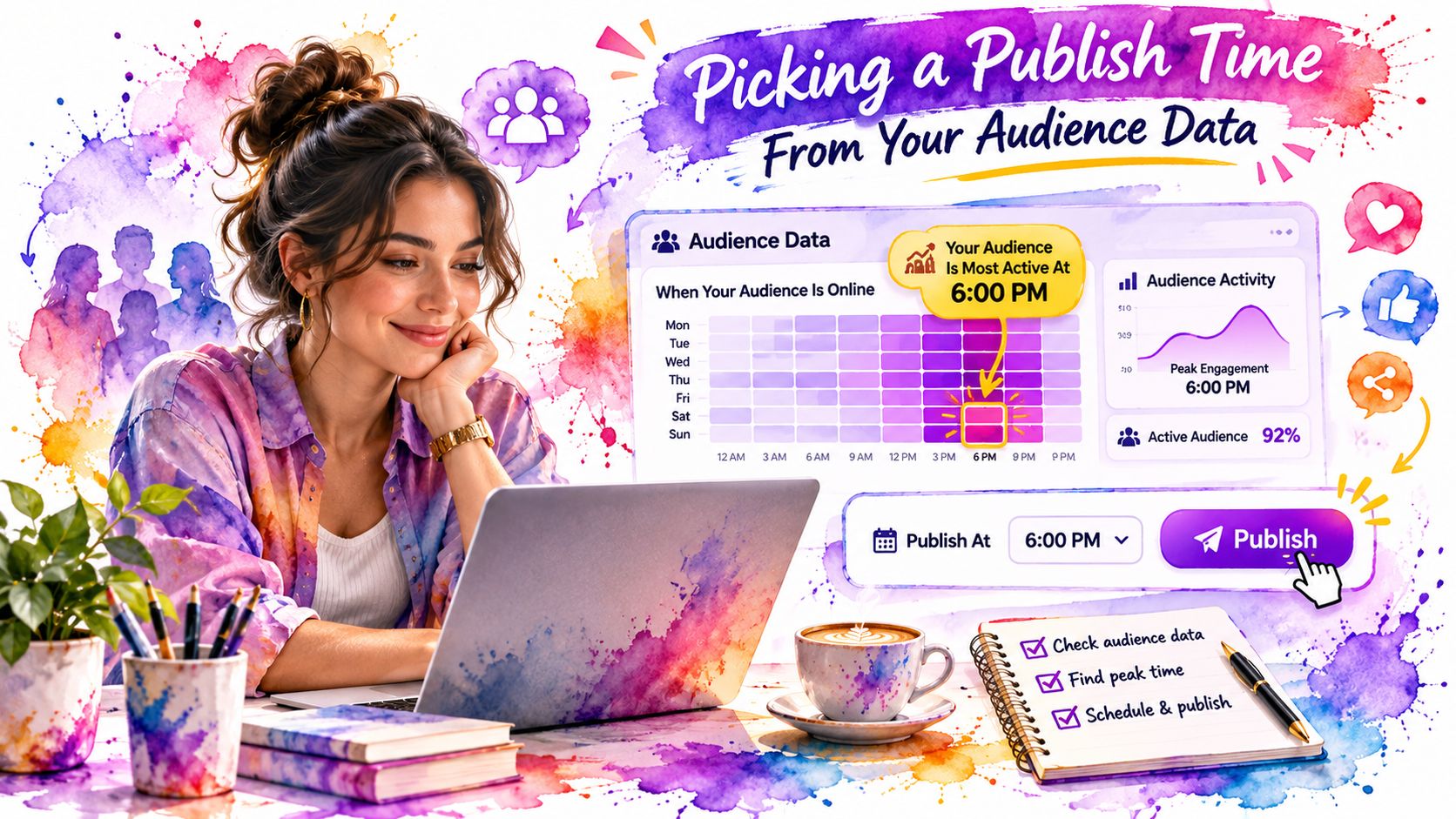
Picking a Publish Time From Your Audience Data
There isn't one universal best hour for every channel. YouTube's scheduling and analytics guidance points creators toward audience activity during the previous 28 days, alongside Shorts metrics that distinguish feed exposure from viewer response.
Use your audience's activity pattern as the starting point, not your own evening routine.
Keep the cadence fixed and test the window
A practical baseline is three to five Shorts weekly for four to six weeks, following the controlled-testing approach in YouTube's sustainable scheduling guidance. Keep the cadence unchanged while testing publication time.
Hold the topic, hook style, length, and packaging as consistent as practical. Choose comparable audience-active windows, then change only the publishing window during that cycle. Otherwise, you won't know whether timing or a stronger video explains the result.
Try publishing shortly before an active period as a test hypothesis, not an algorithmic shortcut. Upload early enough to finish processing and checks, but don't assume private uploads accumulate recommendation signals.
If inconsistent editing makes the comparison unreliable, Moonb's overview of video editing services can help you evaluate production support. Give an editor a consistent format rather than requesting a different style for every test.
Shorts metrics to compare across publish windows
| Metric | Where to find it | What it tells you about the time slot |
|---|---|---|
| Shown in feed | Reach analytics | How often the Short appeared in the Shorts feed |
| Viewed (vs. swiped away) | Reach analytics | Share of viewers who watched rather than swiped away |
| Engaged views | Shorts analytics | Views where viewers continued watching |
| Average view duration | Shorts analytics | How long viewers stayed on average |
| Average percentage viewed | Shorts analytics | How much of the Short viewers watched |
| Audience active times | Audience analytics | When your viewers were online across YouTube |
The video below offers an additional walkthrough to accompany your timing review.
Compare median views, retention, and subscribers gained rather than letting a viral outlier decide the calendar. Keep the window with stronger feed exposure and viewed-versus-swiped-away results across comparable uploads, provided retention doesn't deteriorate.
For a global audience, prioritize the activity window covering your largest viewer group. Check time-zone conversions and daylight-saving changes before saving it. YouTube's scheduled publishing documentation also notes that the displayed publication date can depend on Pacific Standard Time.
We use a structured schedule alongside each account's own results to keep timing tests steady. Treat iHatePosting's Sunday Shorts timing breakdown as a planning aid, not a replacement for your channel's evidence.
How to Schedule a Short in YouTube Studio
The reliable sequence is prepare, upload, approve, schedule, verify. YouTube's upload guidance supports preparing square or vertical Shorts of up to three minutes, with uploads encoded at no more than 1080p, before completing the publishing details.
Keep your source folder and scheduling calendar separate. A file can be finished without being approved, and an approved file can still be waiting for its publication slot.
Follow the upload and scheduling sequence
Batch-produce the videos. Finish the edits together so publishing doesn't depend on when you happen to export a file. Use descriptive filenames that distinguish the final version from rough cuts, alternate hooks, and caption revisions.
Check each export against the requirements. Inspect duration, orientation, and resolution in the finished file's properties. Don't assume every export inherited the correct preset just because they came from the same editing project.
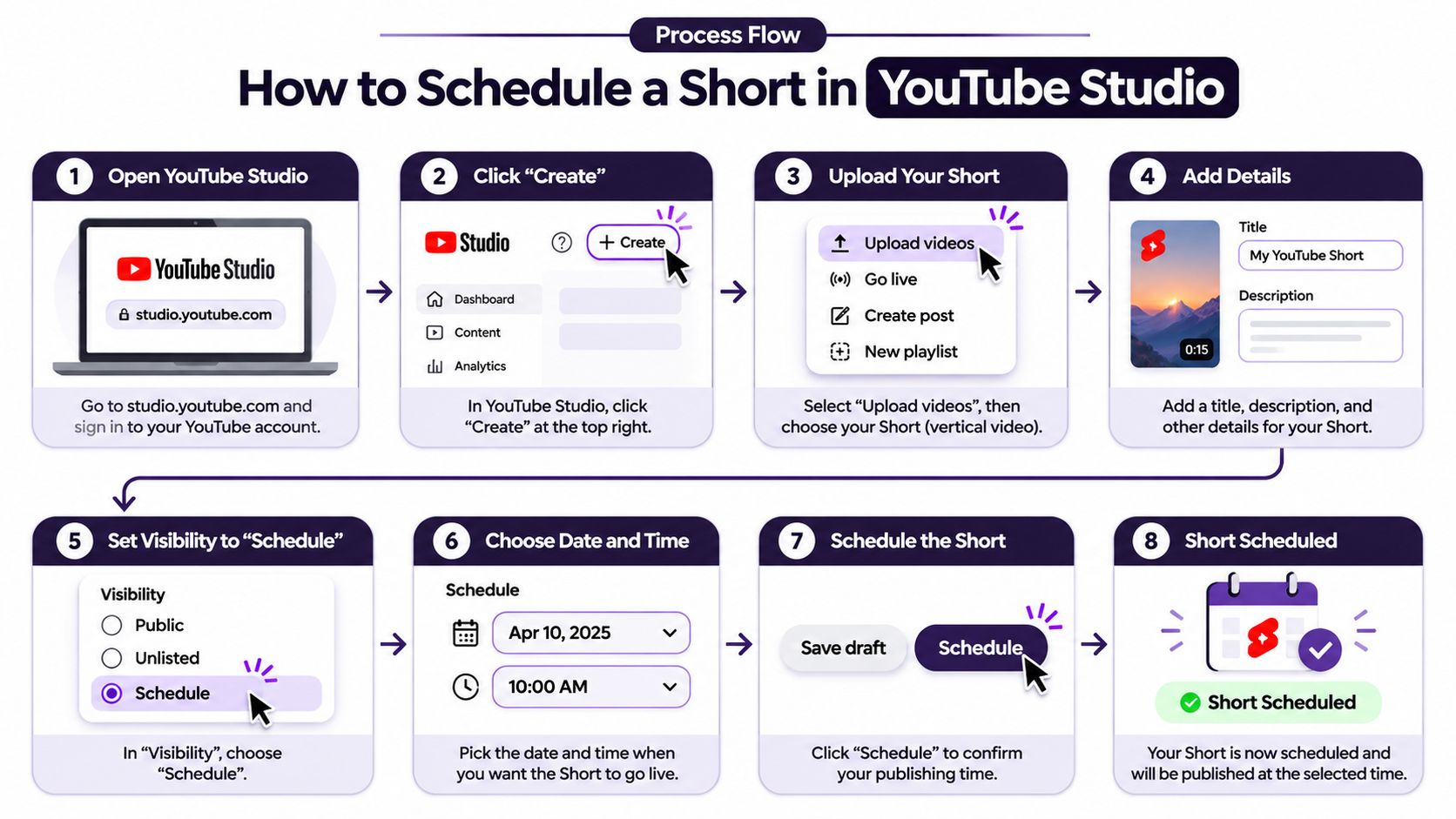
Upload in YouTube Studio. Open Create, choose Upload videos, and select the approved files. Match each upload to your calendar entry before continuing, especially when several episodes look similar.
Complete the title, audience designation, and metadata. Write the YouTube-specific details before choosing a publication slot, then review any relevant disclosure settings. The common mistake is treating a copied description as finished even though it refers to another video or campaign.
Open Visibility and choose Schedule. Selecting Private alone doesn't create a future release. Confirm that you've selected the scheduling option and that a publication date is attached to the upload.
Set the date, clock time, and time zone. Use the audience window you're testing, not whichever local hour is convenient. If the launch depends on a particular calendar date, check both the selected zone and YouTube's displayed-date convention before saving.
Review the item under Content. Confirm the scheduled status, release date, and intended video, then reopen the details if anything looks inconsistent. For a team workflow, assign a person to approve the final state rather than assuming the uploader completed every check.
Use this visual sequence while working through the upload panel.
Verify the saved state
A scheduled Short stays private until its selected release time. To change the slot or publish early, edit its Visibility settings rather than uploading a duplicate.
A completed upload isn't proof of a completed schedule. Check the saved status.
The final check belongs in Content, where the item should show its scheduled state and intended date. Verify the whole batch there, including gaps and accidental overlaps, before closing Studio.
Scheduling removes the need to click Publish at launch time. It doesn't remove the need to inspect the upload, keep the calendar current, or respond when channel restrictions interfere with release.
Native Studio Scheduling Versus a Third-Party Tool
YouTube Studio is the straightforward choice for a YouTube-only routine. A third-party scheduler becomes useful when a Short is part of a broader campaign, with related posts, multiple reviewers, or coordinated releases on other networks.
The meaningful difference isn't a promise of extra reach. It's where you manage dates, adaptations, approvals, and account access.
Native Studio scheduling compared with a third-party tool
| Criterion | YouTube Studio | Third-party scheduler |
|---|---|---|
| Setting date and time | Visibility section during upload or edit | Scheduler calendar with date and time per post |
| Batch queuing | Select a batch, then complete individual drafts | Queue drafts across the calendar in one place |
| Other networks | YouTube only | Shared calendar with other connected networks |
| Approval step | Manual check under Content before release | Review and approval workflow before publishing |
| Account connection | Native YouTube account | YouTube API Services connection, revocable in Google security settings |
| Best fit | One channel with a steady Shorts routine | Several channels, clients, or a coordinated launch |
Stay in Studio if you manage a single channel and don't need a shared review queue. Choose a shared calendar when more than one person or network is involved and coordination is becoming repetitive.
Don't confuse a native upload-selection limit with a third-party tool's queue capacity. Check how the scheduler handles drafts, media processing, and failed posts rather than assuming every tool behaves like Studio.
Choose based on coordination work
For example, a product tutorial might need a YouTube Short, a differently worded Instagram caption, and a launch announcement elsewhere. A shared workspace lets the reviewer inspect those related posts together without forcing identical wording onto every platform.
Our social media scheduler puts that workflow in one place: connect your accounts, create or upload content with per-platform captions, then schedule everywhere. Bring the campaign's ideas, captions, images, and videos into the calendar, and build a publishing rhythm you can maintain.
Connecting a YouTube channel uses YouTube API Services, and you agree to the YouTube Terms of Service and Google's Privacy Policy. You can revoke our access at any time through Google's security settings.
Decision rule: Add a scheduling tool to reduce coordination work, not because you expect the connection method to fix weak content.
A shared calendar is particularly useful when several channels use the same approval queue. Studio remains a sensible option when that coordination layer would add more administration than it removes.
Fixing Scheduled Shorts That Fail to Publish
The Short is set for Thursday at 18:00. Thursday ends, and it is still marked Scheduled. Treat that miss as one failed run in a fixed cadence. Do not rebuild the whole week until you know which single input failed.
A copyright block can look like a scheduling failure when the actual problem is availability. A Short longer than one minute with an active copyright claim, including a manual claim, is blocked globally. YouTube's copyright guidance states that a square or taller Short over 60 seconds with an active Content ID claim is blocked worldwide.
Check the claim before the intended release. Rescheduling alone will not clear it. A license can still leave the Short blocked until the claimant releases the claim.
Symptoms, causes and fixes for scheduled Shorts
| Symptom | Likely cause | Fix |
|---|---|---|
| Short never goes live | Active copyright claim on a longer clip | Inspect the claim, then replace the material or resolve the rights issue |
| Video posts as a regular video | Duration or framing doesn't qualify | Re-export within Shorts duration and square or vertical framing requirements |
| Publish time looks wrong | Wrong time zone or Pacific Standard Time date rule | Recheck the time zone and date in Visibility |
| Batch won't take more files | Upload-session selection limit reached | Split the batch into separate upload sessions |
| Scheduled upload doesn't publish | Community Guidelines strike penalty period | Check channel status, then reschedule after the penalty |
| Post fails in a third-party tool | Platform error shown on the post | Report the platform, scheduled time, and exact error |
Diagnose before retrying
Run a pre-flight gate in a fixed order, and change only the variable that failed. Start with Restrictions and channel status, then inspect Visibility. If the upload shows as a regular video, open the exported file and check duration and framing. Hashtag edits, or another upload of the same file, will not change that result.
For a time mismatch, compare the audience time you wanted with the saved time zone and the date shown in Visibility. Leave a Short that did publish. Early views can be weak while the publish itself succeeded. Poor performance and a failed publication are different problems.
Hold the weekly slot steady. After one miss, change a single input: the asset, the time zone, or the upload session. Log the file, intended slot, error, cause, and correction. Repeated rights failures mean the approval gate is letting claimed audio or footage through. Repeated time errors mean the calendar check is being skipped. Queuing more Shorts does not repair either one.
If a post does not publish as expected in iHatePosting, tell them which platform, roughly when it was scheduled, and the error shown on the post. That usually lets them answer in one reply instead of three.
Confirm a Test Batch Before You Scale Up
A full calendar can hide a weak publishing routine. Start with a manageable batch of Shorts, then check that each file, release detail, and promotion post is ready before scheduling the next set.
Keep the test repeatable: use the same production cadence, vary one factor at a time, and review the results before changing your schedule. Account-based scheduling experiments can help keep timing decisions grounded in your audience's behavior rather than generic advice.
Automate preparation without removing review
AI-powered content generation can help draft captions, hooks, hashtags, images, and videos, reducing repetitive preparation. Automation can also adapt and schedule posts across networks, while human review catches errors before publication.
Use a pre-flight gate for every Short:
- Approve the asset. Check rights, disclosures, captions, and framing.
- Approve the release. Confirm the account, date, time, and campaign context.
- Review the outcome. Track whether it published reliably, then assess content performance separately.
When the free trial ends, you can still sign in and edit drafts, but scheduling, publishing, and connecting new accounts stop until you choose a plan.
Scale only after the batch publishes as planned and the chosen time window holds up in your metrics. A larger queue will not fix a blocked upload, unresolved errors, or a weak hook.
iHatePosting supports YouTube scheduling, video-description organization, and customized posts promoting shorter clips from longer videos. Use its visual calendar to prepare a reviewed test batch, coordinate promotion posts for each upload, and maintain a schedule you can sustain.