How to Add Line Breaks in Instagram Caption: 2026 Guide
9 min readinstagram line breaksinstagram caption formattinginstagram caption tipsline breaks iphone android
Press Return on iPhone or iPad, or Enter on Android or the web, to add a line break in an Instagram caption. Press the same key twice to create a visible blank line between paragraphs.
You've written a caption that reads cleanly in your notes, then pasted it into Instagram and watched the paragraphs collapse into one block. The app usually isn't refusing line breaks. Trailing spaces, copied whitespace, or repeated empty lines are more often the culprit, so the fix is to check how the text was entered and rendered.
Table of Contents
- Line Break Keys for iPhone, Android and Web
- How to Add Line Breaks in the Instagram App Step by Step
- Why Your Line Breaks Vanish After Posting
- Third-Party Tricks and Tools That Help or Hurt
- Character Budget and Final Preview Check
Line Break Keys for iPhone, Android and Web
The keyboard changes by device, but the whitespace rule stays the same: place the cursor immediately after the last character, then insert a break. Use the caption field's normal key once to move to a new line, or twice to leave a blank line between paragraphs. Post, Reel, and carousel captions all use a caption field.
| Device or surface | Single line break | Blank line between paragraphs | Common catch |
|---|---|---|---|
| iPhone or iPad | Return | Return twice | A space typed before Return can swallow the break |
| Android | Enter | Enter twice | Autocorrect may add a space before the key |
| Desktop web browser | Enter | Enter twice | Copied text can carry hidden trailing spaces |
A break that looks correct while editing may still be affected by whitespace. Check that there is no space after the final character before you press Return or Enter. A trailing space can be hard to see in the composer and may make the paragraph break behave inconsistently after publishing.
When drafting on a computer, a plain-text editor such as Notepad or TextEdit can help keep formatting simple. It does not remove every risk: copied text may still carry whitespace from its original app. After pasting, inspect the breaks in the caption field. If you upload Instagram photos through your browser, check each paragraph break in the browser composer before publishing.
Line breaks count toward Instagram's caption limit, so extra blank lines use space that could otherwise hold words. There is no need to count every return as you type, but review the final caption if it is close to the limit.
Quick test: Type a short first line in the composer, press the key once, then type a second line. Check that the cursor moves down and the break remains visible before adding the rest of the caption.
How to Add Line Breaks in the Instagram App Step by Step
For a caption that reads cleanly, place each break where a reader should pause, then check the spacing in Instagram's composer before publishing. The same steps apply to a Post or Reel, and to captions you edit after publishing.
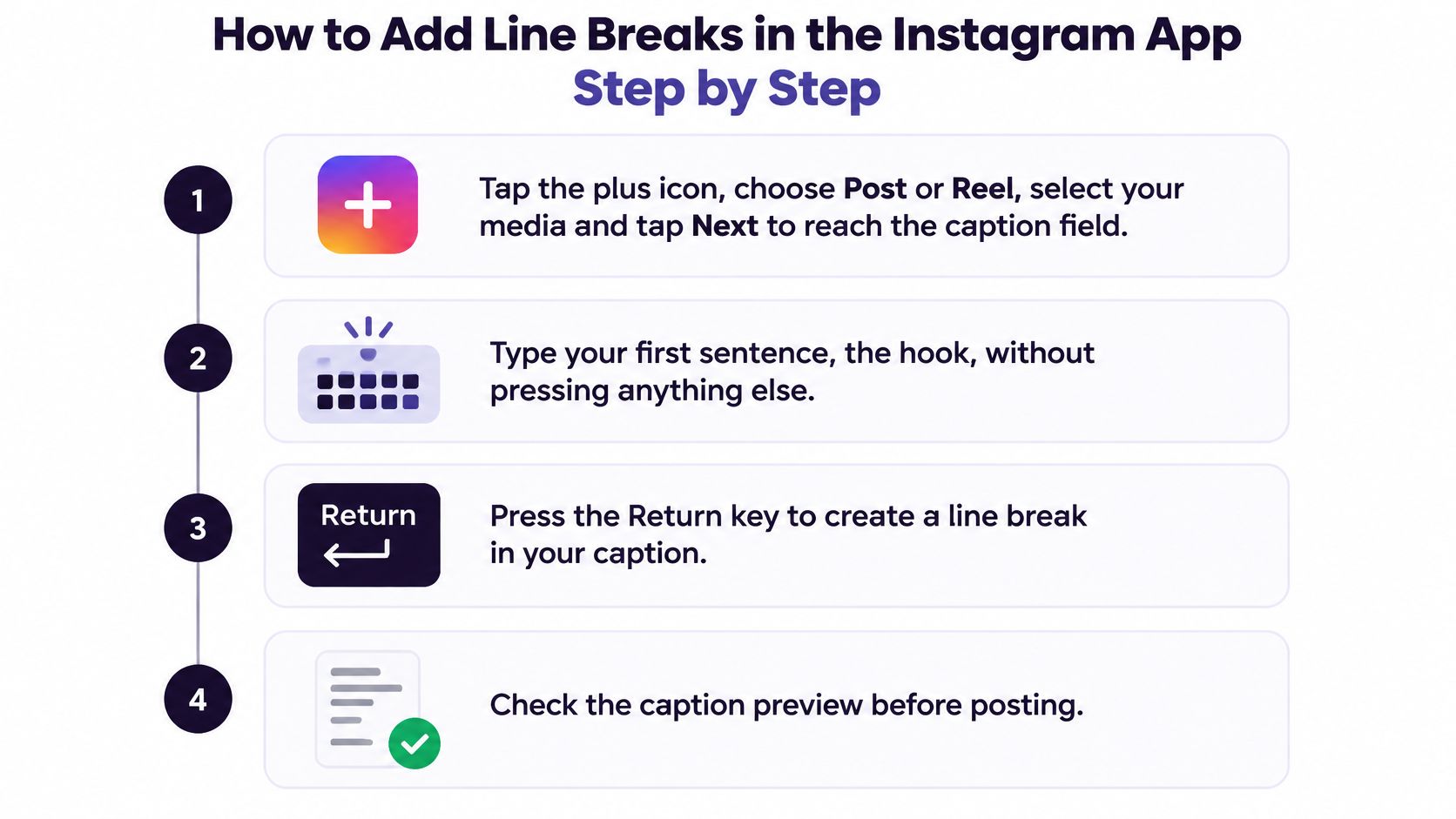
Open the caption field. Tap the plus icon, choose Post or Reel, select your media, then tap Next until the caption box appears. Starting in Instagram's composer lets you inspect the spacing in the field where you'll publish.
Write the hook first. Type the opening sentence without a space after its final punctuation. Keep it self-contained, then use the next lines for supporting details.
Add a single line break. Press Return on iPhone or Enter on Android, then type the next line. The cursor should move down. If it doesn't, delete any space after the previous text and press the key again.
Separate paragraphs deliberately. Press Return or Enter again to leave a blank line before a detail or call to action. Avoid making a gap with spaces. Instagram may handle those differently when the caption is published.
Group hashtags at the end. Leave a blank line after the main copy, then add the hashtags together in a final block. This keeps them easy to find and prevents a break from splitting a hashtag.
Check the caption before sharing. Review the order of the hook, details, and hashtag block in the composer, then tap Share. For scheduled campaigns, check the version prepared for Instagram rather than assuming formatting will carry over from another platform.
To change a live caption, open the post, tap the three dots, choose Edit, and adjust the text in its caption field. The edited caption still needs to fit Instagram's character budget. You can draft the words with speech-to-text for Instagram writing, then add and inspect the paragraph breaks in Instagram. To prepare copy before publishing, use a workflow to edit Instagram drafts before publishing.
A ProfileTree caption guide advises checking the live post as well as the draft, since pasted spacing may change during rendering, and warns against relying on invisible spacer characters as a universal fix. Those characters can affect the caption count or display differently across devices.
The finished caption should show a short hook, a clear gap, supporting details, another gap, and hashtags grouped at the end.
Why Your Line Breaks Vanish After Posting
The common cause isn't that Instagram lacks line breaks. It's whitespace normalization: the app may trim trailing spaces or collapse repeated empty lines, and copy-pasted text can carry whitespace that isn't obvious in the editor. Guidance on Instagram line-break troubleshooting also notes that formatting can look right in a source app, then change when the caption is processed.
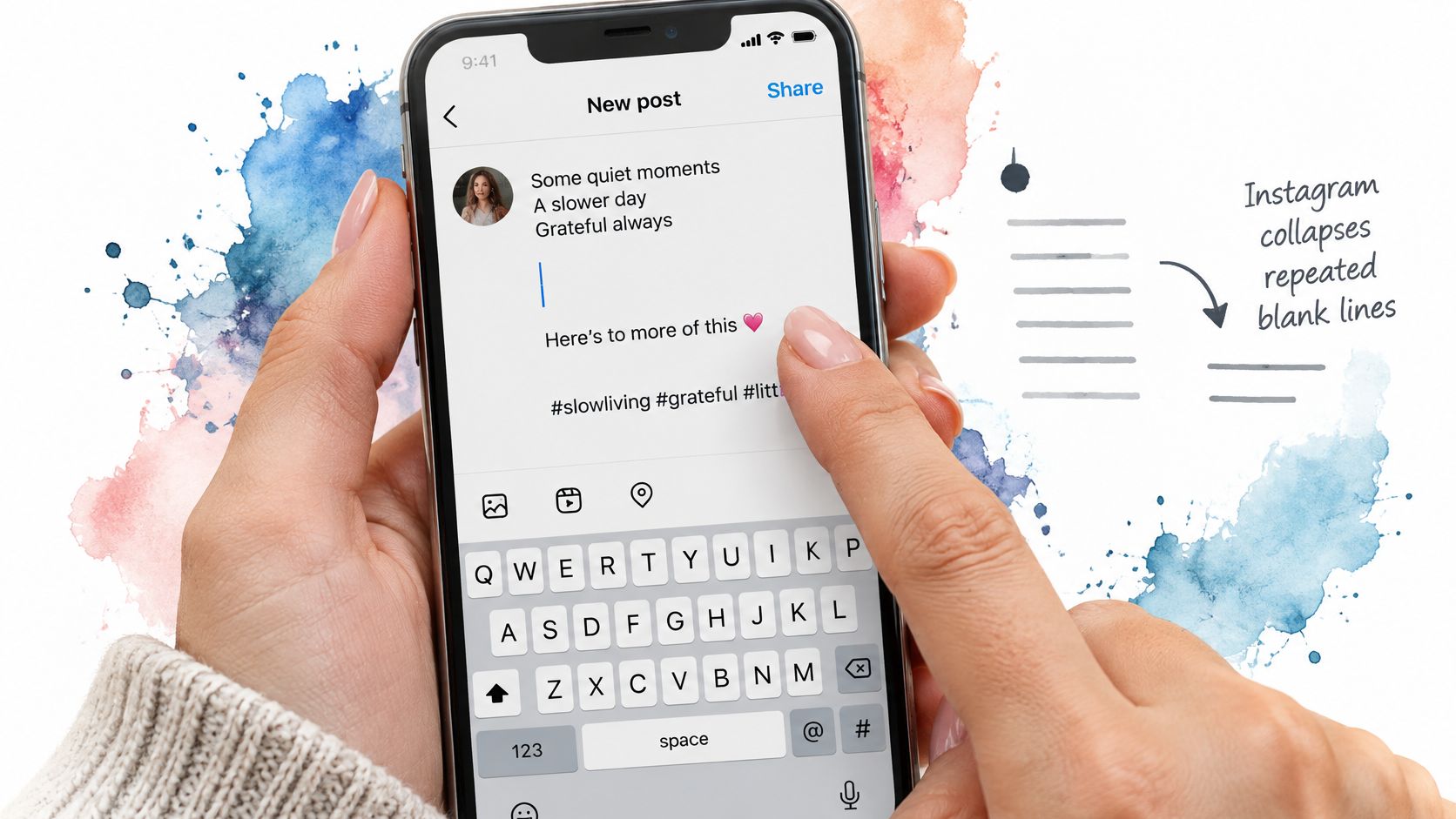
Use the symptom to identify the likely cause before trying a workaround:
| Symptom | Likely cause | Fix |
|---|---|---|
| Blank line disappears | Repeated empty lines collapsed | Keep one blank line per gap, not several |
| One break is missing | Space typed before Return | Delete the trailing space, then press Return again |
| Break shows on desktop but not on phone | Different whitespace carried in by copy-paste | Retype the breaks in the phone app and preview |
| Whole caption merged into one block | Text pasted from a source with no breaks | Re-enter the breaks manually after pasting |
| Hashtags split from the caption | Break inserted inside the hashtag line | Keep hashtags in one final block after a blank line |
Start with the simplest repair: edit the caption, remove the space before the failing break, and re-enter the line break. If the caption came from a desktop editor, test the pasted text in the phone app instead of trusting the desktop display.
For a campaign or a high-stakes post, make a short test caption first and inspect the published result. If you're using a workflow to set up automatic Instagram posting, check the platform's preview and validate a test before relying on its formatting for a full launch.
The clip below offers another visual reference for checking caption formatting on a phone.
Third-Party Tricks and Tools That Help or Hurt
A plain-text draft gives you direct control over where returns go. Write the caption, paste it into Instagram, then inspect the composer preview. The Hootsuite caption preview tool also emphasizes checking paragraph returns in a platform-specific preview.
| Method | Best for | Main risk |
|---|---|---|
| Plain-text editor draft (Notes, TextEdit, Notepad) | Structuring long captions before pasting | Pasting can strip or collapse blank lines |
| Line break generator websites | Adding a spacer for a blank line | Spacer characters count toward the caption limit |
| Invisible blank characters | Preserving blank lines when pasting collapses them | Counts and rendering can vary across devices |
| Emojis or bullet symbols as separators | Making a dense caption easier to scan | They are not paragraph breaks and can clutter the caption |
| Scheduling tool preview | Checking how breaks render before posting | The preview may differ from the live post |
Generator sites and invisible characters are workarounds, not the first repair to try. They add whitespace characters, and their display can vary across devices. First check for trailing spaces and test a clean paste. If the breaks still disappear, try a spacer and inspect the caption in Instagram before publishing.
Emojis and bullets provide visual markers, but they do not create paragraph structure. Use them to label a short list or section. For a clean gap between thoughts, use a return and confirm the whitespace remains in the preview.
A scheduling preview can help you compare platform-specific captions before publishing. A social media scheduler supports planning and tailoring posts across platforms, but the final Instagram composer preview remains the place to check how your caption's spacing appears.
Rule of thumb: Draft in plain text, keep spacer characters for cases where ordinary returns fail, and check the finished caption in its publishing preview.
Character Budget and Final Preview Check
The feed preview often shows only about the first 125 characters before the “more” prompt, though the exact cutoff can change with the device, app version, and viewing surface. Put the hook and the essential promise near the start, then use short paragraphs for the details and call to action. The Instagram character-limit guide from TaskAnt notes that spaces, emojis, hashtags, mentions, and line breaks all count toward the commonly documented 2,200-character limit.
A practical structure looks like this:
New seasonal menu, made for slow weekend mornings.
Find fresh pastries, small-batch coffee, and a new rotating special. Visit us this weekend to try the first batch.
See you Saturday.
#LocalBakery #WeekendCoffee
Use only the spacing that helps readers understand the message. Every break consumes characters, and decorative blank lines can push useful copy farther down the caption. A caption with ten paragraphs uses nine characters for paragraph-spacing line breaks, according to Clic Tools' Instagram line-break generator.
A repeatable pre-publish check
- Draft the structure. Write the caption in a plain-text editor with the breaks you want, then remove unnecessary blank lines.
- Paste and count. Check the final pasted text in the composer, not just the source draft, and confirm it's below the caption limit.
- Review the mobile preview. Make sure the hook appears before the “more” prompt and that the supporting copy remains easy to scan.
- Compare after publishing. Check the live caption against the preview, especially if you used a scheduler or copied text between apps.
- Record a failed break. Note the device and the symptom, then fix the source text before reposting or reusing it.
A character counter helps catch a caption that's too long, but a number alone can't tell you whether the hook is visible or the formatting survived. Claims that spacing guarantees better engagement also go beyond what the available guidance establishes. Treat line breaks as a way to organize information, not as a performance promise.
iHatePosting's caption-friendly composer includes a character counter for keeping copy tight on platforms such as X and LinkedIn, as well as short social hooks. Its workflow is straightforward: connect your accounts, create or upload content with per-platform captions, then schedule everywhere. If you need to check platform limits alongside your caption plan, see Instagram publishing limits for 2026.
Write a two-paragraph test caption today, paste it into Instagram, and confirm that the gap survives in the preview before using the format on an important post.
Use iHatePosting to organize per-platform captions, check character counts, and schedule your posts in one workflow. Draft your Instagram copy, verify its line breaks, and then visit iHatePosting to plan and schedule content across your connected accounts.