How to Archive Instagram Posts in Bulk (2026 Guide)
13 min readarchive instagram postsbulk archivinginstagram archiveinstagram backup
The popular advice is simple. Select everything, tap Archive, and enjoy your clean grid. Don't do that on a profile you depend on. Bulk archiving changes your public record in one pass, and Instagram gives you no batch report to prove what moved. If you want to archive Instagram posts in bulk without losing track of campaign creative, reporting, or approvals, treat it like an operational change. Audit first, archive in small verified batches, and test restoration before you scale up.
Table of Contents
- Choosing the Right Bulk Archive Route
- Back Up and Audit Posts Before You Archive
- Checking Third-Party Tools and Scripts Before You Use Them
- How to Bulk Archive Posts in the Instagram App
- Verify Each Batch and Fix Problems
Choosing the Right Bulk Archive Route
Yes, Instagram has a built-in way to archive Instagram posts in bulk through Your activity. Instagram's February 8, 2022 announcement said the feature would begin rolling out globally, letting users select and manage multiple pieces of content in one place rather than opening posts individually. It directs you to Profile, the upper-right menu, then Your activity. That's the default route for most accounts.
Archiving isn't deleting. An archived post leaves your public grid and stays in the Archived area, where you can manage it later. Deletion is a separate action with far less reversibility, even though both options can sit close together on the same screen. Read the confirmation label before you tap.
Bulk Archive Routes Compared
| Route | Where to find it | Best for | Main limitation |
|---|---|---|---|
| Instagram app (iPhone or Android) | Profile → menu → Your activity → Photos and videos → Posts | Most personal and business accounts | Menu placement can vary by app version and account |
| Desktop web (instagram.com) | Same Your activity path on the web | Date filtering and checking selections on a larger screen | Layout and available filters can differ from the app |
| One-by-one archive | Three-dot menu on each post, then Archive | Removing a few posts at a time | Slow, and error-prone for long campaigns |
| Browser extension or unofficial script | Third-party install, usually with login | Visible-grid cleanup of recent posts | Coverage limited to what the grid shows; credential and terms risk |
| Meta Content Library | Meta research platform | Approved researchers studying public content | Not a tool for managing or backing up a private account |
Say a travel creator has 340 posts from a retired series and wants them off the grid before a rebrand. I'd use the native route in filtered batches. Say a brand is retiring a launch campaign but needs to keep the creative. Same answer, with a stricter audit first, because the posts may sit inside reports and partner deliverables.
Instagram doesn't publish a maximum batch size, completion time, or official success rate. Treat claims like "up to 100 posts at a time" in BePlan's 2026 guide as a third-party claim, not a platform rule you can plan around. Once the old grid is settled, Klap on scheduling repurposed video clips is useful if retired video is coming back in a new format, and planning Instagram content across multiple networks helps you sequence what replaces it.
Back Up and Audit Posts Before You Archive
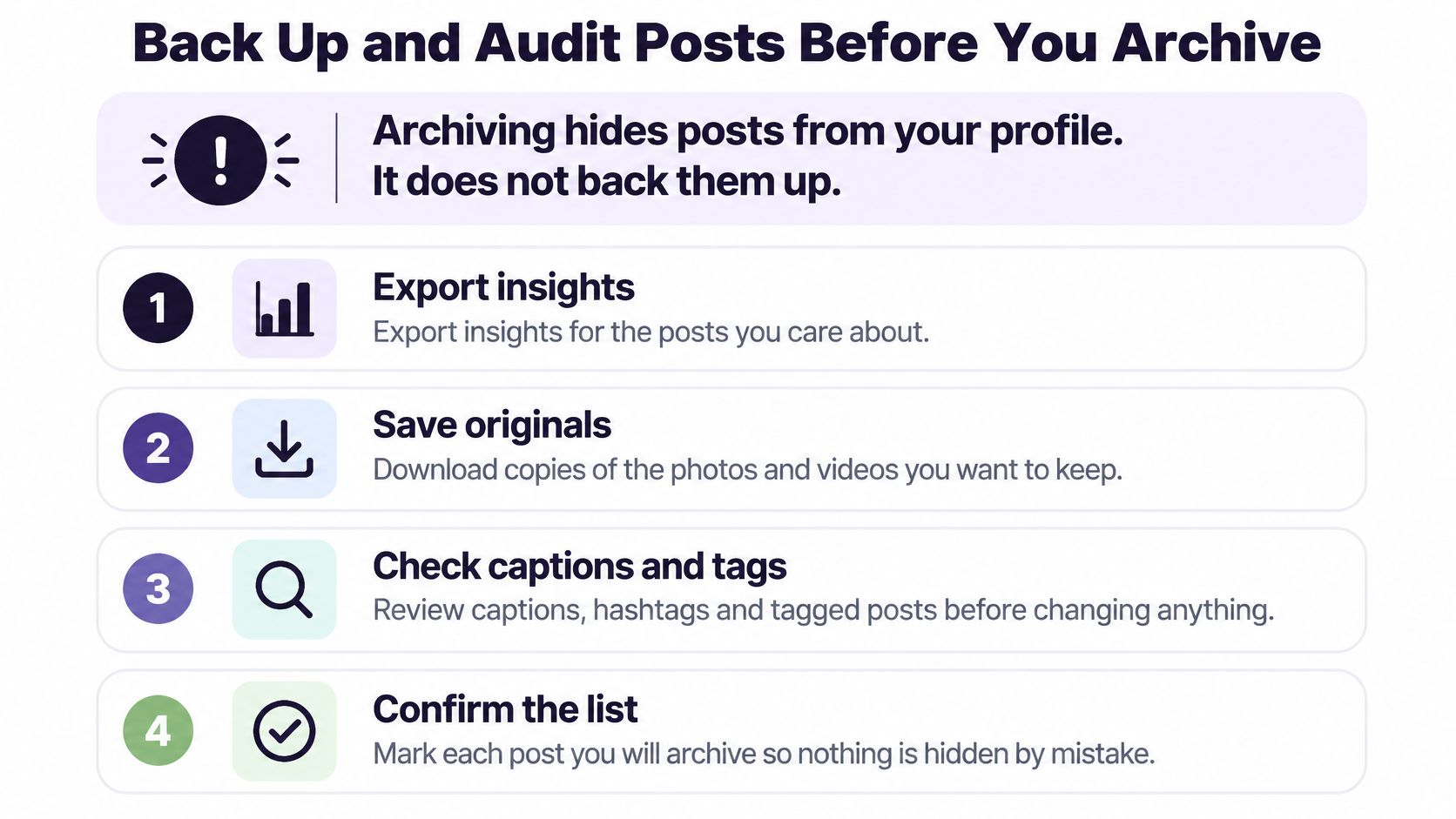
Archiving hides a post from your profile. It doesn't create a backup you control. If the account is locked, compromised, or handed to a new owner, content that exists only inside Instagram is still platform-dependent. Save what matters outside the app before you change its visibility.
Start with the audit sequence below, then use the table to build a manifest you can reconcile later.
Run the Pre-archive Audit in Order
- Export insights first. If your account type offers them, save performance data for posts you'll need in reports. Don't assume the numbers will be easy to retrieve in a useful form once the posts leave the grid.
- Record the URL or identifier. Copy it from Share → Copy link for each post. This is how you'll find a specific item after it's hidden.
- Note tags and collaborations. Record people tags, collaborator status, and product tags. These affect how a post appears to other accounts, not just on your grid.
- Classify every post. Group by campaign, content pillar, or year. Your batches should follow those groups, so a mistake stays contained.
- Save originals outside Instagram. Keep the media files and captions together in folders you control. If you download your account data, use this guide to verify your downloaded Instagram archive before you rely on it.
- Test one representative post. Archive it, check the grid and the Archived view, then restore it if you need to confirm the round trip works.
Instagram's official help on archived content confirms archived posts can later be managed from the archived-content area, but it doesn't clearly explain downstream implications for historical reporting, profile-grid presentation, tagged content, collaborations, product launches, or links in external campaign reports. That's exactly why your own record matters. Restoring a post later may not recreate its former strategic context, even if the post itself returns.
Manifest Fields to Record Before Archiving
| Field | Why it matters | Example |
|---|---|---|
| Post URL or shortcode | Lets you find the post again after it is archived | Copied from Share → Copy link |
| Publish date | Keeps historical reporting and campaign timelines accurate | Posted 14 Mar 2024, shown in post details |
| Media type | Separates feed posts, Reels and carousels in later checks | Carousel, 4 images |
| Caption and hashtags | Preserves campaign wording and approvals | Saved as a text file beside the media |
| Intended archive state | Records whether the post was planned for archiving and when | Batch 2, Q3 date range |
The publish date and intended archive state do more work than they look. Together they let you explain, months later, why a post was hidden, which batch it belonged to, and whether hiding it was deliberate. For an agency running several client accounts, the manifest doubles as the approval record. Note who requested each change and when they approved it.
Practical rule: If a post isn't in the manifest, it doesn't go in the batch.
Keep replacement content separate from this process. Drafts for the new grid are a different job, and how to save Instagram draft posts covers that side of the workflow. Finish the audit first. Every later check depends on it.
Checking Third-Party Tools and Scripts Before You Use Them
Don't trust a tool's "done" message. That message usually means the tool finished running, not that it found every post on the account. Coverage is the weak point, and it's the first thing I'd test before letting anything touch a client profile.
Outside tools promise volume the native route makes slow. In exchange, they usually ask for a login, act on the account outside Instagram's own controls, and may misreport what they've covered. The Social Archive guide to Instagram describes importing only posts visible in the currently open profile grid and offers a configurable range of 50–5,000 recent posts, so discovery depends on what the interface exposes. An older post can be missing without any error appearing.
Consider a simple failure. An extension reports 1,000 posts processed on an account that has 1,200. The missing 200 are the oldest posts, because the grid never loaded them during the run. Without a manifest to reconcile against, you'd call that cleanup complete and move on.

Checks to Run Before You Install Anything
- Permissions requested: Does it need your password, a session cookie, or broad account access? The narrower the access, the better.
- Data source: Does it work from an official export, or does it scrape what's visible on the page? Scraped coverage is partial by design.
- Action taken: Does it archive, delete, or only download copies? These are different jobs with different consequences.
- Action log: Does it record each post it touched, with an identifier you can check? If it can't produce a list, you can't reconcile it.
- Stated coverage: Does the vendor define coverage in writing, including what it cannot see? Vague promises aren't coverage.
Meta's Content Library doesn't solve this either. It's a controlled-access environment for approved researchers and institutions studying publicly accessible content, not a backup or management route for your private account. Don't plan a client cleanup around access you won't get.
My recommendation is narrow. Use third-party tools, if at all, to export copies you can verify. Keep the archive action itself inside Instagram unless you can independently confirm the tool's coverage against your manifest. The same caution applies to any automation, which is why automatic Instagram posting tips from iHatePosting are worth reading before you hand routine actions to software.
How to Bulk Archive Posts in the Instagram App
The native workflow is account-owner driven, not API-driven. You open Your activity, filter, select, and confirm. Instagram's help page on archiving multiple posts documents this selection route through Photos and videos → Posts with Sort & filter to narrow by date or other available criteria. Follow the steps in order, and don't skip the checks between batches.
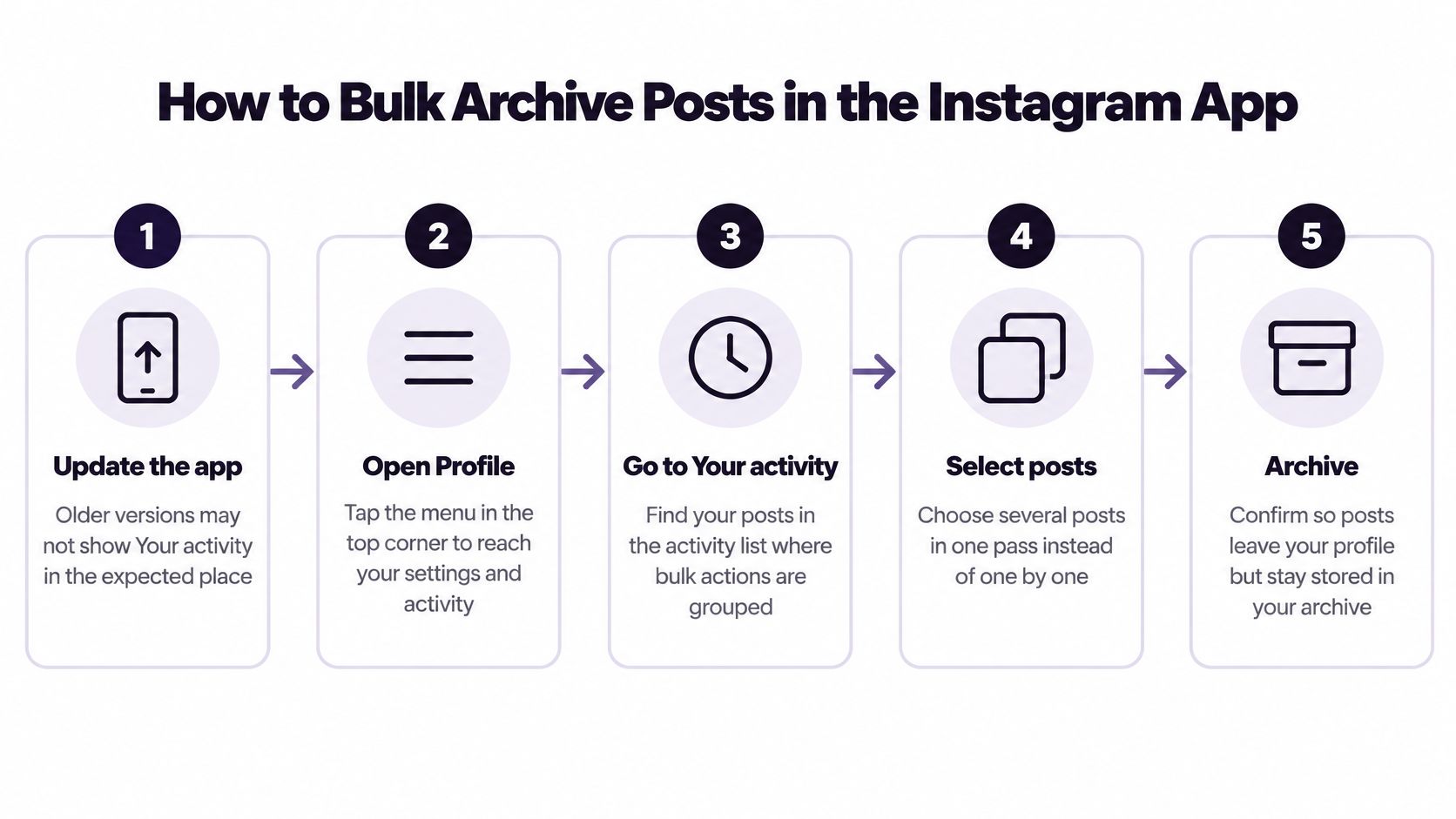
The overview below shows the shape of the process before you start tapping.
Archive Your First Test Batch
- Update the Instagram app. Older versions may not show Your activity where you expect it, and troubleshooting an outdated menu wastes time.
- Open Profile, then the upper-right menu. Choose Your activity. This is the control center for bulk actions, not the profile grid itself.
- Tap Photos and videos, then Posts. Stories, Reels, and Live content live in separate areas, so pick the right content type before you select anything.
- Tap Sort & filter and set a date range. Narrow the list to one campaign or period at a time. A filtered list is far easier to verify than your entire history.
- Tap Select and choose 10 to 20 posts. Keep the first group small and representative. Include a carousel or a tagged post if your later batches will contain them.
- Tap Archive and confirm. Check the label carefully before confirming. Delete sits nearby, and it isn't the action you want.
- Return to your profile grid and refresh it. Confirm the test posts have disappeared from public view. Don't rely on the confirmation screen alone.
- Open Archived and find the same posts. The batch isn't done until the posts are visible there. Count them against your selection.
- Log the batch before continuing. Record the filter used, selected count, timestamp, and verification result in your manifest. For a business account, that log is your evidence if someone later asks where a campaign asset went.
If you'd rather watch the flow before running it on your own account, this walkthrough shows the same selection screens.
The Desktop Variation
The same Your activity path works on instagram.com. I'd use desktop when date ranges are long or selections are hard to scan on a phone, because the wider layout makes it easier to check what you've picked before confirming. Menu labels and available filters can differ slightly from the app, so verify the first desktop batch the same way you verified the first app batch.
A small first batch turns a potential 300-post mistake into a 10-post correction.
This sequence uses Instagram's own controls, so you don't hand your login to a third party. That's the main safety advantage, and it's worth the extra tapping. Scale up only after the test batch reconciles cleanly, working one date range or content pillar at a time. When the cleanup is finished and you're rebuilding the grid, Schedule Instagram Posts And Reels covers how to stage the replacement content in advance.
Verify Each Batch and Fix Problems
When something looks wrong, switch route before you assume the account is blocked. If the Your activity path is missing in the app, update the app and try the same path on desktop web. Instagram's instructions lean heavily toward the desktop interface, and menu placement varies by app version, device, and account type, so a missing option on one surface doesn't mean the feature is gone.
Verification isn't a final step. It runs after every batch, while the batch is still small enough to fix by hand.

Bulk Archive Symptoms Causes and Fixes
| Symptom | Likely cause | First fix |
|---|---|---|
| Archive option or Your activity path is missing | Menu placement varies by app version, device or account type | Update the app, then try the same path on desktop web |
| Filter shows fewer posts than the profile grid | Reels, Stories or tagged content sit in other categories | Switch the content type and check each category separately |
| Archived post still appears on the grid | Grid refresh lag or cached view | Pull to refresh, then check the Archived view before re-selecting |
| Selected count and archived count do not match | Batch too large or the process was interrupted | Reconcile in Archived, then re-run only the missing posts in a smaller batch |
| Collaboration post stays visible after archiving | Shared post state differs from a standard post | Check the collaboration settings for that post individually; do not batch it |
Calculate Your Reconciliation Rate
After each batch, divide verified archived items by selected items. If you selected 40 posts and confirmed 38 in the Archived view, your reconciliation rate is 95%, and two posts need individual checks before anything else runs. Find them in your manifest, confirm whether they're still on the grid, then handle only those two.
Track two companion numbers while you're at it. Your exception rate counts posts that needed individual handling, such as collaborations. Your restoration-test rate counts how many sampled posts you successfully unarchived and re-archived. Together, these three numbers tell you whether the process is under control. An unsupported universal success rate from a vendor tells you nothing about your account.
Run a Restoration Test and Set a Stop Rule
Pick one archived post, unarchive it, and confirm it returns to the grid. Then archive it again and confirm it lands back in Archived. Run this test on your first batch and again whenever you change device, route, or content type. If restoration fails, stop. You don't want to discover that problem after 300 posts have moved.
Set your stop rule before you start, while you're calm. Mine would be simple. Halt when selected and archived counts diverge, when a collaboration post behaves oddly, or when a post you meant to keep disappears. That threshold is your operational choice, not an Instagram standard, because Instagram doesn't publish one.
Never retry a whole batch blindly. A repeat run can archive posts you meant to keep, and you'll have no clean record of which pass moved them.
Once the old grid is settled and every batch reconciles, plan what fills the space. iHatePosting is a scheduling and planning tool, not a Facebook downloader, story saver, Instagram reel downloader, or Instagram video download tool, so it won't save copies of your old posts. Your exports and manifest do that job. Use scheduling for the forward-looking work, and lean on Instagram content planning tips to rebuild a consistent posting rhythm on the cleaned-up profile.
You've done the careful part, auditing, archiving in verified batches, and proving you can restore what you hid. Now give the cleaned-up grid a plan it can hold. iHatePosting lets you schedule Instagram posts, Reels, and carousels alongside 13 other networks from one visual calendar, so your rebrand or next campaign rolls out on schedule instead of post by post. Start planning your replacement content today and keep the new grid as deliberate as the cleanup that created it.