Character Limit for LinkedIn Posts in 2026
14 min readlinkedin character limitlinkedin post lengthlinkedin article limitsocial media limits
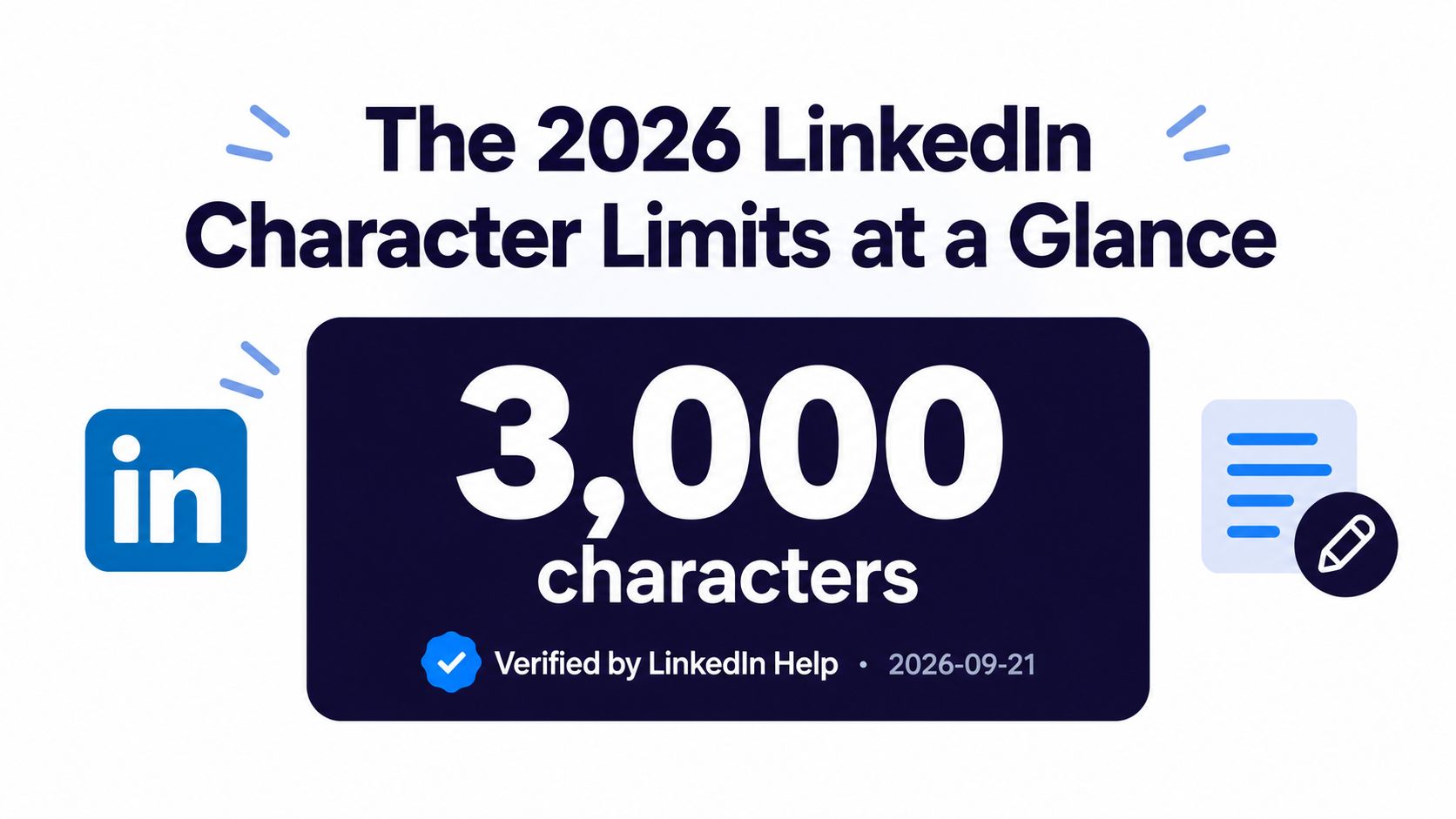
The character limit for LinkedIn posts is 3,000 characters. The feed preview is much shorter, usually about 140 to 210 characters, so your opening decides whether readers tap “See more.”
You've written a thoughtful LinkedIn post, watched the counter pass the old 1,300-character ceiling, and expected LinkedIn to stop you. It doesn't. The draft keeps growing, while the actual constraint sits much earlier in the feed, where readers see only the opening before deciding whether to expand.
That creates two separate writing problems. The 3,000-character limit determines whether you can publish a standard post. The 140 to 210-character preview determines whether anyone reads beyond the first lines. Treating those as the same limit is how useful posts become invisible.
Table of Contents
- The 2026 LinkedIn Character Limits at a Glance
- Where Each LinkedIn Character Limit Applies
- The Standard LinkedIn Post Limit
- LinkedIn Article Character Limit and When to Use It
- Profile, Comment, and Message Limits
- How the Feed Preview Truncates Your Post
- Quick Reference Table of LinkedIn Limits
- Formatting Choices That Quietly Eat Characters
- Pre-Publish Preview Checks on Mobile and Desktop
- Using Scheduling Tools to Stay Within LinkedIn Limits
- Putting It All Together Into a Repeatable Workflow
The 2026 LinkedIn Character Limits at a Glance
The current hard limit for a standard LinkedIn post is 3,000 characters, as stated on LinkedIn Help, whose page was updated on September 21, 2026. That gives creators room for detailed commentary, but it doesn't give them permission to bury the point.
A marketer can now write well beyond the old 1,300-character assumption without hitting the wall. LinkedIn raised the standard post limit from 1,300 to 3,000 characters in June 2023, an increase of 1,700 characters, or about 130.8% more room, according to AuthoredUp's history of LinkedIn character limits. The cap has remained unchanged through 2026.
The number that controls attention is smaller. Practitioner guidance places the visible feed preview at roughly 140 to 210 characters, depending on device and layout, before the reader sees the expansion prompt. The opening therefore needs to function as a complete argument, not as a polite introduction.
Practical rule: Write the first 140 characters as if they're the entire post. Use the remaining space to reward the reader who expands it.
LinkedIn has several other text surfaces, and each one has a different ceiling. Profiles, articles, comments, connection notes, and messages all require different drafting decisions. The feed preview is where reach is won or lost, but the surface you choose determines how much context you can deliver.
Where Each LinkedIn Character Limit Applies
LinkedIn doesn't use one universal text budget. It uses separate limits for separate jobs, and confusing those jobs creates awkward copy.
A standard feed post allows 3,000 characters, making it the right canvas for commentary, announcements, event recaps, and practical lessons. A LinkedIn article allows 125,000 characters, according to LinkedIn Help's article limit guidance. That format suits structured thought leadership and reference material rather than a quick feed update.
Profile fields work differently. The headline allows 220 characters, while the About section allows 2,600 characters. The name field allows 80 characters. These fields support discovery and credibility, so clarity matters more than filling every available space.
Conversation surfaces have their own constraints:
- Comments: 1,250 characters, enough for a substantive response without turning every thread into an essay.
- Connection notes: 300 characters, which makes specificity more valuable than a generic greeting.
- Direct messages: 8,000 characters per message, although a shorter, conversational message is usually easier to answer.
LinkedIn counts characters, not words. Spaces, punctuation, line breaks, hashtags, mentions, and emoji all affect the count. A draft that looks short in a word processor can use more of its LinkedIn allowance than expected, especially when it contains visual spacing or several tagged names.
Use each surface for its actual purpose. Posts earn feed attention, articles hold extended arguments, headlines communicate positioning, About sections establish credibility, comments build conversation, and messages move a relationship forward.
The Standard LinkedIn Post Limit
A 2,900-character draft can still fail as a feed post if its strongest point appears below the visible preview. The standard LinkedIn post limit is 3,000 characters, covering the text entered in the post composer. LinkedIn Help confirms the limit.
Older content calendars often reserve only 1,300 characters. That was the previous ceiling. LinkedIn raised the allowance in June 2023, giving standard posts more room for context, examples, and calls to action. AuthoredUp's 2026 reference documents the change.
LinkedIn enforces the limit automatically. If your draft exceeds it, the platform will not publish the standard post. The composer shows the problem, so trim the copy before scheduling or publishing.
What counts toward the limit
LinkedIn counts every character in the post text:
- Letters and numbers
- Spaces and punctuation
- Line breaks
- Emoji
- Hashtags
- Mentions
- Symbols used as bullets
An uploaded image or document does not expand the caption allowance. Text inside those assets sits outside the caption count, but readers encounter it through a separate viewing step.
Treat 3,000 as a boundary, not a target. The feed preview shows only the opening portion before readers expand the post, so the first lines carry the reach risk. Put the claim, tension, or promise before the cutoff. Use the remaining characters for proof and context only when they strengthen that opening.
LinkedIn Article Character Limit and When to Use It
LinkedIn Articles allow up to 125,000 characters, according to LinkedIn Help's article publishing guidance. That capacity suits complete guides, documented frameworks, and evergreen arguments. It also creates more room for headings, examples, evidence, and a clear conclusion.
Choose an article when readers need a structured resource they can revisit. A published article gives you a stable URL for a newsletter, sales sequence, or resource library. Keep the feed post focused on the strongest takeaway, then direct interested readers to the longer piece.
Choose the format by the job
Use a post for immediate, feed-native discussion:
- A product update
- A reaction to an industry event
- A concise lesson
- An opinion designed to invite comments
Use an article for sustained attention:
- A customer education guide
- A detailed playbook
- A long-form professional essay
- A reference page that should remain useful after publication
The feed post earns the click; the article carries the explanation. Put the main promise near the beginning, organize the body with clear hierarchy, and edit every section for momentum. The article limit provides breathing room; long articles still need editing and hierarchy.
Skip the article format for a one-line announcement or quick reaction. It adds friction when readers only need one sharp point. Publish long form when the subject benefits from sections and a durable destination, then use a separate feed post to introduce it. Keep that introduction concise enough to survive the visible preview before the reader expands it.
Profile, Comment, and Message Limits
Your LinkedIn profile is a collection of small copy surfaces, not one large writing space. Each field has a different job, so adapt the message instead of pasting the same description everywhere.
- Headline, 220 characters: Put your role, specialist area, and useful keyword near the front. Recruiters and profile visitors should understand what you do without decoding a slogan.
- About, 2,600 characters: Use this for credibility, working principles, and a clear explanation of who you help. Break it into short paragraphs because a dense block discourages reading.
- Name, 80 characters: Keep the field focused on your actual name. Don't use it as a second headline.
- Comments, 1,250 characters: Respond to the specific point in the thread, then add one useful perspective. A comment should extend the conversation, not reproduce the original post.
- Connection request note, 300 characters: Mention the relevant reason for connecting. A shared topic, event, or professional interest is more useful than a generic invitation.
- Direct message, 8,000 characters: The allowance is generous, but the inbox is still a conversation. Lead with context, make one request, and give the recipient an easy way to respond.
These limits shape tone as much as length. A headline needs compression, an About section needs narrative, a comment needs relevance, and a message needs reciprocity. The same idea may work across all four surfaces, but the copy shouldn't be identical.
The safest workflow is to save a master idea separately, then create a version for each destination. That prevents a long post from being squeezed into a connection note or a profile summary from sounding like a sales message.
How the Feed Preview Truncates Your Post
The 3,000-character ceiling is the final boundary, but attention is decided earlier, at roughly 140 to 210 characters. LinkedIn cuts the feed preview before readers expand the post, so the opening determines whether the rest gets read.
That preview is your acquisition surface. It needs to answer three questions quickly:
- What is this about?
- Why should I care?
- What will I gain by expanding it?
Write the fold before the body
Start with the claim, not the background. “I've been thinking about content strategy” uses preview space to announce a thought. “Most content calendars fail before the first post is scheduled” creates tension and gives readers a reason to continue.
The first lines are the decision point. Readers decide whether to expand based on what they see immediately. If the post stops visually at the expansion point, the visible copy should still feel complete rather than cut off.
Device layout changes how much text appears, so write for the more restrictive preview. Put the core value proposition, strongest observation, or practical result before the conservative cutoff. Use the remaining body for evidence, examples, counterpoints, and the closing invitation.
A long setup, disclaimer, or link can push the useful sentence below the fold. Draft the opening as a finished mini-post, test it on a narrow screen, then build the argument underneath.
The preview window does not replace the full post. It decides whether the full post gets a chance.
Quick Reference Table of LinkedIn Limits
Keep this reference beside your drafting window. The figures below come from LinkedIn's Help documentation, its article guidance, and the verified LinkedIn limit references above.
| Surface | Character Limit | What It Gates |
|---|---|---|
| Standard post | 3,000 | Feed caption |
| Article body | 125,000 | Long-form publishing |
| Article title | 150 | Article headline |
| Profile headline | 220 | Search and profile positioning |
| Name field | 80 | Display name |
| About section | 2,600 | Profile summary |
| Comment | 1,250 | Thread response |
| Direct message | 8,000 | Single message |
| Connection note | 300 | Personalized invitation |
| Feed preview | 140 to 210 | Text visible before expansion |
For a broader cross-platform reference, keep the social media character limits guide available while adapting one idea into several captions.
The table shows why a single “LinkedIn limit” is misleading. The post cap governs publishing, while the preview governs attention and the smaller profile fields govern positioning.
Formatting Choices That Quietly Eat Characters
Formatting improves scanning, but every formatting choice has a cost. A line break adds a newline character and creates visual space, so a post with many short lines can consume its allowance faster than a compact draft.
Emoji require special care. Their character representation can vary by system, and they often occupy more visual width than their apparent size suggests. Hashtags also count as real text, while mentions include the symbol and the tagged name.
URLs create another common trap. LinkedIn may display a shortened or unfurled version, but the text you type still matters while you're composing. ASCII bullets, arrows, repeated punctuation, and decorative separators add more characters without necessarily adding meaning.
Edit in two passes
Use a plain-text first pass to protect the argument:
- Draft the claim: Write the hook and body without decorative symbols.
- Trim repetition: Remove duplicate explanations before adding visual styling.
- Add spacing: Insert line breaks where they improve scanning, not after every sentence.
- Add labels: Use a small number of hashtags and mentions only when they serve discovery or attribution.
- Check the counter: Trust LinkedIn's in-app count rather than a word processor.
A platform formatter can help with line breaks and reusable patterns. The LinkedIn text formatter is useful when you want to apply styling after the plain-text argument is already sound.
Read the finished version on both desktop and mobile. The same character count can look spacious on one screen and crowded on another because line wrapping changes the visual rhythm.
Pre-Publish Preview Checks on Mobile and Desktop
A post isn't ready when the counter turns green. It's ready when the opening survives the feed.
Use this checklist before you schedule or publish:
- Write the hook inside the first 140 characters. This is the conservative preview budget and forces the claim into the most valuable space.
- Preview desktop and mobile layouts. The visible fold changes with screen width and line wrapping.
- Read it at a narrow width. A small-screen check reveals awkward breaks, oversized paragraphs, and hooks that take too long to reach the point.
- Test one-screen comprehension. Can a reader understand the subject and value without scrolling?
- Copy the draft into plain text. Compare the raw count with LinkedIn's in-app counter, especially when the post includes emoji, mentions, or unusual symbols.
- Schedule a cooling-off review. A delayed review makes it easier to spot a weak first sentence or an unnecessary paragraph.
The first test is the most important. Paste only the opening into a note, remove everything below it, and read it as a standalone post. If it sounds like an introduction to something else, rewrite it.
The guide to scheduling LinkedIn posts is useful for teams that need a deliberate review step before publication. Scheduling creates a checkpoint, but it doesn't replace the human read-through.
Don't rely on a word count. LinkedIn measures characters, and formatting can change the result without changing the number of words. The composer's counter is the final authority for the caption you're about to publish.
Using Scheduling Tools to Stay Within LinkedIn Limits
A scheduler can catch a post that exceeds LinkedIn's 3,000-character ceiling, but it cannot decide whether the first 140 characters earn a click on “see more.” Treat counting and previewing as separate checks.
Pick a tool with LinkedIn-specific validation. Unicode characters, emoji, line breaks, and mentions may count differently across composers, so a third-party counter is only a draft check. LinkedIn's composer remains the final authority before publishing.
What to check in a scheduler
- Native validation: Show a hard warning when the caption crosses LinkedIn's post limit.
- Per-platform variants: Create a distinct LinkedIn version instead of recycling one caption across networks.
- Preview controls: Inspect the opening at narrow and wide widths, where line wrapping changes the visible preview.
- Reusable presets: Save recurring formatting rules, hashtag groups, and campaign structures.
- Failure visibility: Explain why a scheduled post failed. Never shorten the caption without notice.
- Media preservation: Keep attached images or video intact while you edit the caption.
Cross-platform drafting creates a practical trap. A caption that fits another network may still waste LinkedIn's preview window with a slow opening, dense formatting, or a buried point. Edit the LinkedIn version for the feed first, then confirm the full count.
For teams working across several networks, iHatePosting's LinkedIn scheduling workflow brings calendar planning, platform-specific caption editing, previews, and character counting into one workspace. Use those controls to keep LinkedIn copy separate from other variants.
A scheduler should protect the boundary, not push every post toward 3,000 characters. Validate the limit, inspect the preview, and cut any sentence that delays the point.
Putting It All Together Into a Repeatable Workflow
LinkedIn has separate character ceilings for posts, articles, profile fields, comments, connection notes, and messages. Choose the destination first, then shape the opening for the narrow feed preview, where truncation can hide the payoff long before the body reaches its limit.
Use this workflow:
- Surface: Select the format that matches the idea: post, article, profile field, comment, connection note, or message.
- Opening: Put the claim and reader payoff in the first visible lines of a post. Keep the preview useful when the full body continues.
- Count: Check the relevant character ceiling in LinkedIn's composer or scheduling tool.
- Review: Read the final copy on desktop and mobile. Check line breaks, formatting, and the point revealed before truncation.
Use only the space the idea requires. An article gives developed thinking more room. A post needs a fast, clear entry into the feed. Choose the format that gives the idea enough room without sacrificing the sharpness of the first visible lines.
Use the social media scheduling tool guide to make these checks repeatable. iHatePosting combines planning, platform-specific caption editing, character counting, previews, and publishing in one workspace. Review the 3,000-character ceiling and shorter feed preview before launch, then visit iHatePosting to try the workflow.