Social Media Analytics Excel Template: 10 Top Picks 2026
16 min readsocial media analytics excel templatesocial media KPIsexcel report templateanalytics dashboard

You exported last month's CSVs on Monday. By Thursday, the headers still do not match, one chart combines boosted and organic posts, and the stakeholder deck is unfinished. Platform exports are quick to download. Turning them into a reliable monthly report takes longer when each network labels similar metrics differently.
Spreadsheets remain a familiar place for teams to analyze and chart data. A hybrid workbook lets analysts retain that workflow while importing CSVs from platform analytics tools or schedulers. The trade-off is manual upkeep: exports need consistent column names, and formulas can break when platforms change their fields.
Separate raw imports, standardized calculations, and a presentation sheet. Keep reach, impressions, views, engagements, and follower count in distinct columns because platforms use different denominators. Before building charts, set a consistent naming scheme and check that imported values land in the right fields. If you are fixing a broken analytics report, start by locking the column names.
The ten templates below are evaluated by CSV import flow, formula reliability, and how well each supports handoff from native platform exports to a repeatable monthly report. None pulls live account data on its own, so the process still depends on importing exports and checking the workbook before sharing results.
Table of Contents
- 1. Excel Harbor, Social Media Analytics Excel Template
- 2. Smartsheet, Social Media Analytics Report Template
- 3. Lemonpost, Monthly Social Media Report Template
- 4. Postinstantly, Social Media Report Template
- 5. CoSchedule, Social Media Report Templates
- 6. RecurPost, Social Media Analytics Template
- 7. Sprout Social, Social Media Analytics Spreadsheet Template
- 8. Smartsheet, Simple Social Media Report Template
- 9. Smartsheet, Social Media Monthly Marketing Report Template
- 10. Jotform, Social Media Analytics Template
- Top 10 Social Media Analytics Excel Templates Compared
- Turn Your Template Into a Repeatable Reporting Habit
1. Excel Harbor, Social Media Analytics Excel Template
A monthly report can start with separate CSV exports and end with mismatched totals if each platform's metrics are mapped differently. Excel Harbor's Social Media Analytics Excel Template provides an Excel-first workbook for post-level tracking and platform rollups. Its Post_Data, Platform_Summary, and Content_Insights sheets keep imported numbers separate from the charts used for reporting.
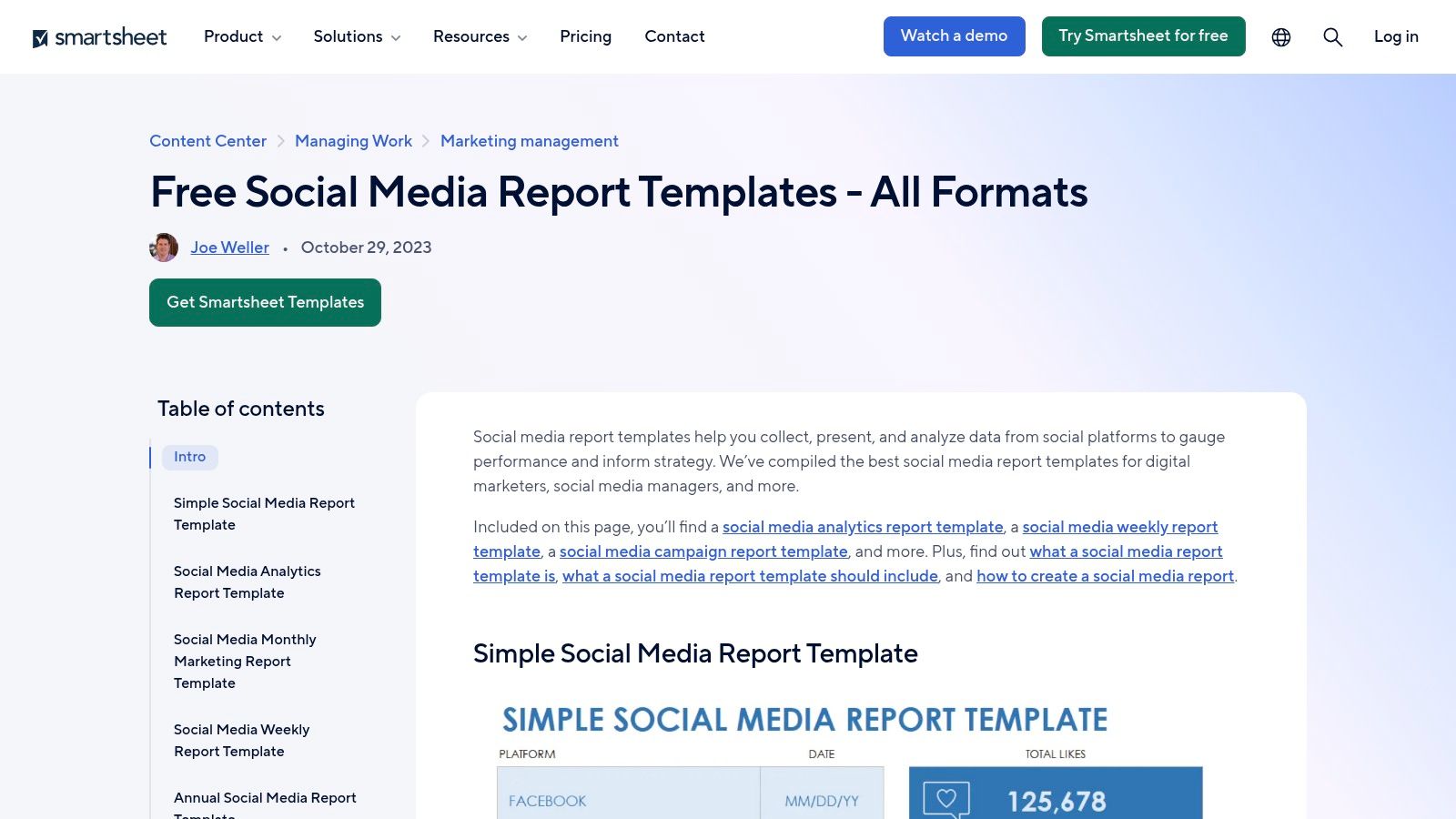
The workbook tracks impressions, reach, likes, comments, shares, saves, clicks, and follower gains. Paid fields include spend, CTR, and cost per click. It opens in Excel, Google Sheets, and LibreOffice, and can help track business results from social media while keeping organic engagement separate from ad costs.
For a comparison point, Dash Social's 2025 benchmark PDF reports average engagement rates of 5.0% for TikTok, 3.6% for Instagram, and 3.4% for YouTube, based on 970 TikTok, 2,967 Instagram, and 630 YouTube accounts. The benchmark covers accounts with at least 1,000 followers and organic content; paid ads are excluded. TikTok and Instagram rates use likes, comments, and shares divided by reach. YouTube rates use interactions relative to views. In Excel, add a formula-type column when importing to Post_Data, then calculate overall rates from total engagements divided by total reach or views, rather than averaging post-level percentages.
What works: entry stays separate from the summary, and the free .xlsx gives you a starting point for a repeatable monthly report. What needs manual work: every row must be entered or imported, and download counts do not measure formula reliability. Set and test a consistent CSV column map before relying on the rollup.
2. Smartsheet, Social Media Analytics Report Template
Smartsheet's social media report templates include a free analytics report for Excel or Google Sheets. It organizes a cross-channel review of reach, engagement, and top posts, making it a practical recap sheet rather than a live dashboard.
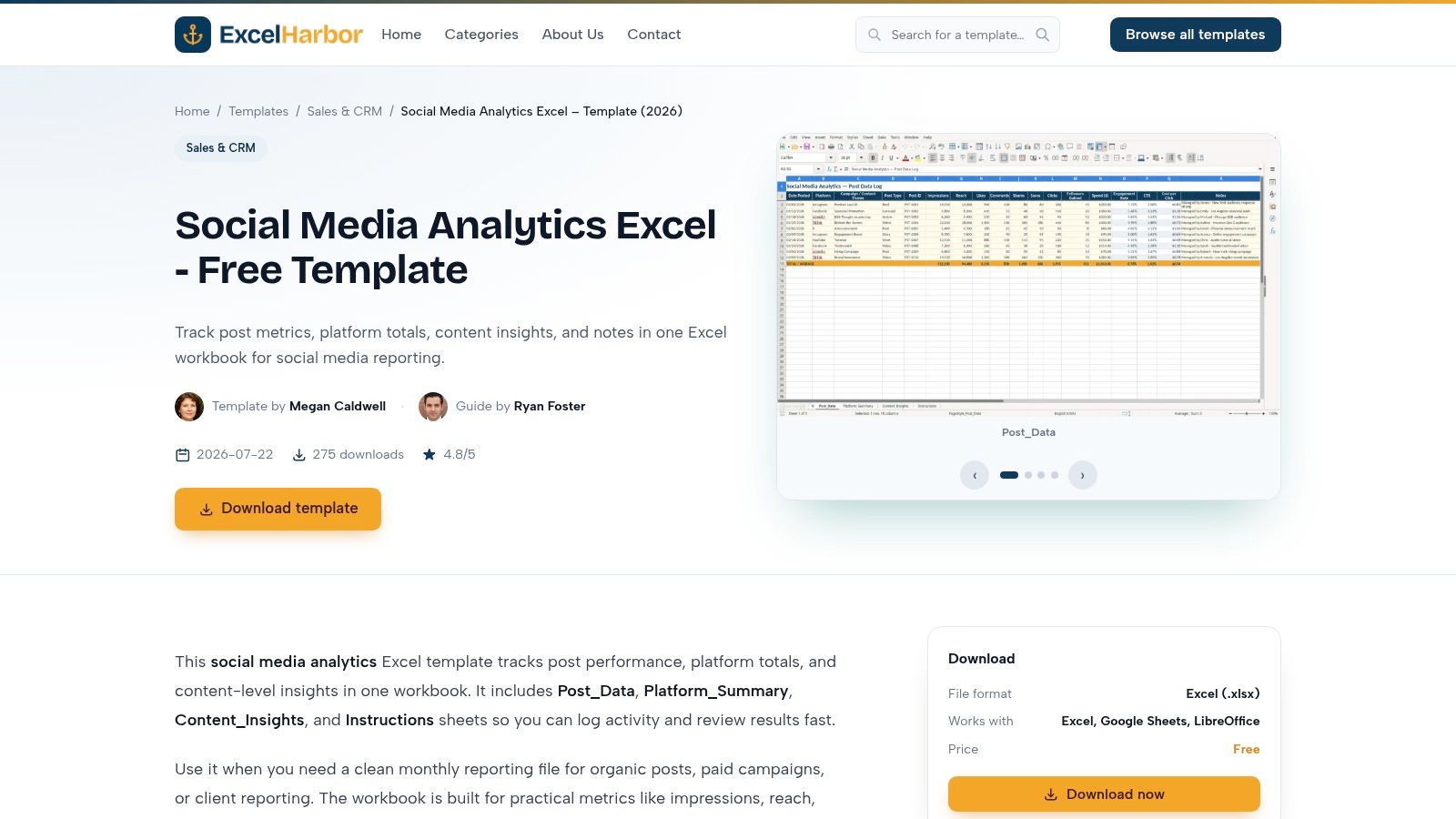
The collection also includes weekly, monthly, campaign, KPI, and audit layouts. That variety can support campaign reporting for social teams, but choosing a layout takes time. Match the file to the reporting question before importing data.
- CSV import: Export each channel's data from its native platform, then map reach and engagement into consistent columns. Fill the top-post block only after checking that each listed post appears in the imported metrics.
- Formula reliability: Confirm the engagement denominator before relying on a result. Engagement divided by followers and engagement divided by reach measure different things, so label the formula clearly.
- Monthly handoff: Duplicate the workbook for each reporting period, rename the copy, and keep the prior version unchanged. That preserves a usable trend and avoids overwriting last month's figures.
Use the template when stakeholders need a readable performance recap. It is not connected to social accounts, so exports and checks remain manual. The workbook covers a general review, while the wider catalog can slow setup if the reporting need is unclear.
3. Lemonpost, Monthly Social Media Report Template
Lemonpost's monthly social media report is a short workbook for client or stakeholder updates. You can download an .xlsx or a CSV with no email gate. Engagement-rate and target-delta formulas do some of the arithmetic you would otherwise redo in a calculator.

Each channel has fields for impressions, reach, engagement, follower growth, and top posts. A summary, best-post notes, and next-month actions sit on the same file, with owners and due dates. That is the handoff most templates skip. A number without a named next step gets ignored in the meeting.
Check the delta before you send it: a target formula only helps if the target cell is a number, not text copied from a slide. One stray percent sign turns the whole variance row into an error.
It is a monthly brief, not a full analytics database. You still gather platform data yourself. For a repeatable close, export one CSV per channel, paste into a hidden import area, and let the visible sheet only reference those cells. Do not type over formula rows when a client asks for a wording tweak.
4. Postinstantly, Social Media Report Template
Postinstantly's social media report template is a free Excel file for periodic reporting. There is no account gate. Sections cover a summary, metrics, post evidence, and an action list. A Read me sheet spells out counting rules, and sample figures are marked as fictional. You can import the file into Google Sheets if that is where the team already works.
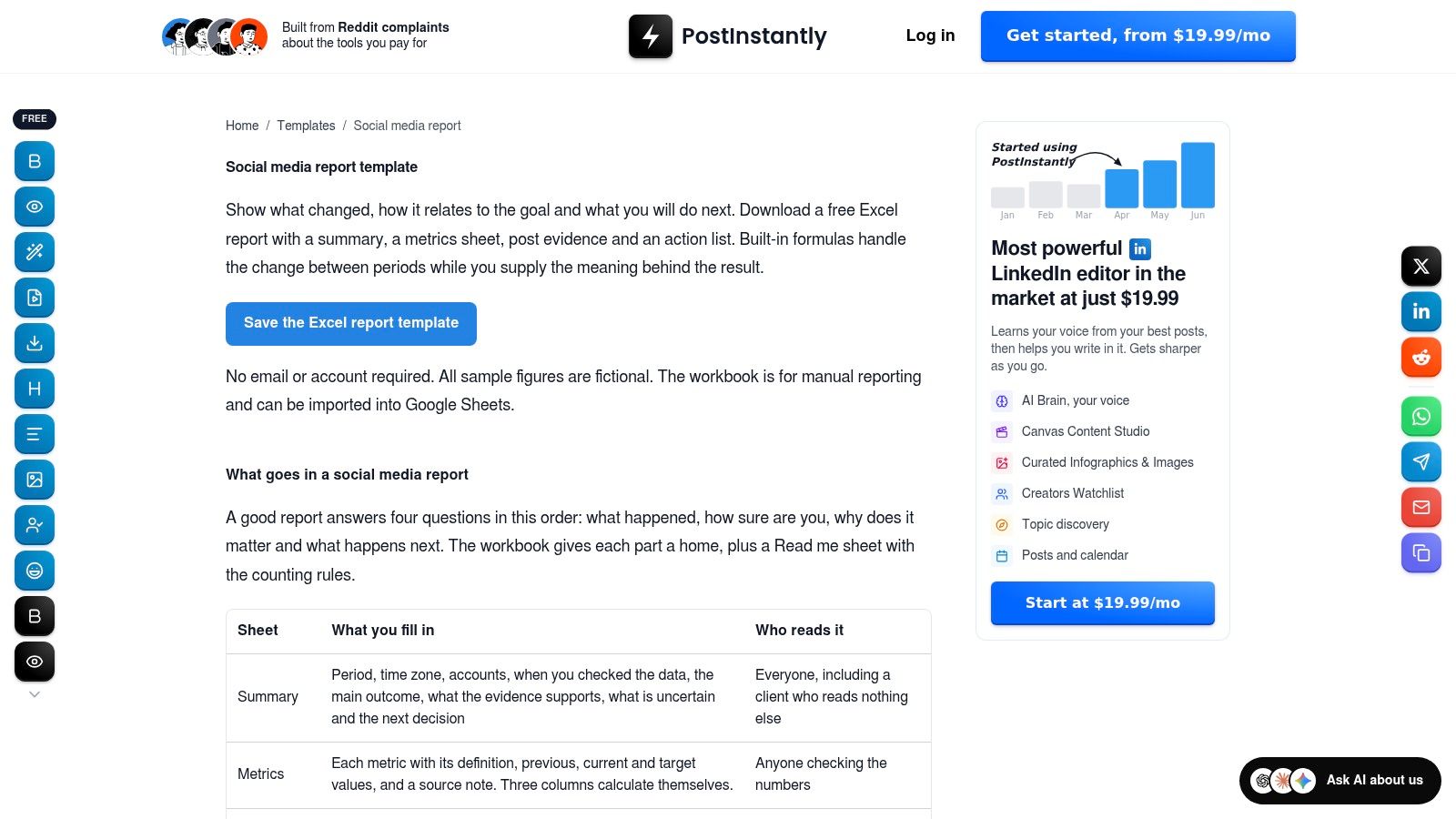
Period-comparison formulas are the useful part. They only stay reliable if both periods use the same export window and the same metric names. Instagram “views” and YouTube “views” should not share a column just because the header looks familiar.
Wipe the sample numbers before the first real paste. A fictional total left in a total row will survive into the PDF and look like performance.
It does not connect to social accounts, and it is a report shell rather than an ongoing database. That is fine for a monthly pack. Keep evidence links next to the posts you cite, so a question in the review does not send you back into four native dashboards.
5. CoSchedule, Social Media Report Templates
CoSchedule's social media report templates come as a bundle rather than one analytics grid. It includes weekly and quarterly report formats, a posting schedule, and guidance on which figures to collect. Check the download format before building a workflow around Excel.
The schedule adds context that a metrics sheet can miss. If publishing volume changes, engagement may shift even when the rate alone looks steady. Export the month's posts from your social media scheduler, then match post dates to the analytics CSV before writing the report. This handoff is manual, so inconsistent date formats or platform labels can make matching unreliable. Check formulas after pasting exports, especially if the template calculates period totals.
What to confirm before you rely on it
- File format: Open the current download and confirm which files are .xlsx.
- Data gathering: You still collect reach, engagement, and post results from each platform. The guide explains what to gather, but does not import the figures.
- Cadence: Weekly sheets can surface spikes; quarterly sheets can obscure them. Choose one as the official close to avoid maintaining both by hand.
This bundle suits teams that want publishing frequency and results in one report. It is less practical when you need a consistent formula model across a year of posts, since exports and calculations require hands-on checks each reporting period.
6. RecurPost, Social Media Analytics Template
RecurPost's social media analytics template is built in Google Sheets, with tabs for settings, data, and findings. It covers one reporting period and includes formulas for engagement rate and variance against targets. RecurPost states that the sheet does not connect to platforms or fetch metrics, so you will need to collect and import the numbers yourself. Its scheduling product is separate.
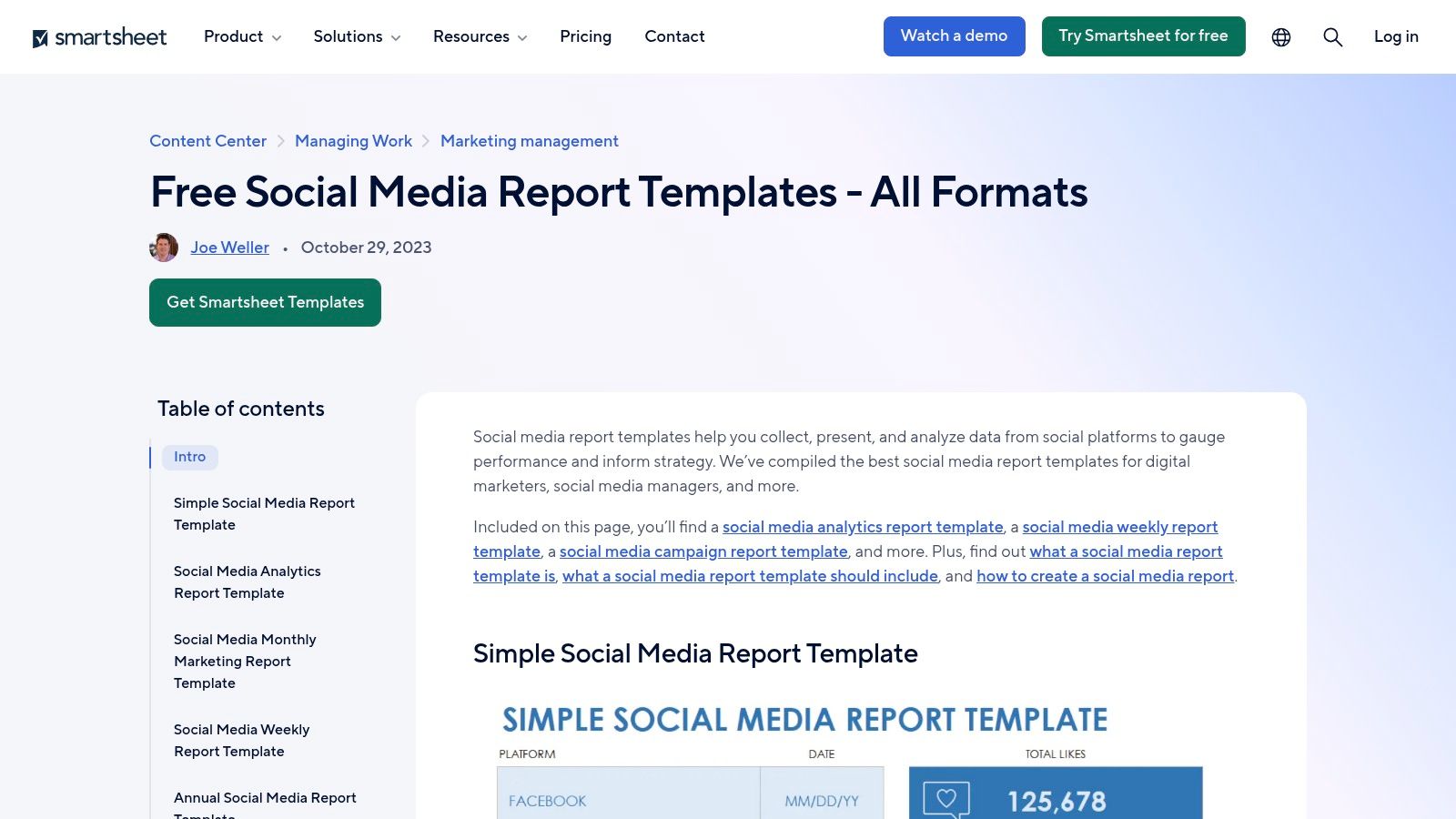
If Excel is your reporting archive, download or convert the sheet, then protect its formula rows. Check date handling after conversion. A mismatch in date serials can shift the reporting month and distort every variance.
The limitation is clear, which makes it easier to plan a dependable workflow. Keep metric definitions in settings, paste platform CSV values into the data tab, and review the calculated results before writing findings. This layout suits a small team with a consistent monthly process. Social media automation can reduce manual publishing work, but it does not replace exporting and mapping analytics data.
Use a separate copy for each period. The one-period layout is not designed to stack months, and reusing it can overwrite the baseline needed for variance comparisons. The template works best when the CSV import and formula checks are part of the monthly close.
7. Sprout Social, Social Media Analytics Spreadsheet Template
Sprout Social's reporting resources include a social media reporting spreadsheet. Check the current download page for its file format, available tabs and fields, and any form or account requirement before building a report around it. Do not assume a particular Excel or Google Sheets format from the resource page alone.
Treat the spreadsheet as a reporting framework, not a live connection to social accounts. Export the native platform reports as CSV, then map their date range and metrics to the spreadsheet's fields. Keep an untouched copy of each export so you can trace a total back to its source when a formula or figure looks wrong. A monthly handoff works best when the person importing the files records the reporting window and platform beside each pasted dataset.
Separate paid, organic, and boosted results at import. Use the matching source field in the spreadsheet if one is provided; otherwise, add a clearly labeled source column to the imported data. This keeps paid spend out of organic totals and prevents blended engagement rates from hiding how each channel performed. Check that every CSV uses the same date window and metric definitions before relying on calculated totals.
For the monthly summary, claude for social media can help shape a draft from approved summary figures. Keep raw exports unchanged, and verify any statement against the spreadsheet before sharing. This resource fits teams that need to connect social reporting with business goals; a basic organic snapshot may take less setup in a simpler sheet.
8. Smartsheet, Simple Social Media Report Template
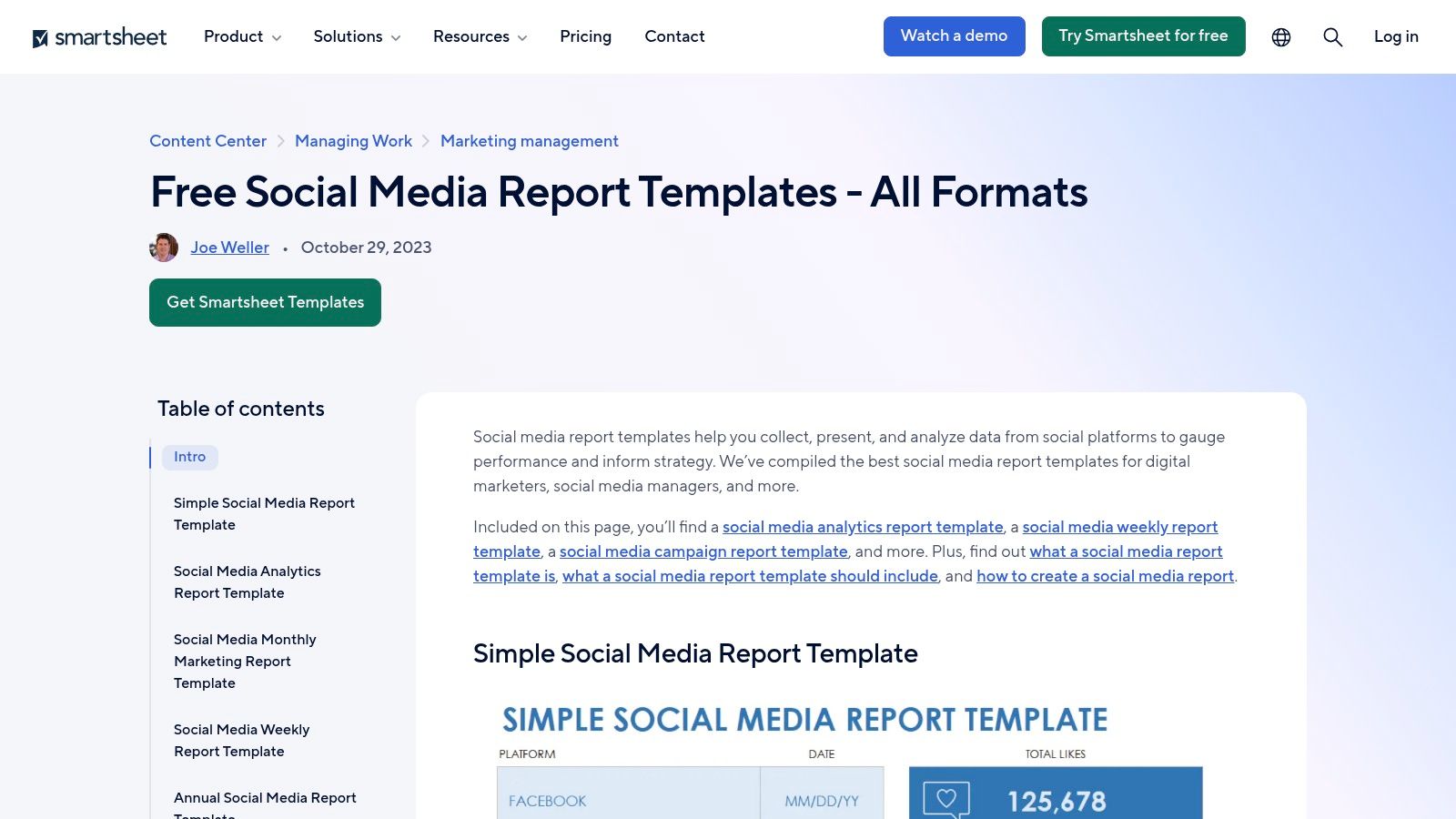
Smartsheet's simple report is a dashboard-style Excel or Google Sheets file for a quick performance snapshot. It tracks likes and audience growth, with an organic-versus-paid engagement split. The layout stays intentionally lean, which helps for a weekly check-in but limits post-level analysis.
For a monthly handoff, export each platform's metrics as CSV, align the reporting dates, then enter the headline totals in the input block. Point the dashboard to those cells rather than typing over its visuals. The sheet does not document imports or provide a post-level audit trail, so keep the original CSVs and record any manual adjustments separately.
Where the snapshot breaks
Likes without reach can flatter a small account and understate performance for a larger one. Label whether engagement is measured per reach, follower, or view. Keep the same reporting window for organic and paid results. Otherwise, a paid campaign that includes activity from the prior month can distort this month's comparison.
Check formulas after copying the file for a new period, especially if rows or input ranges change. Use this template for a Monday read when leadership needs direction, not a campaign-level explanation. For questions about which post drove results, choose a report with post-level data and a clear trail from platform export to monthly totals.
9. Smartsheet, Social Media Monthly Marketing Report Template
This Excel template brings social-channel results together with website sessions and signups in a monthly marketing report. It is designed to review how social activity relates to traffic and conversions. Unlike a channel-only snapshot, it gives teams a place to compare those outcomes, though the figures still need to be joined and checked.
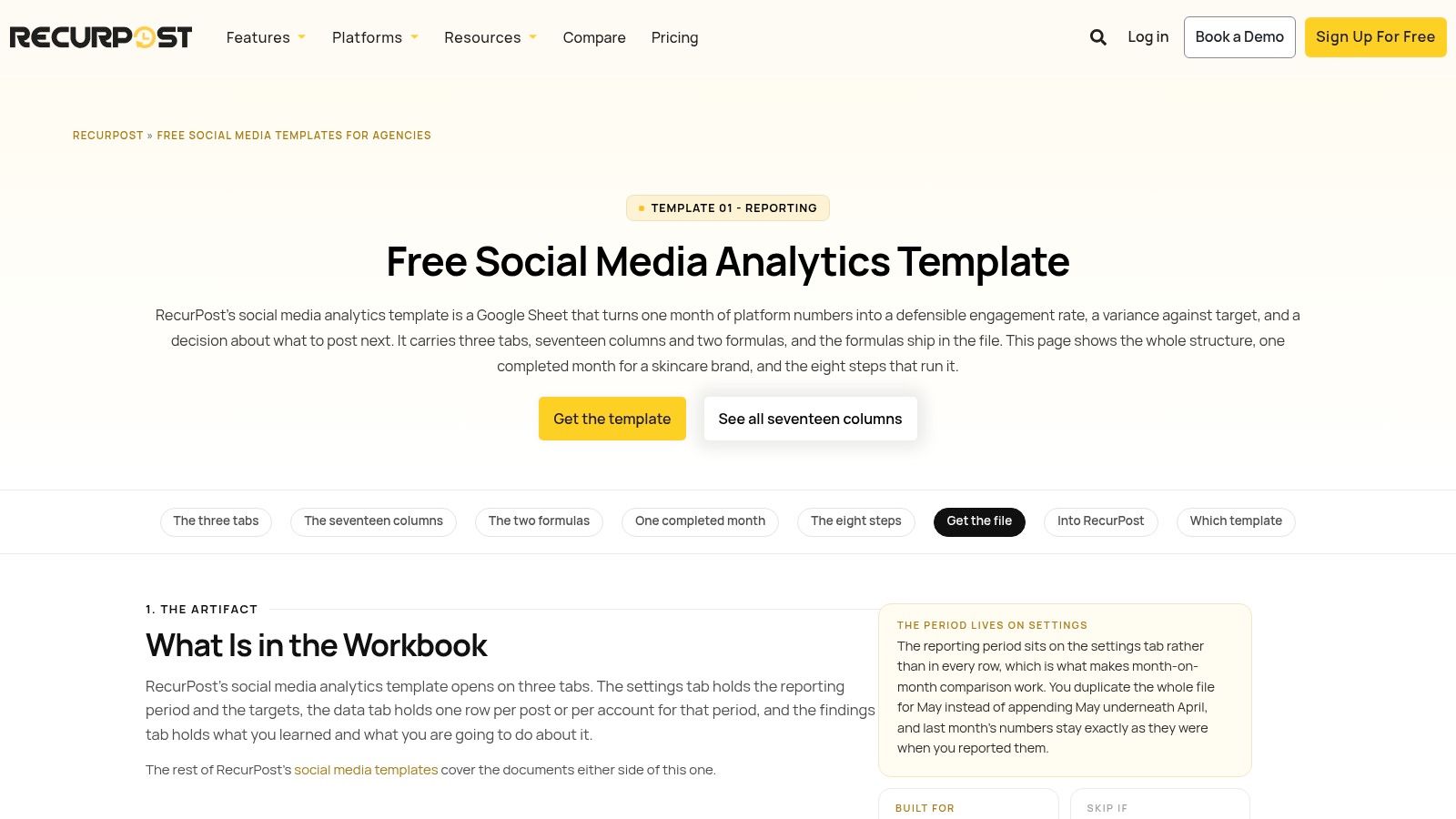
A LocaliQ's small-business marketing trends report notes that marketers often track engagement, reach, and follower growth more frequently than conversion rate, return on ad spend, or cost per acquisition. This report's website and signup fields help put downstream results beside social metrics, but they do not establish that a post caused a conversion.
The monthly handoff still requires manual work. Export social data as CSV, then reconcile it with website analytics and CRM exports. Before importing, standardize date ranges, channel names, and conversion definitions; inconsistent labels can break formulas or produce misleading totals. Add an attribution-confidence field, UTM naming rules, and a note when revenue, the attribution window, or consented tracking is missing. Last-click, first-click, and linear attribution can be shown side by side, but each depends on assumptions. Define what counts as a signup before the first report goes to finance, so teams are comparing the same outcome.
10. Jotform, Social Media Analytics Template
Jotform's social media analytics template is an online table, not a conventional Excel download. You need a Jotform account. Posts, followers, likes, shares, and comments can be viewed as a table or a calendar, and a Top Content view surfaces conversions, engagement, CTR, and impressions. Data stays in the account and is available across devices.
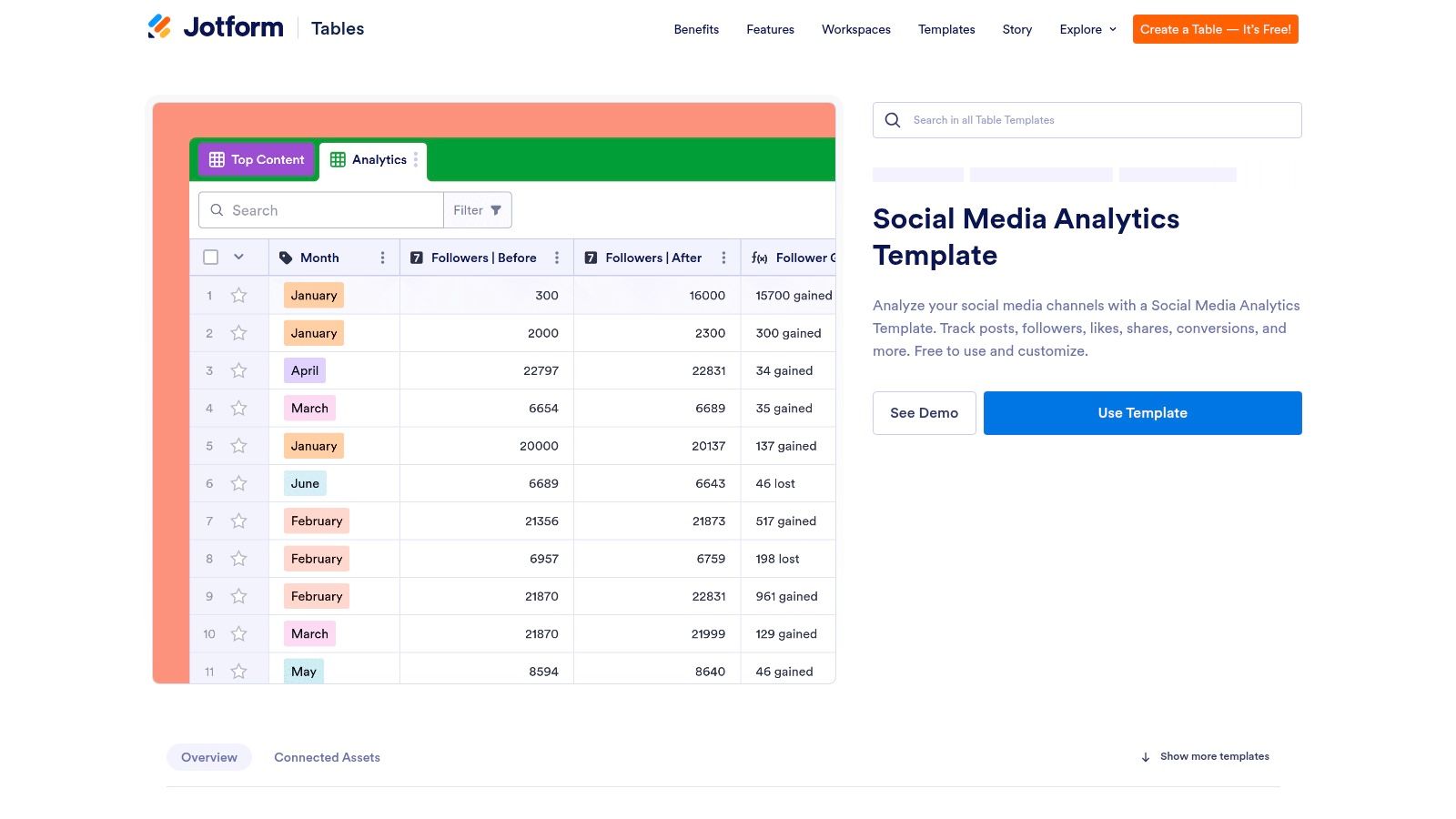
Calendar view helps when you are matching a spike to a publish date. Table view is better when you are cleaning a bad paste. Top Content is useful only after the underlying fields use one definition of conversion. Otherwise the “top” post is just the one with the fullest row.
Check current plan limits before you load a year of posts. A cloneable template with visible usage is not the same thing as an offline archive. For the monthly handoff, export or copy a frozen view into your Excel close file. If the only copy lives in the account, a permission change can block the report on the day it is due. This fits teams already working in Jotform. It is the wrong default if finance expects an .xlsx they can open without another login.
Top 10 Social Media Analytics Excel Templates Compared
| Template | Core Reporting Focus | Standout Features | Format & Workflow | Best For | Value |
|---|---|---|---|---|---|
| Excel Harbor, Social Media Analytics Excel Template | Post-level organic and paid performance | ✨ Tracks engagement, clicks, spend, CTR, and CPC | Excel, Google Sheets, or LibreOffice; manual entry | 👥 Creators and small teams needing detailed post analysis | 💰 Free workbook |
| Smartsheet, Social Media Analytics Report Template | Cross-channel performance and top posts | ✨ Companion templates for campaigns, KPIs, and audits | Excel or Google Sheets; manual entry | 👥 Teams reviewing content performance | 💰 Free templates |
| Lemonpost, Monthly Social Media Report Template | Monthly channel results and goals | ✨ Target-delta formulas, action items, owners, and due dates | Excel or CSV; manual data collection | 👥 Client and stakeholder reporting | 💰 Free download |
| Postinstantly, Social Media Report Template | Period-over-period results and next steps | ✨ Links metrics to post evidence and actions; includes guidance | Excel; can import into Google Sheets | 👥 Teams preparing periodic reports | 💰 Free; no account or email required |
| CoSchedule, Social Media Report Templates | Weekly and quarterly reporting | ✨ Includes a posting schedule to compare activity with results | Download format should be confirmed; data gathered manually | 👥 Teams sharing updates with clients or colleagues | 💰 Free template bundle |
| RecurPost, Social Media Analytics Template | Performance against targets | ✨ Formulas for engagement rate and target variance | Google Sheets; manual entry | 👥 Small teams tracking a single reporting period | 💰 Free template |
| Sprout Social, Social Media Analytics Spreadsheet Template | Paid and organic cross-platform results | ✨ Connects performance with business goals | Format and access requirements should be checked; manual data entry | 👥 Teams comparing paid and organic activity | 💰 Toolkit access may require a form |
| Smartsheet, Simple Social Media Report Template | High-level performance snapshots | ✨ Dashboard-style view with likes and organic-versus-paid engagement | Excel or Google Sheets; manual entry | 👥 Teams needing quick regular check-ins | 💰 Free template |
| Smartsheet, Social Media Monthly Marketing Report Template | Social performance, website activity, and signups | ✨ Brings channel metrics and broader outcomes together | Excel; manual consolidation | 👥 Marketers reviewing traffic and conversions | 💰 Free template |
| Jotform, Social Media Analytics Template | Post performance and top content | ✨ Table and calendar views; Top Content view includes CTR and conversions | Jotform online workspace; account required | 👥 Users who prefer an interactive data workspace | ★ Check plan limits; not a standard Excel download |
Turn Your Template Into a Repeatable Reporting Habit
Choose one post-level tracker and one monthly summary, then retire overlapping files. Excel Harbor or a converted RecurPost sheet can store post-level rows; Lemonpost or the Smartsheet monthly marketing file can carry the summary. When two workbooks serve the same purpose, their formulas and totals can drift, leaving you to explain conflicting engagement rates in a meeting.
Set a consistent CSV import flow before relying on formulas. Map incoming headers to platform, format, date, reach or views, likes, comments, shares, saves, spend, and clicks. Record the engagement formula used in a separate column. A single cross-platform engagement rate can mislead because networks differ in exposure, attribution windows, and available fields. Mark each metric as comparable or platform-specific.
Privacy rules, multi-device behavior, offline exposure, and reduced third-party data limit device-level attribution. Measurement guidance favors modeling and testing alongside consented first-party data, rather than treating one pixel as definitive. In a survey of marketing leaders, 68% said engagement defined social effectiveness, while conversion was used by 65% and revenue by 57% (Impression's 2025 media effectiveness measurement report). Add a privacy and coverage note, flag estimated cells, and state when revenue or consent data is missing. If revenue cannot be measured, ROI is unknown. Do not force a ratio.
Lock formulas and share a copy of the workbook. Manual entry becomes error-prone when one person pastes a run of exports and writes the commentary. iHatePosting offers trend analytics, a 12-month history, CSV export, and best-time recommendations based on account data, which can reduce repeated downloads. Keep metric definitions and the monthly narrative in the workbook. For partner reporting, compare an influencer marketing platform vs agency based on whether it provides raw exports or only a PDF. Mappable exports are easier to audit than a deck without underlying data.
iHatePosting also schedules posts across fourteen networks. Its analytics include trends, a 12-month history, CSV export, and best-time recommendations drawn from your account. Export the reporting period you need and map those results into your chosen workbook to support a repeatable monthly close.