How to Schedule Social Media Posts Across Multiple Platforms Without Posting Manually in Every App (2026)
9 min readsocial media schedulingmulti-platformscheduling toolscross posting

Last updated October 2026
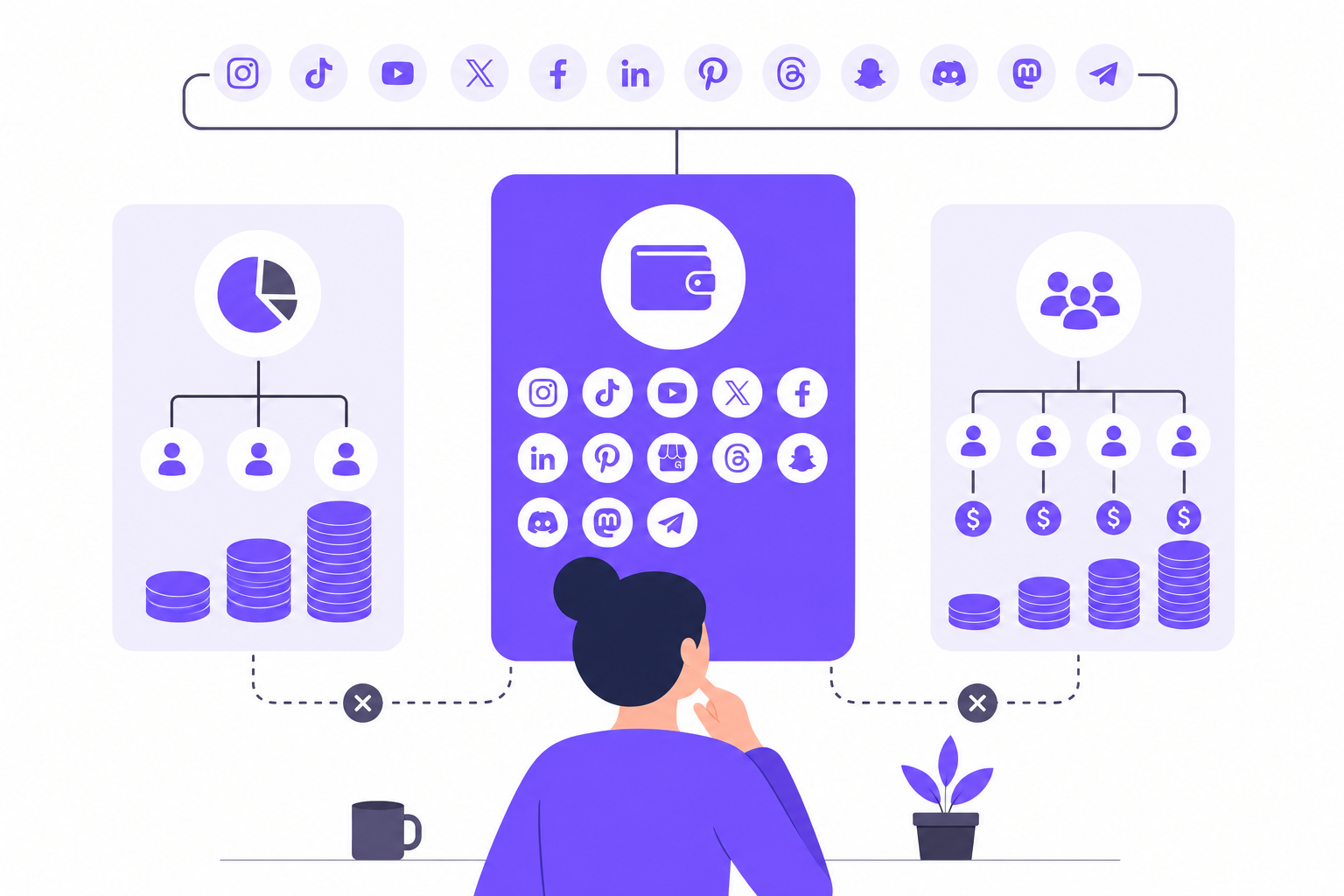
Write the post once, pick your networks, and schedule to all of them from a single composer. That is the entire method. The rest of this guide walks you through each step so you stop opening five or ten apps every time you have something to publish.
The Problem With the App-by-App Approach
Opening Instagram, then LinkedIn, then X, then TikTok, then Facebook to post the same content is not a workflow. It is repetition with a high error rate. You copy the wrong caption, forget hashtags on one network, post at 9 a.m. on a Tuesday when your LinkedIn audience is most active Wednesday mornings, and lose track of whether you actually published to Threads or just left a draft open.
Multi-platform scheduling tools exist to collapse that loop. You compose once, adapt where needed, and schedule everything from one place. The apps handle the publishing.
Step 1: Connect Your Accounts
Before you write anything, connect every network you want to publish to. iHatePosting supports 14 networks: Instagram, LinkedIn, X, Facebook, TikTok, YouTube, Pinterest, Bluesky, Threads, Mastodon, Telegram, Discord, Tumblr, and Slack.
Connect as many as you actively use. There is no limit on connected accounts during the trial period, so you can link a personal brand, a client account, and a business page simultaneously without being forced to choose.
Once your accounts are connected, they appear in the composer as selectable destinations. You pick which ones receive a given post at the time you write it — not as a separate step.
Step 2: Write Once, Tailor Per Platform
This is where most manual workflows break down. The instinct is to write one caption and send it everywhere unchanged. That works sometimes. It fails often.
A LinkedIn post can run 700 words and benefit from it. An X post cuts off at 280 characters. A TikTok caption is functional, not literary. Instagram rewards hashtags; LinkedIn tolerates a few; X users largely ignore them.
The right approach is to write a core message once, then adapt the caption for each network. A good scheduler makes that fast rather than slow.
What to keep the same across platforms
- The core idea or announcement
- The media asset (image, video, or carousel) in most cases
- The call to action, adjusted for platform tone
- The publish date and time, or close to it if you want simultaneous coverage
What to tailor per platform
- Caption length: trim for X, expand for LinkedIn, keep functional for TikTok
- Hashtags: use hashtag groups to apply a saved set per network rather than retyping them
- Tone: LinkedIn skews professional; Threads and Mastodon skew conversational; Telegram can be more direct
- Media format: Instagram Reels, YouTube Shorts, and TikTok all accept vertical video, but their aspect ratios and thumbnail behavior differ
iHatePosting includes per-platform character counters and live previews inside the composer, so you can see exactly how each version will appear before you schedule it. You are not guessing whether the caption fits.
Step 3: Add Media
Most posts perform better with a visual. The composer supports images, video (including Reels, Shorts, and TikTok-format vertical video), and carousels. If you do not have a ready asset, iHatePosting includes access to Unsplash stock photos directly inside the composer — search and attach an image without leaving the tool.
One practical note on video: YouTube Shorts and TikTok both accept the same vertical video file, but their title and description fields behave differently. Handle those differences using the per-platform tailoring from Step 2 in the same session, rather than going back to edit later.
Step 4: Schedule With the Visual Calendar or Bulk Import
Scheduling individual posts
The visual calendar shows your scheduled content in week, month, or campaign view. Click a time slot, assign it to a post, and it publishes automatically. You can also use best-time recommendations drawn from your own account data — more useful than generic industry benchmarks because they reflect your actual audience behavior, not someone else's.
Scheduling in bulk
If you are planning a month of content at once, the CSV import handles up to 500 posts in a single upload. Each row specifies the caption, media, networks, date, and time. Build the spreadsheet in whatever tool you prefer, import it, and the calendar populates.
This is the faster path for agencies managing multiple clients or creators who batch their content production. A separate guide covers the step-by-step CSV process in detail.
Hashtag groups
Save sets of hashtags by topic or network, then apply them to a post in one click. This matters most for Instagram and TikTok, where hashtag strategy is more deliberate. You stop retyping the same 15 tags every time you post in a given category.
Step 5: Review Analytics and Adjust
Scheduling posts is the start, not the end. After a few weeks of publishing, the 12-month analytics history shows you which posts drove engagement, which networks are performing, and when your audience is actually active. You can export the full dataset as a CSV for reporting or further analysis.
The best-time recommendations update based on your own posting history, not a static table. The suggestions improve as your account accumulates more data.
Use the analytics to answer two questions regularly: which networks are worth the effort, and what posting times are actually working. Both answers will change over time.
Cross-Posting vs. Repurposing: Where the Line Is
Cross-posting means publishing the same content to multiple networks with minimal changes. Repurposing means taking the core idea and rebuilding it for a different format or audience.
Both are valid. The distinction matters because they require different amounts of work.
Cross-posting makes sense when:
- The format works across networks (a square image, a short text announcement)
- The audience on each network is different enough that they will not see the same post twice
- The message is time-sensitive and speed matters more than optimization
Repurposing makes more sense when:
- The content is evergreen and worth investing more time in
- The format is platform-specific (a YouTube long-form video versus a TikTok clip)
- You want to extract more reach from a single idea over a longer period
A scheduler handles cross-posting efficiently. Repurposing still requires creative judgment. Do not expect a scheduling tool to do both automatically.
Tools That Do This: A Short Comparison
The table below covers the tools most commonly compared for multi-platform scheduling. Network counts and features are based on each tool's own published documentation; where a detail was not confirmed, it is marked accordingly.
| Tool | Networks Supported | Free Option | Bulk CSV Import | Notes |
|---|---|---|---|---|
| iHatePosting | 14 | 90-day full trial, no credit card, no limits | Yes, up to 500 posts | Paid plans coming soon; check site for pricing |
| Buffer | Check site | Free plan: 3 channels, 10 queued posts per channel | Check site | Per-channel pricing on paid plans |
| Publer | 13 | Free plan available | Check site | Check site for current limits |
| Metricool | Check site | Free plan available | Check site | Check site for current limits |
| SocialBee | Check site | No permanent free plan | Check site | Check site for current plans |
If network count is your primary filter, a separate comparison of schedulers ranked by network coverage is worth reviewing before you commit to a tool.
Automating the Workflow Further
Scheduling solves the manual posting problem. Automation solves the manual scheduling problem.
If you are generating content through other tools, triggering posts from a CMS, or running a content pipeline that involves multiple team members or systems, you can connect a scheduler to the rest of your stack.
iHatePosting supports:
- Zapier, Make, and n8n for no-code and low-code automation. Build a workflow that creates a draft post whenever a new row appears in a Google Sheet, or whenever a blog post publishes, without writing code.
- Webhooks and API for direct integration with custom applications or internal tools.
- MCP server for connecting an AI agent to the scheduling workflow. This allows an AI assistant to create, schedule, or modify posts through a structured interface. Buffer and Publer also support MCP, so this is not unique to iHatePosting — but it is increasingly relevant for teams building AI-assisted content workflows.
The relevant question for automation is not whether it is possible, but whether the time saved justifies the setup. For teams publishing more than 20 posts per week across multiple accounts, automation usually pays off quickly. For solo creators publishing a few times a week, the visual calendar and bulk CSV are often sufficient.
Getting Started With iHatePosting
Every new account on iHatePosting starts with a 90-day full-featured trial. No credit card required. No limits on connected accounts or scheduled posts during the trial period. Paid plans are coming soon — check the site for current pricing when they launch.
The trial gives you a full quarter to run real content, test the analytics, and decide whether the workflow fits before making any financial commitment.
Frequently Asked Questions
Can I post to multiple platforms at once?
Yes. You select which networks to publish to inside the composer, and the scheduler publishes to all of them at the scheduled time. You do not need to open each app separately.
Is iHatePosting free?
It offers a 90-day full-featured trial with no credit card required and no limits on connected accounts or scheduled posts. This is a trial, not a permanent free plan. Paid plans are coming soon.
Does it work for TikTok and YouTube Shorts?
Yes. Both TikTok and YouTube are among the 14 supported networks. The composer supports vertical video and includes per-platform caption fields so you can tailor the title and description for each.
How do I schedule posts without opening each app?
Connect your accounts in the scheduler, write your post in the composer, select the networks you want to publish to, and set the date and time. The scheduler handles publishing automatically. You never need to open the individual apps.
Can I schedule a large batch of posts at once?
Yes. The CSV bulk import accepts up to 500 posts in a single upload. Each row specifies the caption, media, target networks, and publish time. After importing, the posts appear on the visual calendar.
Do I need separate tools for analytics?
Not for core performance data. iHatePosting includes 12 months of analytics history with CSV export and best-time recommendations based on your own account data. If you need more advanced reporting or cross-channel attribution, a dedicated analytics tool may be worth adding — but most scheduling use cases are covered.
Making the Right Call for Your Situation
Solo creators publishing to three to five networks a few times a week will find the visual calendar and per-platform tailoring sufficient. The CSV import is there when you want to batch a month of content at once.
Small teams and freelancers managing multiple client accounts benefit most from the unlimited connected accounts during the trial and the hashtag group feature, which saves real time across repeated posting patterns.
Teams with technical workflows should look at the API, webhooks, and Zapier or Make integrations. If you are already automating other parts of your content pipeline, the scheduling step can slot into that system rather than staying a manual handoff.
Start the 90-day trial at ihateposting.com and connect your accounts. Setup takes a few minutes, and you will have a clear picture of whether the workflow fits well before the trial ends.
Keep reading
 Buffer vs Later vs Publer vs iHatePosting (2026): Which Social Media Scheduler Is Best for Creators?October 30, 2026
 Best Social Media Management Tools for Creators and Small Teams in 2026: An Honest ComparisonOctober 30, 2026
 Metricool vs Publer for Creators Managing Many Accounts (2026): Where iHatePosting's Flat-Rate Option FitsOctober 30, 2026