How to Bulk Schedule a Month of Social Media Posts From a CSV (Step-by-Step Guide)
9 min readbulk schedulingCSV importcontent calendarsocial media scheduling
- Step 1: Plan the Month in a Spreadsheet
- Step 2: Build the CSV
- Step 3: Export From Excel or Google Sheets as CSV
- Step 4: Upload the CSV to iHatePosting
- Step 5: Review on the Content Calendar
- Step 6: Tailor Captions Per Platform
- Step 7: Confirm and Schedule
- Common CSV Mistakes to Avoid
- Start Your Free Trial
- Frequently Asked Questions
Scheduling posts one by one is manageable for a handful of updates. For a full month across multiple networks, it becomes a genuine time drain. The better approach is to plan everything in a spreadsheet, export it as a CSV, and import the whole month in a single upload.
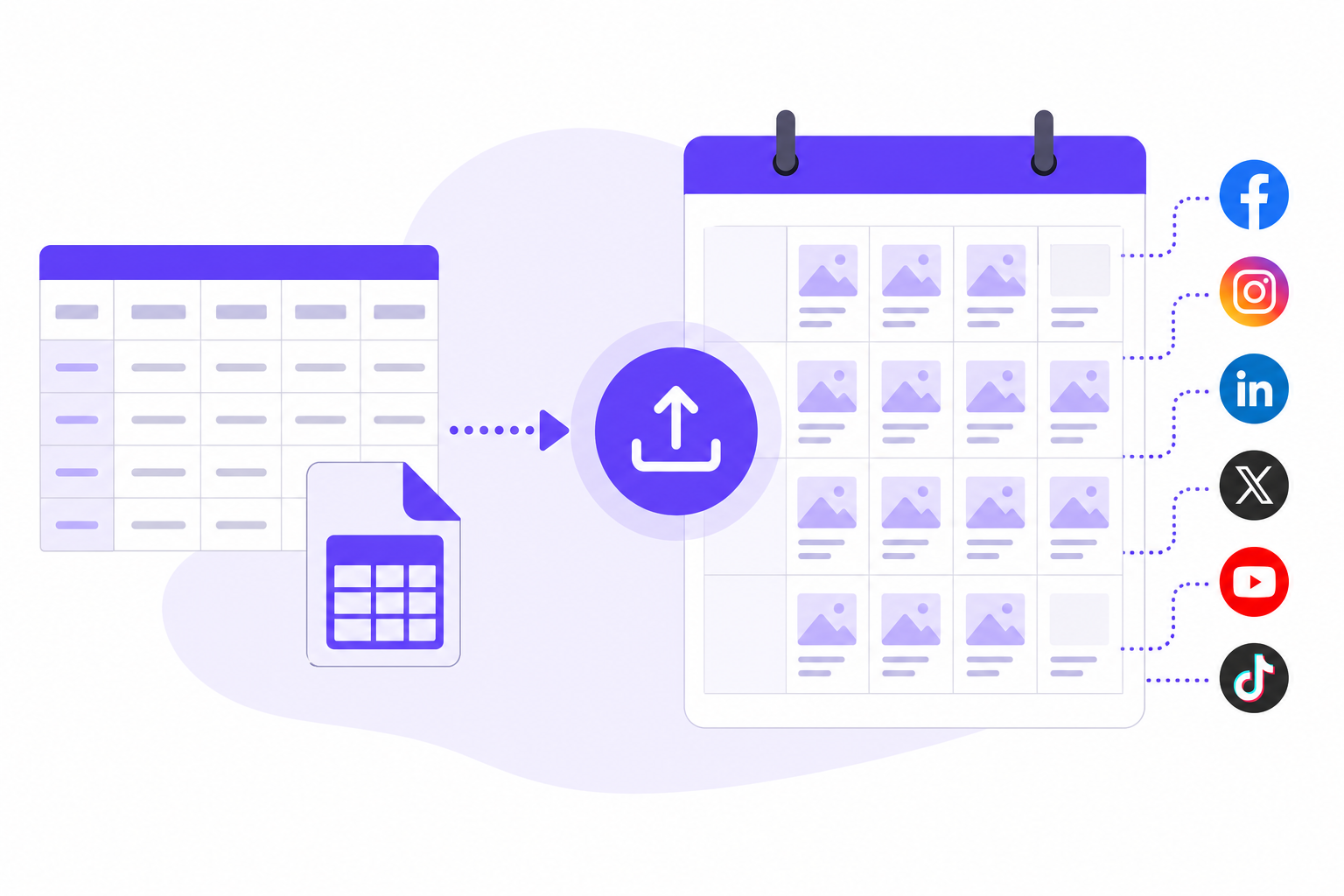
This guide walks you through that process using iHatePosting, which supports bulk CSV imports of up to 500 posts across 14 networks: Instagram, LinkedIn, X, Facebook, TikTok, YouTube, Pinterest, Bluesky, Threads, Mastodon, Telegram, Discord, Tumblr, and Slack. The steps below cover everything from building your spreadsheet to reviewing posts on the content calendar before they go live.
Step 1: Plan the Month in a Spreadsheet
Before you touch a CSV, map out what you actually want to publish. Open a blank spreadsheet and think in terms of three dimensions: what you are posting, where you are posting it, and when.
A practical starting structure looks like this:
- What: The caption, any hashtags, and the media file or URL
- Where: The network and specific account
- When: The date and time, in the time zone you will be scheduling from
Work through each week of the month and assign post slots. If you run campaigns, group posts by campaign name in a separate column so you can filter them later. This step is not about perfecting copy — it is about confirming you have the right number of posts for each network before you start formatting anything.
A month of daily posting across three networks is 90 rows. Add a few extras for peak days and you will still be well inside the 500-row limit.
Step 2: Build the CSV
With your plan in place, structure the spreadsheet to match the import template. iHatePosting provides a template inside the app — use it as your reference rather than guessing at column names or order.
Typical columns in a bulk scheduling CSV include:
- Caption: The post text. Write the version you want as your default here.
- Date/Time: The scheduled publish date and time. Use a consistent format throughout, such as YYYY-MM-DD HH:MM, and apply one time zone across the entire file.
- Platform/Account: The network or specific connected account you are targeting.
- Media: A URL or file path pointing to the image or video you want to attach.
Fill every row completely. Partial rows — where some columns are blank — are one of the most common reasons an import fails or produces unexpected results.
If you use hashtag groups in iHatePosting, you can reference them in the caption column rather than pasting the full hashtag list into every row. That keeps the spreadsheet readable and makes it easier to update a group later without editing 30 individual cells.
Step 3: Export From Excel or Google Sheets as CSV
Once the spreadsheet is complete, export it as a plain CSV file.
In Google Sheets: File > Download > Comma-separated values (.csv)
In Excel: File > Save As > choose CSV UTF-8 (Comma delimited) from the format dropdown
The UTF-8 encoding step matters. If your captions contain emoji, special characters, or text in non-Latin scripts, saving without UTF-8 will corrupt those characters on import. Always use UTF-8.
Before uploading, open the exported file in a plain text editor. Check that the first row is your header row, that commas are used as delimiters, and that no cells contain unintended line breaks. A caption with a hard return in the middle will split across two rows in the CSV, which breaks that post's data.
Step 4: Upload the CSV to iHatePosting
Navigate to the bulk import section of the app and upload your file. iHatePosting will parse the CSV and display a preview of the rows it has read.
At this stage, the app flags any rows it cannot process. Common issues include unrecognized date formats, missing required fields, or media URLs that cannot be reached. Work through the flagged rows before confirming. Fixing ten problem rows now is faster than tracking down ten failed posts after the fact.
Once the preview looks clean, confirm the import. The posts will appear in your content calendar, distributed across the dates and times you specified.
Step 5: Review on the Content Calendar
After import, switch to the content calendar view and look at the month as a whole. iHatePosting's visual calendar shows posts by week or month, and you can filter by campaign if you organized your CSV that way.
This view surfaces problems that are hard to spot in a spreadsheet: two posts scheduled at the same time on the same account, a five-day gap with nothing queued, or a campaign that front-loads the first week and goes quiet by the end of the month.
Drag and drop to adjust timing. Add individual posts to fill gaps. Delete duplicates. The calendar is the quality-control step — not a formality.
Step 6: Tailor Captions Per Platform
A bulk import gives you a starting caption for every post. That is not the same as a finished caption for every platform.
iHatePosting's per-platform caption editor lets you open any scheduled post and write a tailored version for each network without affecting the others. The composer shows a live preview of how the post will render on that network, along with a character counter so you can see at a glance whether a caption is too long for X or underusing LinkedIn's longer format.
For a month-long import, you do not need to tailor every single post. Focus where the difference matters most: LinkedIn posts that benefit from a more professional framing, X posts that need to be cut down, and Instagram posts where the caption structure differs from what you wrote for Facebook.
Posts going to Threads, Mastodon, or Bluesky often need small adjustments too, particularly around hashtag conventions and character limits that differ from the main networks.
Step 7: Confirm and Schedule
Once the calendar looks right and captions are tailored, confirm the schedule. Posts will publish automatically at their assigned times.
If you need to make a late change, open the post from the calendar, edit it, and save. Changes made before the scheduled time take effect. Changes made after a post has already published do not affect the live post — only the record in your calendar.
For teams using automation, iHatePosting supports Zapier, Make, n8n, webhooks, an API, and an MCP server, so you can connect the scheduling workflow to other tools in your stack if needed.
Common CSV Mistakes to Avoid
These errors appear repeatedly in bulk import workflows, regardless of which tool you use.
Date format inconsistency. Mixing formats in the same file — MM/DD/YYYY in some rows and DD-MM-YYYY in others — causes the parser to misread dates. Pick one format and apply it to every row.
Time zone ambiguity. If your CSV does not specify a time zone and your tool defaults to UTC, a post scheduled for 9:00 AM will publish at 9:00 AM UTC — which may be 2:00 AM or 5:00 PM in your actual market. Decide on a time zone before you build the file and apply it consistently.
Emoji and special character encoding. Save as UTF-8. Any other encoding will corrupt emoji and non-ASCII characters on import.
Captions that exceed network character limits. X's limit is far shorter than LinkedIn's. A caption that works on LinkedIn may be truncated or rejected on X. Check character counts for each network's posts before you upload, or use the per-platform editor after import to fix anything overlong.
Media URLs that require authentication. If your media is hosted behind a login or a private S3 bucket, the importer cannot fetch it. Use publicly accessible URLs, or upload media directly through the app.
Trailing spaces and invisible characters. Copying text from a design brief or a PDF sometimes brings along invisible formatting characters. Paste into a plain text editor first, then into your spreadsheet, to strip them out.
Start Your Free Trial
iHatePosting offers a 90-day free trial with no credit card required. There are no limits on connected accounts or scheduled posts during the trial, so you can run a full month's import immediately and see exactly how the workflow fits your operation.
Visit ihateposting.com to create your account and download the CSV template from inside the app before you build your first file.
Frequently Asked Questions
How many posts can I import in a single CSV upload?
iHatePosting supports up to 500 rows per bulk import. A typical month of daily posting across four or five networks will use well under that limit.
Can I import video, Reels, Shorts, and carousels through a CSV?
Yes. iHatePosting supports video, Reels, Shorts, and carousels. Reference the media in your CSV using a publicly accessible URL and the app will attach it to the scheduled post. Check the in-app template for the exact column format for media files.
What happens with time zones when I import a CSV?
The time zone applied to your scheduled posts depends on the setting in your account. Set your preferred time zone in account settings before you import, and make sure every date/time entry in your CSV reflects that same zone. Mixing zones in a single file is a reliable way to publish at the wrong time.
What are the most common reasons a CSV import fails?
Inconsistent date formats, missing required fields, media URLs that are not publicly accessible, and captions that exceed a network's character limit are the most frequent causes. The app will flag problem rows in the preview step before you confirm the import.
Can I edit posts after importing but before they publish?
Yes. Any post in the calendar can be opened and edited before its scheduled publish time. You can adjust the caption, swap the media, retarget a different account, or move it to a different time slot. Changes save immediately.
Do I need to write a separate caption for every platform in the CSV?
No. Write one default caption in the CSV. After import, use iHatePosting's per-platform caption editor to tailor individual posts for networks where the format or character limit differs. You only need to edit the posts where the difference is meaningful.
Is the 90-day free trial a permanent free plan?
No. It is a time-limited trial. Every new account gets 90 days of full access with no credit card required and no restrictions on connected accounts or scheduled posts. Paid plans are coming; pricing has not yet been published.
Keep reading
 Buffer vs Later vs Publer vs iHatePosting (2026): Which Social Media Scheduler Is Best for Creators?October 30, 2026
 Best Social Media Management Tools for Creators and Small Teams in 2026: An Honest ComparisonOctober 30, 2026
 Metricool vs Publer for Creators Managing Many Accounts (2026): Where iHatePosting's Flat-Rate Option FitsOctober 30, 2026